
IPTV on Roku: 4 Ways to Watch IPTV on Roku (2026 Guide)
This guide may contain affiliate links. If you buy through them we may earn a commission at no extra cost to you. As an Amazon Associate I earn from qualifying purchases. Learn more.
Lessons 20 of 20
Quick Overview: Roku cannot install Android apps, so popular IPTV players like TiviMate or IPTV Smarters do not run on it. You still have four ways to watch IPTV on Roku: use a live TV app from the Roku Channel Store (if your provider has one), mirror your phone or computer to the TV, use AirPlay from an iPhone or Mac, or plug a Fire TV Stick or Android TV device into a spare HDMI port. For daily viewing, the last option gives the best experience.
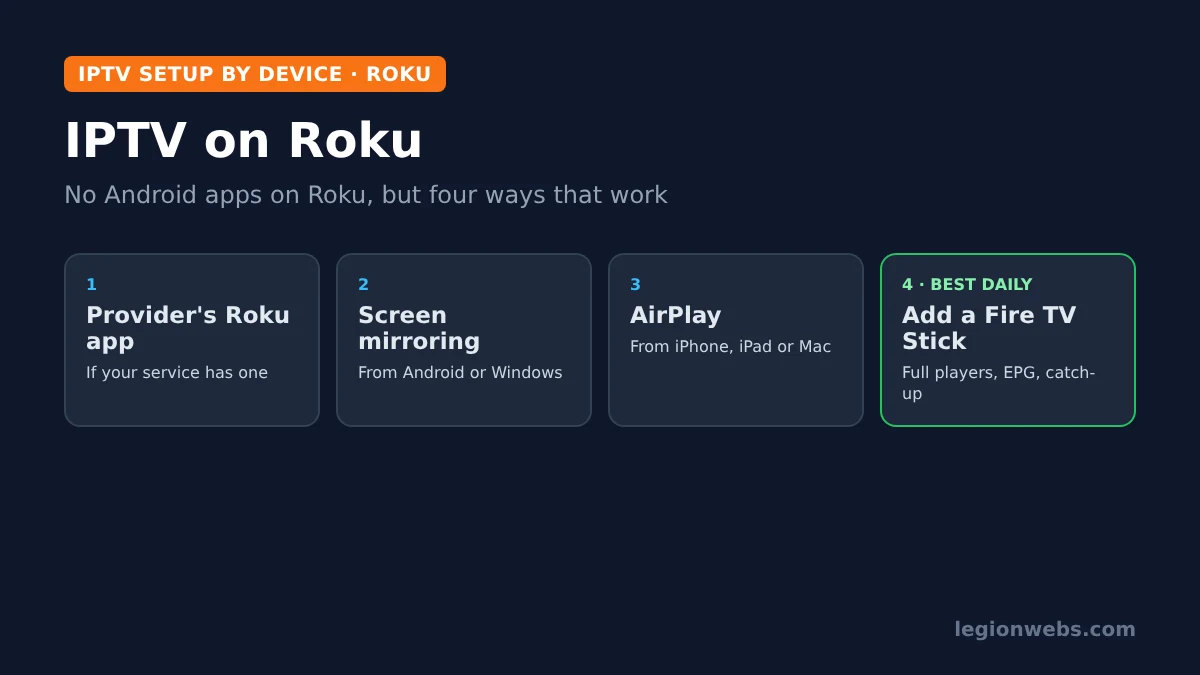
Roku is one of the easiest streaming devices to use, and many people already have one built into their TV. However, when you try to set up an IPTV subscription, you quickly hit a wall: the player apps most providers recommend simply are not there. In this lesson, you will learn why IPTV on Roku is different, which methods work, how to set up each one step by step, and when it makes more sense to add a second device.
What you need: a Roku device or Roku TV, your IPTV login details (M3U link or Xtream Codes login) from a licensed provider, and, depending on the method, an Android phone, Windows PC, iPhone, Mac, or a Fire TV Stick.
Why IPTV on Roku is different
Fire TV and Android TV devices run Android apps, so you can install almost any IPTV player. Roku uses its own system, Roku OS, and apps come only from the Roku Channel Store. As a result, there is no APK installation and no Downloader app.
Roku does have a developer mode, but it is meant for developers testing their own apps. According to How-To Geek, you can only have one sideloaded app at a time, and very few ready-made apps exist for it. For this reason, it is not a practical way to run IPTV, so this lesson skips it.
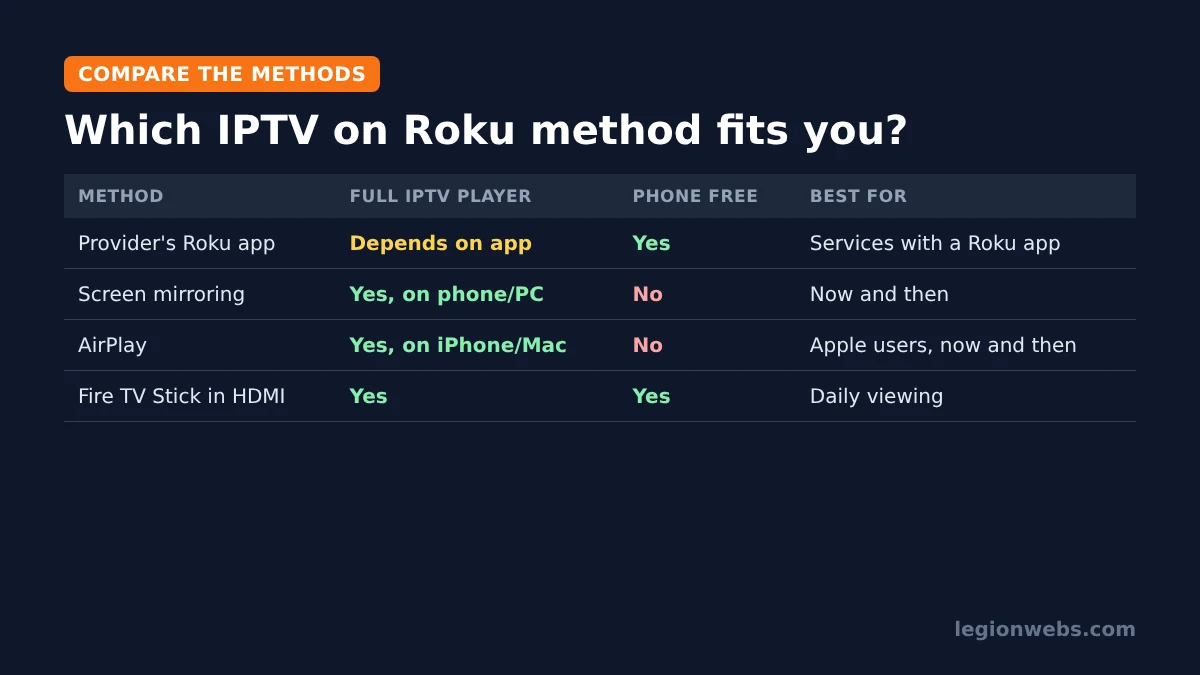
| Method | Best for | Ease | Main downside |
|---|---|---|---|
| Provider app in the Roku Channel Store | Services with their own Roku app | Easy | Only some providers offer one |
| Screen mirroring (Android, Windows) | Occasional viewing | Easy | Phone or PC stays busy; lower quality |
| AirPlay (iPhone, iPad, Mac) | Apple users, occasional viewing | Easy | Same as mirroring; model support varies |
| Add a Fire TV Stick or Android TV device | Daily viewing with a full player | Medium | Small extra cost |
Method 1: Use your provider’s Roku app
Many licensed live TV services, such as Sling TV, YouTube TV and Philo, have official apps in the Roku Channel Store. In addition, the free Live TV guide on the Roku home screen includes channels from The Roku Channel. If your IPTV provider offers its own Roku app, this is the simplest option:
- On the Roku home screen, open Search (or the Streaming Store).
- Type your provider’s name and select its app.
- Choose Add app and wait for it to install.
- Open the app and sign in with the details from your provider.
You may also find general “M3U player” apps in the store. However, these come and go, and quality varies a lot, so read recent reviews before paying for one. If your provider gives you only an M3U link or Xtream Codes login, the other methods below are usually more reliable.
Method 2: Mirror an Android phone or Windows PC
Screen mirroring shows your phone or computer screen on the TV, so you can use any IPTV player you already have there. According to Roku’s support guide, it works with most Android 10+ phones and Windows 10 and 11 computers. Note that the Roku Express 3700 and Express+ 3710 do not support it.
- Connect your phone or PC to the same Wi-Fi network as the Roku.
- Open your IPTV player on the phone or PC, for example IPTV on PC with VLC.
- Android: pull down the quick settings and tap Smart View, Screen cast or similar, then pick your Roku. Windows 11: press Win + K and select your Roku.
- On the TV, choose Allow or Always allow with the Roku remote.
- Start playback and switch the player to full screen.
When you are finished, press Home on the Roku remote or disconnect on your phone or PC.
Method 3: Use AirPlay from an iPhone, iPad or Mac
Many Roku TVs and streaming players support Apple AirPlay. Roku’s AirPlay guide lists the compatible models and requires iOS 12.3 or later on the iPhone.
- On the Roku, go to Settings > Apple AirPlay and HomeKit and make sure AirPlay is On.
- Put your iPhone and Roku on the same Wi-Fi network.
- Open your IPTV player on the iPhone (see IPTV on iPhone).
- Tap the AirPlay icon in the player, or open Control Center > Screen Mirroring, and choose your Roku.
- Enter the code shown on the TV if asked.
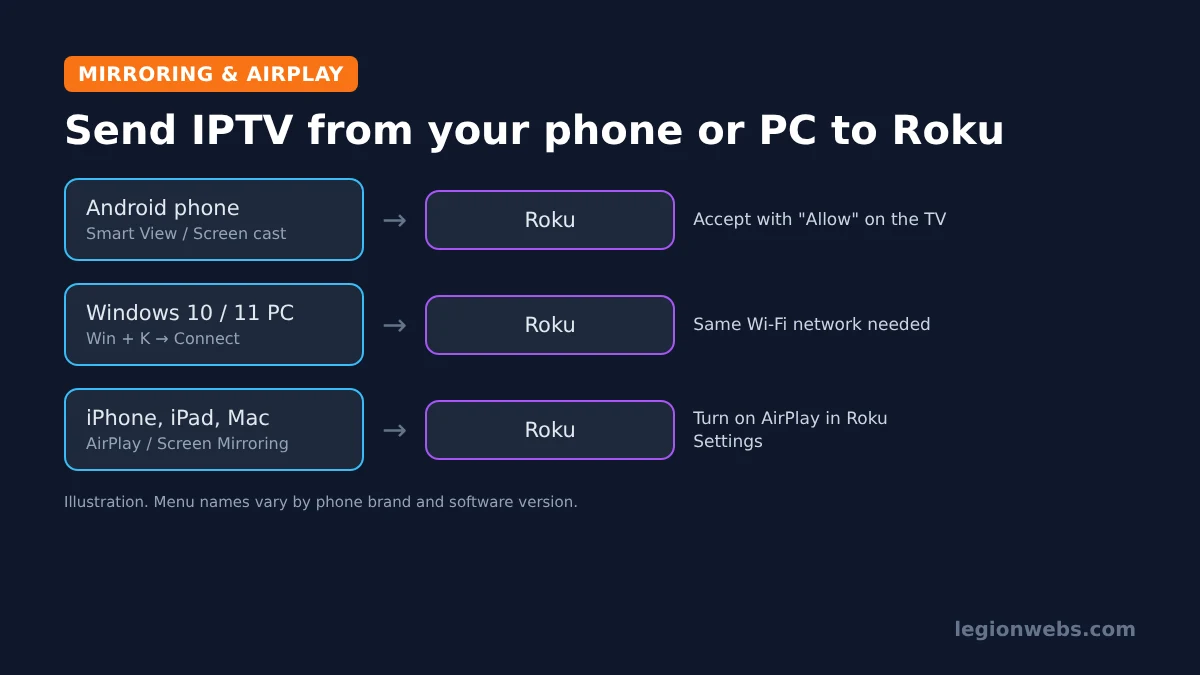
Mirroring and AirPlay are fine for a film or a match now and then. However, your phone must stay on and nearby, battery use is high, and picture quality depends on your Wi-Fi. For everyday viewing, the next method is much better.
Method 4: Add a Fire TV Stick or Android TV device
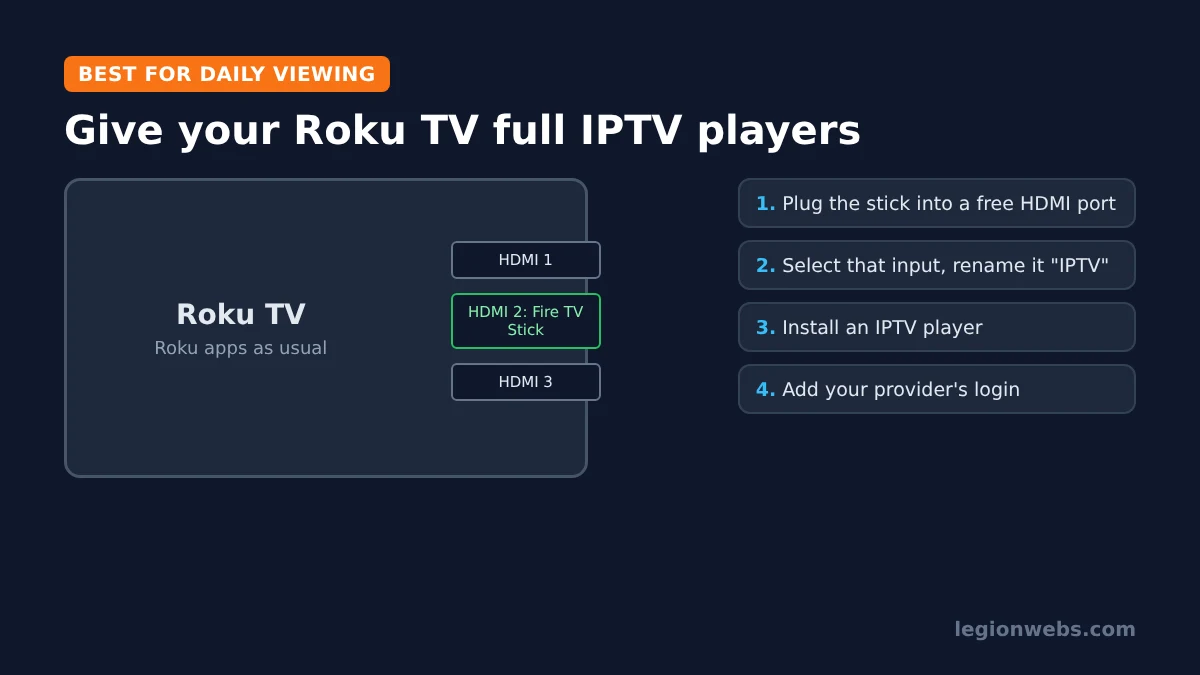
This is the fix most Roku owners end up with. A Fire TV Stick plugs into a free HDMI port on your Roku TV (or next to your Roku player) and runs full IPTV players with an EPG, favorites and catch-up. Meanwhile, you keep using Roku for your other apps and simply switch the TV input when you want IPTV.
- Plug the Fire TV Stick into a free HDMI port and connect its power adapter.
- On a Roku TV, select the new HDMI input from the home screen. Rename it, for example “IPTV”, so it is easy to find.
- Set up the stick and install a player using our IPTV on Firestick guide.
- Add your M3U link or Xtream Codes login from your provider.
Not sure which model to pick? Our Fire TV Stick 4K Max vs 4K Select lesson compares them, and Fire Stick vs Roku explains the wider differences. For example, the Fire TV Stick 4K Select is a budget-friendly choice for most TVs.
Disclosure: Legion Webs earns from qualifying Amazon purchases through these links, at no extra cost to you.
Is IPTV on Roku legal?
The methods themselves are legal: mirroring, AirPlay and IPTV player apps contain no channels. Instead, what matters is the service you subscribe to. Only use licensed IPTV providers that have the rights to the channels they offer. Our how to choose an IPTV service lesson explains what to look for.
IPTV on Roku: problems and fixes
| Problem | Likely cause | Fix |
|---|---|---|
| Roku does not appear for mirroring | Different Wi-Fi network or unsupported model | Use the same network; check the model under Settings > System > About |
| Mirroring was blocked | “Always block” was chosen earlier | Change it under Settings > System > Screen mirroring |
| AirPlay option missing | AirPlay is off or the model is not supported | Turn it on under Settings > Apple AirPlay and HomeKit |
| Mirrored picture stutters | Weak Wi-Fi between phone, router and Roku | Move closer to the router or use the 5 GHz band |
| Streams buffer on the Fire TV Stick | Slow connection or busy server | See our IPTV buffering fixes |
IPTV on Roku: FAQ
Can I install TiviMate or IPTV Smarters on Roku?
No. Both are Android apps, and Roku cannot install them. Therefore, use them on a Fire TV Stick or Android TV device.
Can I add an M3U link to Roku directly?
Only through a Roku Channel Store app that supports M3U playlists. Availability changes, so check the store and recent reviews first.
Does screen mirroring work on every Roku?
Most models support it, but Roku lists the Express 3700 and Express+ 3710 as exceptions. iPhones use AirPlay instead.
Is a Fire TV Stick better than Roku for IPTV?
For IPTV, yes, because it runs full players with EPG and catch-up. Still, Roku remains great for mainstream streaming apps.
Should I use a VPN for IPTV on Roku?
Unfortunately, Roku has no VPN apps. If you want one, use it on the Fire TV Stick or your phone; see VPN for IPTV.
What’s next
- IPTV on Firestick: the full setup for the best Roku add-on.
- Best IPTV app for Fire Stick: which player to install.
- IPTV devices: how other streaming devices compare.
- IPTV on Samsung and LG smart TVs: if you also have a smart TV.
Free download
Firestick + IPTV Setup Checklist
Two printable pages: install, login, the settings that make it faster and quick fixes for buffering and an empty guide.
We'll send occasional new guides. No spam, unsubscribe any time. Privacy