
TiviMate Not Working? 6 Fixes for Every Common Problem
This guide may contain affiliate links. If you buy through them we may earn a commission at no extra cost to you. As an Amazon Associate I earn from qualifying purchases. Learn more.
Lessons 15 of 15
Quick Overview: When TiviMate is not working, first find the symptom: no channels, an empty TV guide, buffering, a crash, or Premium features that are locked. Then apply the matching fix. Most problems come from an expired or changed playlist, an EPG source that is not linked, a weak connection, a full cache or a Premium account signed in on the wrong device. This lesson covers each one, in order, with the exact steps.
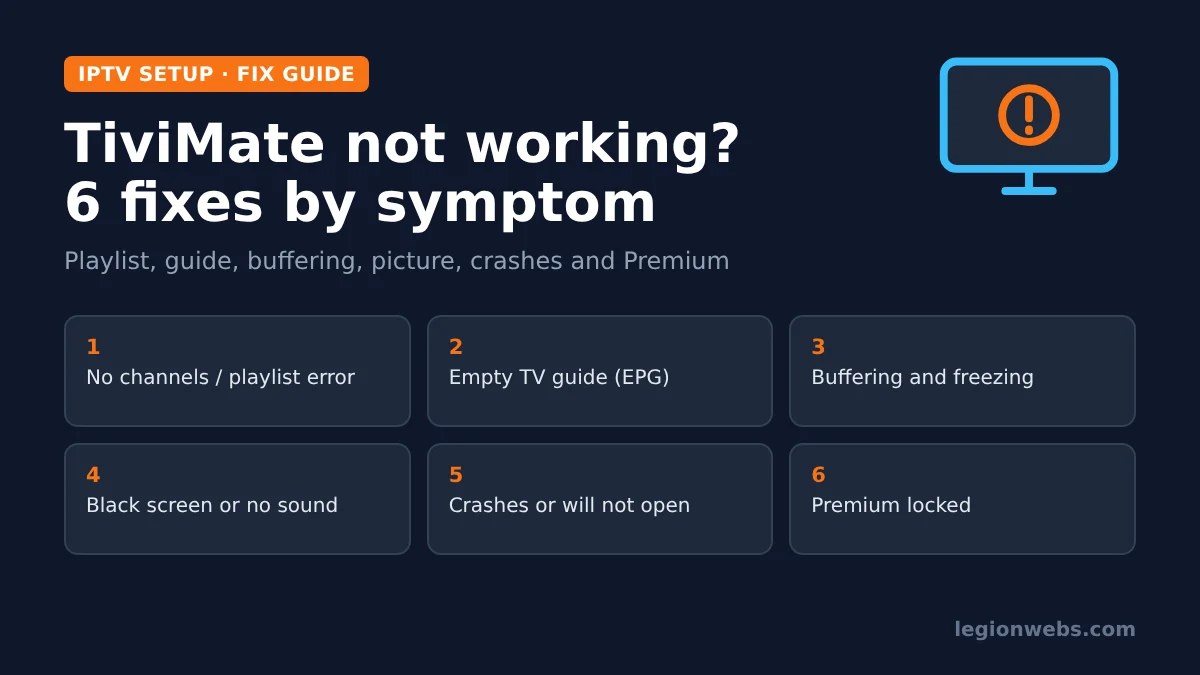
TiviMate is one of the most reliable IPTV players on Fire TV and Android TV, so when it stops working, the app itself is rarely broken. Instead, the cause is usually outside it: the playlist your provider gave you, the guide source, your network or the storage on your device. Because of that, the quickest route is to match what you see on screen to a cause, rather than reinstalling straight away.
The steps below work on Fire TV Sticks running Fire OS, on Android TV and Google TV boxes, and on NVIDIA Shield. Menu names can differ slightly between TiviMate versions, so where a label varies, we describe what the option does as well.
Good to know: TiviMate has no channels of its own. It plays the playlist from your IPTV provider, so only use a service that is licensed to offer its channels.
What you need
- Your device with TiviMate installed (see TiviMate on Firestick if you are starting from scratch)
- Your playlist details from your provider: the Xtream Codes server, username and password, or the M3U link
- The EPG (guide) link, if your provider gave you one separately
- About 10 to 20 minutes
TiviMate not working? Find your symptom first
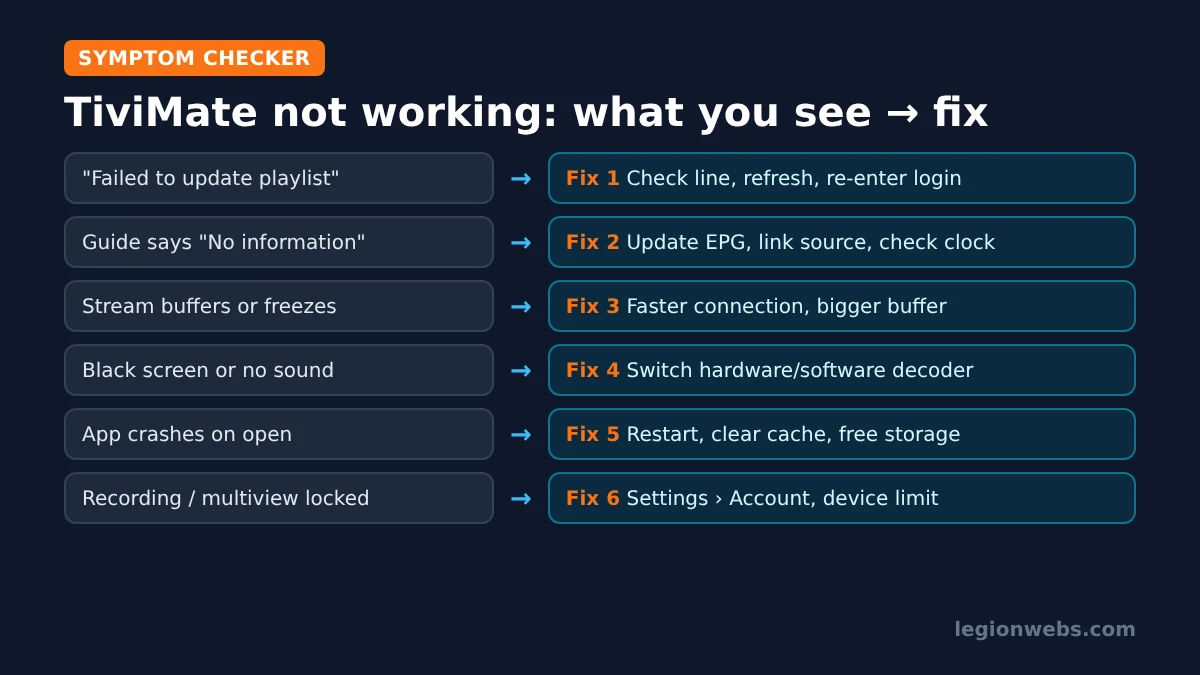
Use this table to jump straight to the right fix. If several things are wrong at once, start with the playlist, because a broken playlist also breaks the guide and playback.
| What you see | Most likely cause | Go to |
|---|---|---|
| No channels, or “failed to update playlist” | Expired subscription, changed link or wrong login | Fix 1 |
| Channels load, but the guide says “No information” | EPG not linked, out of date or wrong time | Fix 2 |
| Channels start, then buffer or freeze | Slow or unstable connection, busy server | Fix 3 |
| Black screen, no picture or no sound | Decoder setting or stream format | Fix 4 |
| App crashes or will not open | Corrupted cache, low storage or old version | Fix 5 |
| Recording, multiview or extra playlists locked | Premium not active on this device | Fix 6 |
Fix 1: TiviMate shows no channels or fails to update the playlist
If the channel list is empty or TiviMate reports that it failed to update the playlist, the app cannot download your playlist. In most cases, the subscription has expired, the provider changed the server address, or a username or password is mistyped. Work through these steps in order:
- Check the subscription. Log in to your provider’s customer area or ask their support whether your line is active. This alone explains many cases.
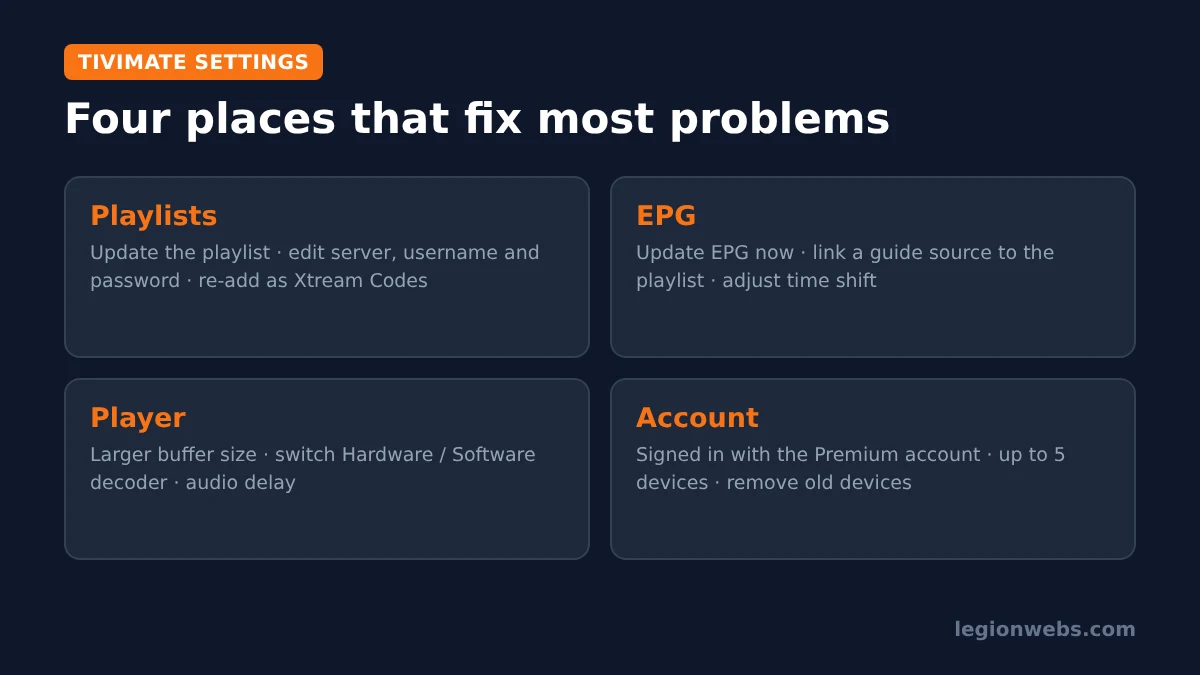
- Refresh the playlist. Open TiviMate Settings > Playlists, select your playlist and choose the option to update (or refresh) it.
- Check the login details. Edit the playlist and compare the server address, username and password with what your provider sent you. Server addresses usually start with http:// and end with a port number, such as :8080.
- Prefer Xtream Codes over M3U. If you added a long M3U link, try adding the same subscription again as an Xtream Codes playlist. It loads faster and also pulls in the guide automatically.
- Test the playlist elsewhere. Add it to another player, such as IPTV Smarters Pro. If it fails there too, the problem is the playlist, not TiviMate, so contact your provider.
Some errors include a number. These are standard web error codes from the provider’s server, and they point you in the right direction:
| Error code | What it usually means | What to do |
|---|---|---|
| 401 | The server does not accept your login | Re-enter the username and password exactly |
| 403 | Access refused, often an expired line or too many connections | Check the subscription and close the app on other devices |
| 404 | The address no longer exists | Ask your provider for the current server address |
| 5xx (500, 502, 503) | A problem on the provider’s server | Wait a few minutes, then try again; if it lasts, contact the provider |
Fix 2: TiviMate not working with the TV guide (EPG)
Channels that play but show “No information” in the guide point to the EPG, the electronic programme guide. Therefore, the playlist is fine and only the guide data is missing.
- Update the guide. Go to Settings > EPG and choose the option to update EPG now.
- Check that a source is linked. Xtream Codes playlists usually bring their guide with them. With an M3U playlist, however, you often need to add the EPG link yourself under Settings > EPG, then link it to your playlist.
- Check the device clock. If the time or time zone on your Fire Stick is wrong, the guide shows old or future shows. On Fire TV, open Settings > Preferences > Time Zone and make sure it matches where you are.
- Fix a time offset. If every show is shifted by the same number of hours, adjust the time shift option for that EPG source in TiviMate.
- Accept partial gaps. If only a few channels are blank, the provider’s guide simply does not cover them.
For a deeper walkthrough, including how to add a second guide source, see EPG not loading and how to add EPG to IPTV.
Fix 3: TiviMate not working smoothly (buffering and freezing)
Buffering means the stream arrives more slowly than TiviMate plays it. Consequently, the fix is either a faster, steadier connection or a bigger buffer.
- Test your speed on the device. HD channels usually need a steady 10 Mbps or more, and 4K channels much more. Test in the evening, when networks are busiest.
- Improve the connection. Move the router closer, use the HDMI extender, or switch to an Ethernet adapter. Our Fire Stick WiFi fixes help here.
- Increase the buffer. In TiviMate’s player settings, set the buffer size to a larger value. This adds a short delay when you change channel, but it smooths out playback.
- Try another stream. If only one channel buffers, the problem is that channel’s source. Many providers offer a backup or lower-quality version of popular channels.
- Check for evening slowdowns. If buffering only happens at peak times on every channel, your internet provider may be slowing streaming traffic. In that case, a VPN can help; see VPN for IPTV.
Our full guide to fixing IPTV buffering on Firestick covers more network tweaks.
Fix 4: Black screen, no picture or no sound
If a channel connects but shows a black screen, or you hear sound without a picture, the video decoder may not handle that stream. TiviMate lets you switch between the hardware decoder (your device’s video chip) and a software decoder.
- Open TiviMate Settings and go to the player (playback) settings.
- Find the video decoder option and switch from Hardware to Software, or the other way round.
- Go back and play the same channel again.
Similarly, if the sound is out of sync with the picture, open the player menu during playback and adjust the audio delay. If you hear no sound at all on some channels, check the audio track option in the same menu, because some channels carry more than one language.
Fix 5: TiviMate not working at all (crashes or will not open)
Crashes are usually caused by a corrupted cache, a nearly full device or an old version of the app. Try these steps in order, and test the app after each one:
- Restart the device. On Fire TV, go to Settings > My Fire TV > Restart.
- Clear the cache. On Fire TV, open Settings > Applications > Manage Installed Applications > TiviMate and select Clear cache. This keeps your playlists and settings. Do not choose Clear data yet, because that wipes your setup.
- Free up storage. A Fire Stick with very little free space becomes unstable. See Fire Stick storage full for safe ways to free space.
- Update TiviMate. Install the latest version from the same official source you used before.
- Back up, then reset. If it still crashes, make a backup in TiviMate (a Premium feature) or note down your playlist details, then use Clear data and set it up again.
Android Central’s guide to clearing app cache on Fire TV shows the cache screens with pictures, if you want a visual reference.
Fix 6: TiviMate Premium not working
If recording, catch-up, multiview or extra playlists are locked even though you paid, TiviMate does not see Premium on this device. Premium is tied to your TiviMate account, and one account covers up to 5 devices.
- Open TiviMate Settings > Account and check that you are signed in with the same account you used to buy Premium.
- If it shows the free version, sign out and sign in again with the correct account.
- If you already use Premium on 5 devices, remove an old device you no longer use from your account, then sign in on the new one.
- Still locked? Contact TiviMate support through the official channels with your purchase details.
Warning: “unlocked” or “free Premium” versions found on random websites are modified copies. They often break after an update, cannot be fixed by support and may carry malware. If yours stopped working, that is likely the reason; install the official app instead.
Last resort: reinstall TiviMate
Only reinstall when nothing else has worked, because it removes your playlists, favourites and settings. Before you start, write down your playlist and EPG details, or make a backup if you have Premium. Then uninstall TiviMate, restart the device, and install it again by following TiviMate on Firestick.
Finally, if TiviMate still will not play your channels after a clean install, the problem is almost certainly the provider’s service. In that case, ask them to check your line, or compare players in TiviMate vs IPTV Smarters.
TiviMate not working: FAQ
Why does TiviMate say “failed to update playlist”?
Usually because the subscription has expired, the provider changed the server address, or the login details are wrong. Check your line with the provider, then edit the playlist in Settings > Playlists.
Why is the TiviMate guide empty?
The EPG is not linked, is out of date, or your device clock is wrong. Update the EPG, link a source to your playlist and check the time zone.
Does TiviMate work on the Fire TV Stick 4K Select?
No. The 4K Select runs Vega OS, which cannot install Android apps such as TiviMate. Use a Fire OS stick, an Android TV box, or an IPTV player built for Vega OS.
Will clearing the cache delete my playlists?
No. Clearing the cache only removes temporary files. Clear data, by contrast, deletes your playlists and settings, so use it only as a last step.
Can a VPN stop TiviMate from working?
Yes, if your provider blocks VPN servers. Try a different VPN server, or put TiviMate in your VPN’s split tunneling list so that it uses your normal connection.
What’s next
- EPG not loading: every fix for an empty or wrong TV guide.
- Fix IPTV buffering on Firestick: network fixes for smoother streams.
- IPTV Smarters not working: the same approach for IPTV Smarters Pro.
- TiviMate vs IPTV Smarters: which player suits you better.
Free download
Firestick + IPTV Setup Checklist
Two printable pages: install, login, the settings that make it faster and quick fixes for buffering and an empty guide.
We'll send occasional new guides. No spam, unsubscribe any time. Privacy