
How to Install TiviMate on Firestick (2026): Setup, Premium & Best Settings
This guide may contain affiliate links. If you buy through them we may earn a commission at no extra cost to you. As an Amazon Associate I earn from qualifying purchases. Learn more.
Lessons 5 of 13
Quick Overview: TiviMate is an IPTV player that looks and works like a cable TV box: a full TV guide, fast channel zapping and, with Premium, recording and multiview. It is listed on Google Play for Android TV devices, but it is not in the Amazon Appstore, so on Firestick you install TiviMate from the official website with Downloader. Then you add your provider’s playlist. Allow about 15 minutes.
Many people switch to TiviMate after trying other players because the TV guide is the best in its class. In this lesson you will install TiviMate on Firestick, connect your IPTV subscription, decide whether Premium is worth it, and set it up for smooth playback.
Good to know: like every IPTV player, TiviMate has no channels of its own. It plays the playlist from your IPTV provider, so use a service that is licensed to offer its channels.
What you need
- A Fire TV device running Fire OS (not the Fire TV Stick 4K Select or the 2nd-gen HD, which run Vega OS)
- Downloader, set up as in our Downloader lesson
- Your IPTV login: Xtream Codes details or an M3U link
- About 15 minutes
TiviMate vs IPTV Smarters: which one should you use?
| TiviMate | IPTV Smarters Pro | |
|---|---|---|
| Best at | TV guide and live TV | Movies and series menus |
| Price | Free, Premium is a paid upgrade | Free |
| Recording | Yes, with Premium | Limited |
| Ease for beginners | Easy after setup | Very easy |
| Our tip | Pick it if you mostly watch live channels | Pick it if you mostly watch on-demand content |
Not sure? You can install both. Our IPTV Smarters Pro lesson takes ten minutes.
Step 1: Download TiviMate on Firestick from the official website
- Open Downloader.
- Select the address bar, type tivimate.com and select Go. The official TiviMate website then opens inside Downloader.
- Next, open the site’s download section and select the APK for Android TV / Fire TV.
- Finally, wait for the download to finish.
Avoid copycat sites. Search results are full of look-alike “TiviMate” websites that offer “free Premium” or modified files. They are not official, and modified apps can carry malware. If a site promises free Premium, close it.
Step 2: Install TiviMate
- When the install screen appears, select Install.
- When it says App installed, select Done.
- Then delete the installer file in Downloader to free up storage.
Tip: find TiviMate at the end of Your Apps & Channels, press the menu button (three lines) and choose Move to put it on your home screen.
Step 3: Add your playlist in TiviMate on Firestick
When you open TiviMate for the first time, it asks you to add a playlist. Choose the type your provider gave you.
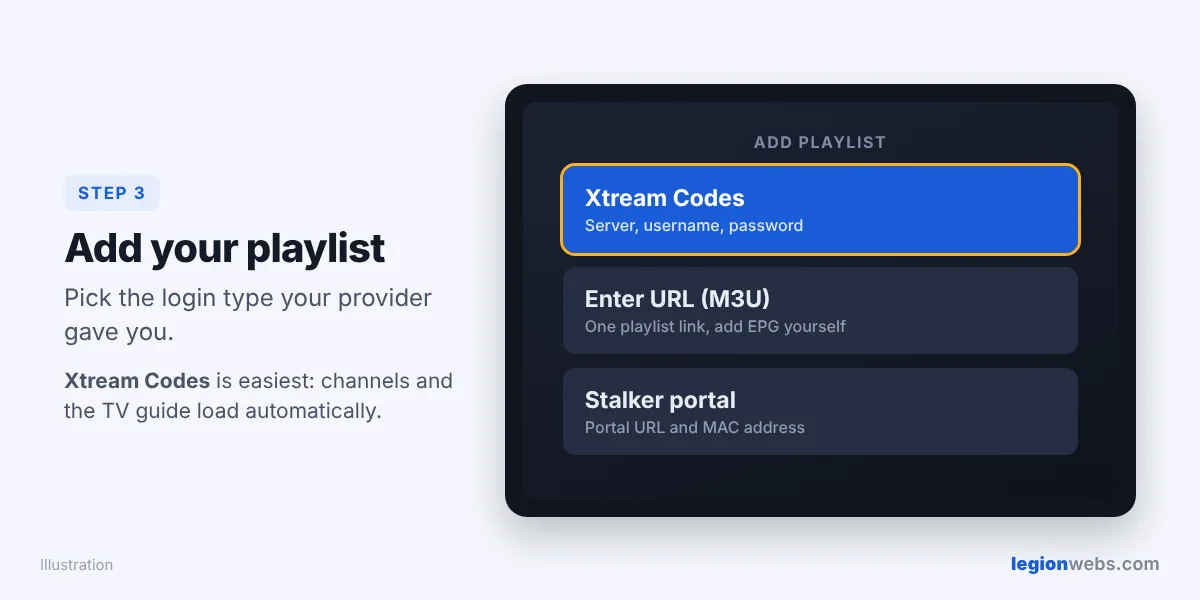
Option A: Xtream Codes (recommended)
- Select Xtream Codes.
- Enter the server address (with http:// and the port), your username and your password.
- Select Next. TiviMate shows how many channels, movies and series it found.
- Give the playlist a name, for example Home TV, and select Done. The TV guide loads automatically.
Option B: M3U playlist link
- Select Enter URL, then type or paste your M3U link.
- Select Next, name the playlist and continue.
- If the guide stays empty, add the EPG link from your provider under Settings → EPG.
Typing a long link with the remote is slow. However, many providers send short links or let you log in with Xtream Codes instead, which is much quicker.
Step 4: Learn the main screen
| Area | What it does |
|---|---|
| TV guide | Scroll channels up and down and time left and right, like a cable box |
| Groups | Categories from your provider, for example Sports or News; hide the ones you never watch |
| Favorites | Long-press a channel and add it to Favorites for quick access |
| Search | Find a channel or show by name |
| Recordings | Scheduled and saved recordings (Premium) |
TiviMate Premium: is it worth it?
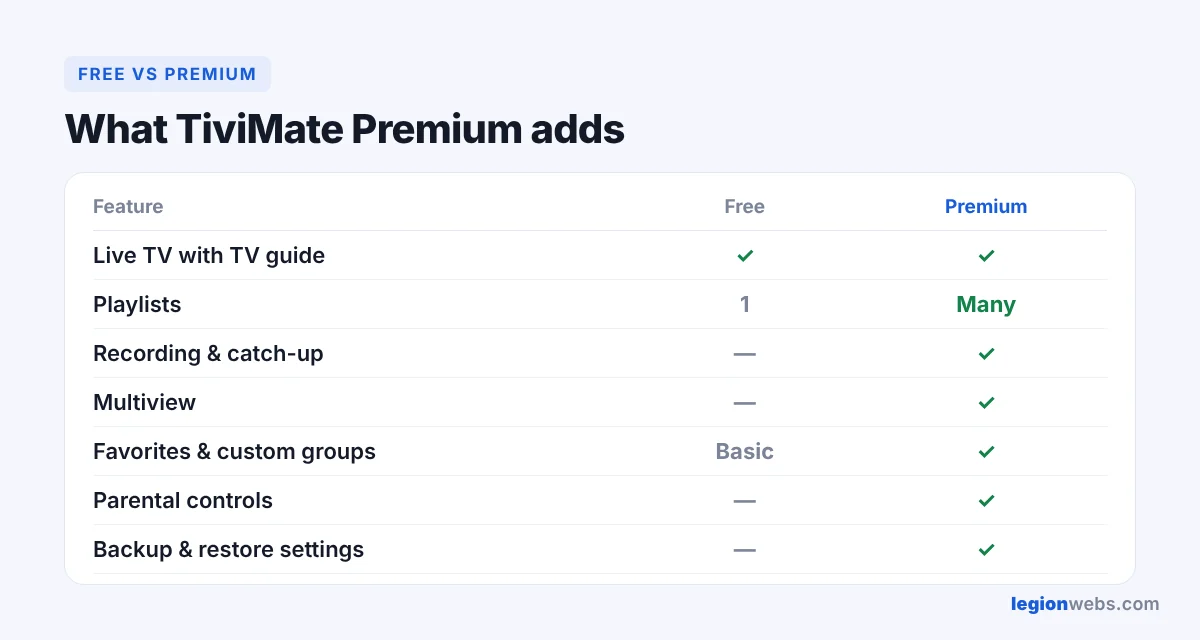
The free version is enough to watch live TV with the guide. Premium unlocks multiple playlists, recording, catch-up, multiview, parental controls and backups, and one Premium account covers up to 5 devices. It is sold as a yearly or a lifetime plan, and prices have changed several times, so check the current price under Settings → Account in the app before you buy.
Buy Premium only through the official account page in the app. “Free Premium” or “lifetime unlocked” versions found online are modified copies: they break easily, and you have no support.
Step 5: Best settings for TiviMate on Firestick
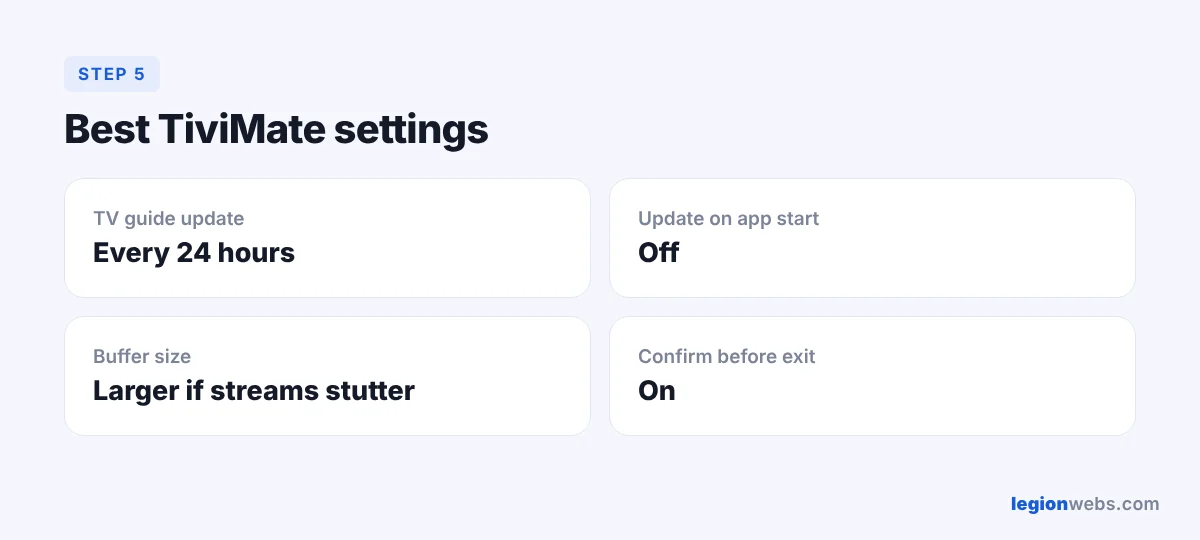
- Settings → EPG → Update interval: every 24 hours is enough for most providers.
- Update on app start: turn it off so TiviMate opens faster.
- Settings → Playback → Buffer size: if streams stutter, try a larger buffer.
- Exit confirmation: turn on the setting that asks before closing the app, so the Back button does not close TiviMate by mistake.
- Hide unused groups: a shorter channel list makes the guide faster to browse.
Troubleshooting
| Problem | Fix |
|---|---|
| “Incorrect login” or no channels found | Check the server address includes http:// and the port, and retype the username and password. Ask your provider whether the account is active. |
| TV guide is empty | Go to Settings → EPG, check the EPG source and select Update EPG. With M3U, add the EPG link from your provider. |
| Buffering | Try a larger buffer size, restart the Fire TV Stick, and test your connection. An Ethernet adapter helps a lot. |
| Premium not recognised | Sign in to the same TiviMate account you used to buy Premium, under Settings → Account. |
| App will not install | Your device may run Vega OS, or the file was incomplete. See our Downloader lesson. |
For a second walkthrough that also covers TiviMate on Android TV boxes and phones, see the TiviMate setup guide on 8K IPTV Group.
Frequently Asked Questions
Is TiviMate free?
Yes, the basic player is free. Premium is an optional paid upgrade that adds recording, multiple playlists and more.
Is TiviMate legal?
Yes. TiviMate is a legal media player and does not provide any channels. The service you load into it is what needs to be licensed.
Is TiviMate in the Google Play Store?
Yes, on Google Play for Android TV devices (developer Armobsoft FZE). Fire TV uses the Amazon Appstore instead, where TiviMate is not available, so Fire TV users install it from the official website with Downloader.
Does TiviMate work on every Firestick?
It works on every Firestick that runs Fire OS, such as the Fire TV Stick 4K Max, 4K Plus and the Fire TV Cube. It does not work on Vega OS models such as the Fire TV Stick 4K Select.
Can I use TiviMate Premium on more than one device?
Yes. One Premium account covers up to 5 devices. Sign in with the same TiviMate account on each one.
What’s next
Your TV guide is ready. Next, see how to optimise IPTV on your Fire TV Stick. Still need a service? Try one first with a free IPTV trial.