
IPTV on iPhone: Best Players and Setup Guide
This guide may contain affiliate links. If you buy through them we may earn a commission at no extra cost to you. As an Amazon Associate I earn from qualifying purchases. Learn more.
Lessons 16 of 17
Quick Overview: To watch IPTV on iPhone, install an IPTV player from the App Store (we compare IPTVX, UHF and Smarters Player Lite below), add the Xtream Codes login or M3U link from your provider, and let the TV guide load. Then watch on the phone, pop the stream out with Picture in Picture, or send it to your TV with AirPlay. Setup takes about 10 minutes, and the same steps work on iPad.
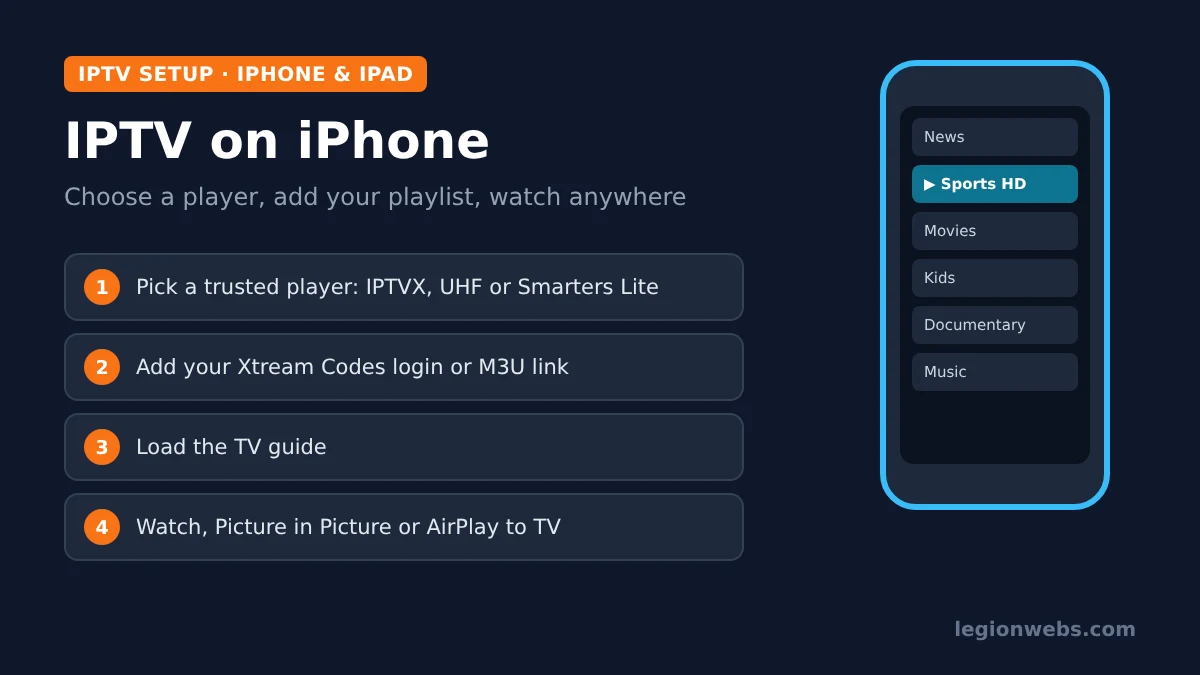
An iPhone makes a surprisingly good IPTV screen: it is always with you, the display is sharp, and AirPlay can throw the picture to a TV in seconds. However, Apple does not include an IPTV player, and popular Android players such as TiviMate do not exist on iOS. So the first job is picking the right app, and that is where most people go wrong, because the App Store is full of look-alike players.
In this lesson, you will choose a trustworthy player, install it, add your subscription, load the guide and set it up for the best picture on Wi-Fi and mobile data. After that, a troubleshooting table covers the common problems.
Good to know: an IPTV player has no channels of its own. Every app below says so in its App Store listing. It plays the playlist from your IPTV provider, so only use a service that is licensed to offer its channels.
What you need
- An iPhone or iPad on a recent iOS version (iOS 16 or later covers all three apps below)
- Your playlist details from your provider: Xtream Codes server, username and password, or an M3U link
- The EPG (TV guide) link, if your provider gave you one separately
- Wi-Fi for setup, and an Apple TV or AirPlay-compatible TV if you want to watch on the big screen
Step 1: Choose an IPTV player for iPhone
These three players are established, actively listed on the App Store, and support the two playlist types IPTV providers use. All three are free to download, with optional paid upgrades; prices change, so check the current price in the App Store.
| Player | Developer (check this) | Playlists | Stand-out features | Best for |
|---|---|---|---|---|
| IPTVX | Bending X – FZE | Xtream, M3U, M3U8 | TV guide grid, catch-up, multi-screen, Picture in Picture, AirPlay 2, iCloud sync | The most complete experience |
| UHF – Love your IPTV | Short Wavelength Applications SL | Xtream, M3U8 | Touch-friendly guide, Picture in Picture, AirPlay and Chromecast, Plex and Jellyfin support | A clean, modern app |
| Smarters Player Lite | WHMCS SMARTERS | M3U (and other standard formats) | Familiar IPTV Smarters layout, TV guide, optional Premium upgrade | Anyone who knows IPTV Smarters |
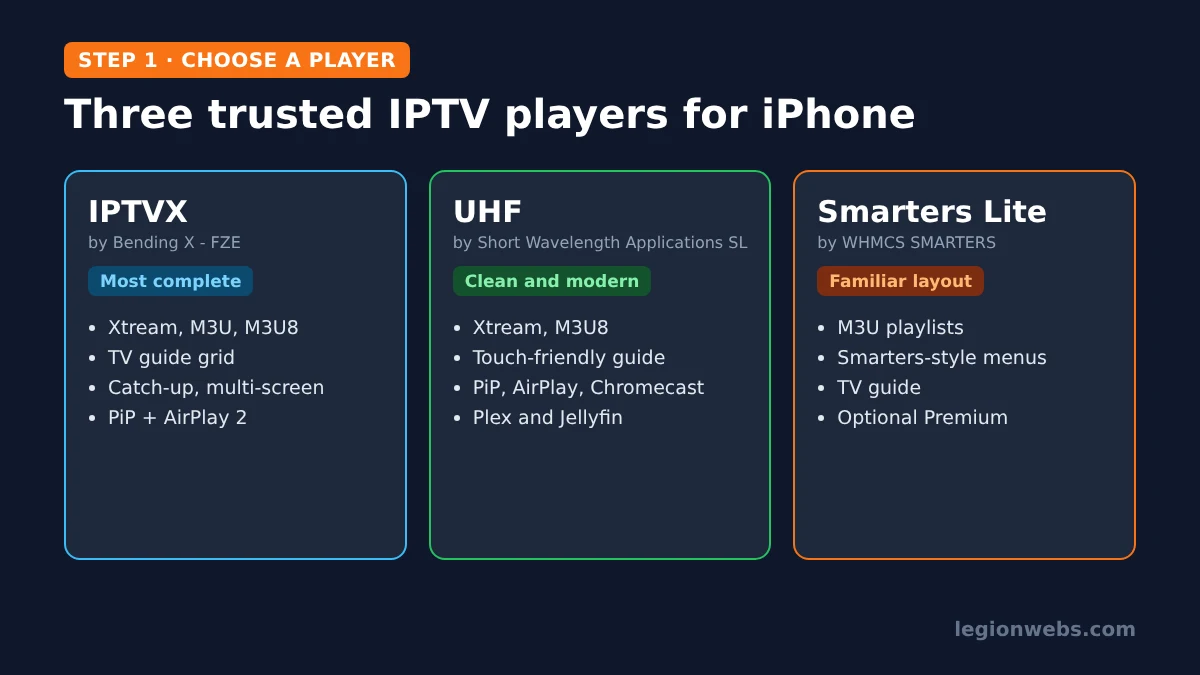
Watch out for look-alikes. Search “Smarters” in the App Store and you will see many apps with almost the same name and icon from different developers. Some are fine, others are full of ads or charge more. Therefore, always check the developer name under the app title before you tap Get. The official Smarters app comes from WHMCS SMARTERS, the company behind IPTV Smarters Pro on Fire TV.
Step 2: Install the player from the App Store
- Open the App Store and tap Search.
- Type the player’s name, for example IPTVX.
- Check the developer name against the table above.
- Tap Get, then confirm with Face ID, Touch ID or your password.
- Open the app. If it asks for permission to find devices on your local network, allow it, because AirPlay and casting need it.
You do not need to buy the paid upgrade straight away. Instead, set up your playlist on the free version first and check that your channels play. Upgrade only once you know the app suits you.
Step 3: Add your IPTV playlist on iPhone
Every player asks for the same details, even though the buttons have slightly different names. Your provider gives you one of two types of login. If you are not sure which is better, see M3U vs Xtream Codes; in short, choose Xtream Codes when you have it.
Option A: Xtream Codes (recommended)
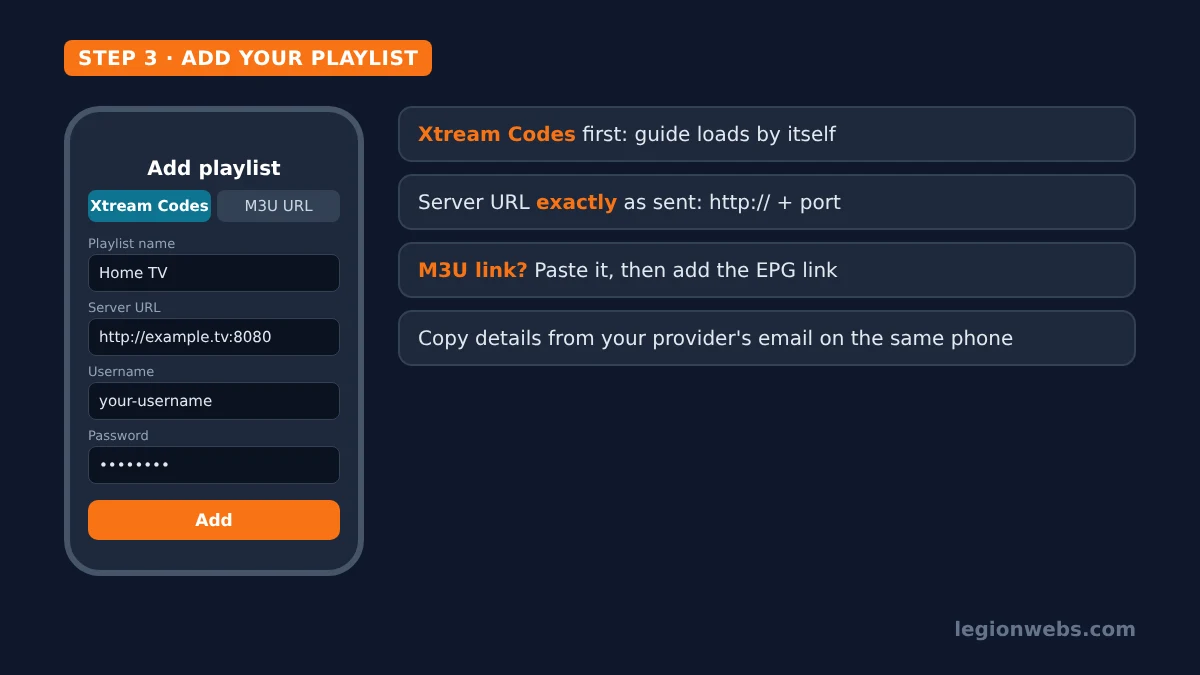
- Tap Add playlist (or the + button) and choose Xtream Codes (sometimes labelled Xtream API or “login with Xtream”).
- Enter a name for the playlist, such as Home TV.
- Enter the server URL exactly as your provider sent it, including http:// and the port number, then your username and password.
- Tap Save or Add. The app downloads your channels, movies and series.
Option B: M3U link
- Tap Add playlist and choose M3U or URL.
- Paste the full M3U link. Copying it from your provider’s email on the same iPhone avoids typing mistakes.
- Add the EPG link in the guide field if your provider gave you one, then save.
Step 4: Load the TV guide
With Xtream Codes, the guide usually loads by itself within a minute or two. With an M3U link, however, you may need to add the EPG link in the app’s playlist or EPG settings. If the guide stays empty, check that the iPhone’s date and time are set automatically under Settings > General > Date & Time, because a wrong clock shifts every show. Our lessons on adding EPG to IPTV and EPG not loading go deeper.
Step 5: Watch on the iPhone or send IPTV to your TV
Once channels load, tap one to play it. From there you have three ways to watch:
- Full screen on the phone: turn the iPhone sideways for landscape playback.
- Picture in Picture: in IPTVX and UHF, swipe home while a channel plays, and it keeps playing in a small window over your other apps.
- AirPlay to a TV: connect the iPhone and the Apple TV (or AirPlay-compatible smart TV) to the same Wi-Fi, start a channel, tap the AirPlay button in the player and choose your TV. To stop, tap AirPlay again and pick your iPhone. Apple’s AirPlay guide shows the button.
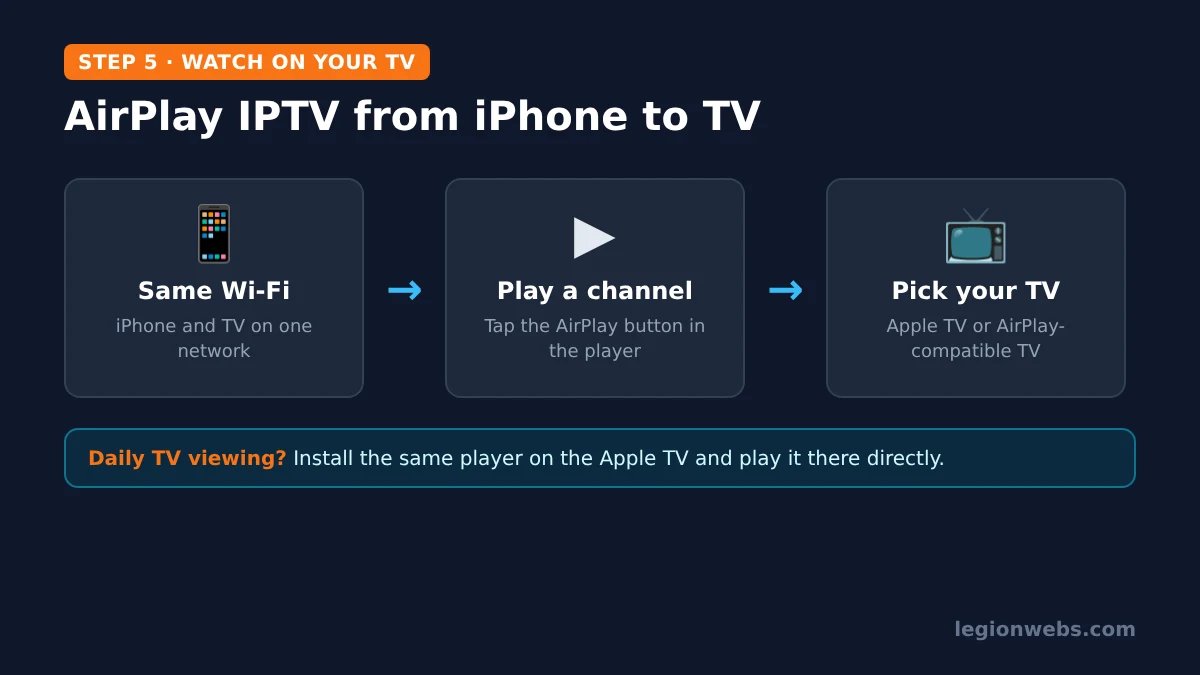
Tip: if you watch on the TV every day, install the same player on the Apple TV itself. IPTVX, UHF and Smarters Player Lite all have Apple TV versions, so the TV plays the stream directly and your phone stays free. On a Fire TV or Android TV instead, see IPTV on Firestick or IPTV on Android TV.
Best settings for IPTV on iPhone
- Use Wi-Fi when you can. A Full HD channel uses roughly 4.5 GB per hour, which eats a mobile data plan quickly. See internet speed for IPTV for the numbers.
- Watch your mobile data. Under Settings > Mobile Data (Cellular Data in the US), you can turn mobile data off for the player so it only streams on Wi-Fi.
- Hide what you never watch. Most players let you hide channel groups, which makes the list and guide load faster.
- Add favourites. Long-press a channel to add it to Favourites, so your main channels sit on one screen.
- Keep the app updated. Turn on automatic App Store updates, because players regularly fix playback bugs.
On public Wi-Fi, such as in a hotel or café, a VPN keeps your connection private. Both NordVPN and IPVanish have iPhone apps; we compare them in NordVPN vs IPVanish. Disclosure: these are affiliate links; we may earn a commission at no extra cost to you. If your provider blocks VPN servers, see VPN for IPTV.
IPTV on iPhone not working? Quick fixes
| Problem | Likely cause | Fix |
|---|---|---|
| “Invalid login” or no channels | Typo in the server URL, username or password, or an expired line | Re-enter the details exactly, including http:// and the port; ask your provider if the line is active |
| Channels load but will not play | Stream format, VPN or provider issue | Try another channel; switch the VPN off; try the same playlist in a second player |
| Buffering on mobile data | Weak signal or Low Data Mode | Move to Wi-Fi, or turn off Low Data Mode under Settings > Mobile Data > Mobile Data Options |
| TV guide empty | EPG not linked, or wrong time | Add the EPG link and set Date & Time to automatic |
| AirPlay button missing | Not on the same Wi-Fi, or local network access denied | Join the same network; allow Local Network for the app under Settings > Privacy & Security |
| Sound but no picture on the TV | Stream not supported over AirPlay | Install the player on the Apple TV and play the channel there directly |
If you use Smarters Player Lite, our IPTV Smarters not working lesson covers its specific errors too.
IPTV on iPhone: FAQ
Can I install TiviMate on iPhone?
No. TiviMate is only made for Android TV devices. On iPhone, IPTVX and UHF offer a similar TV-guide experience.
Is IPTV Smarters available on iPhone?
Yes, as Smarters Player Lite from the developer WHMCS SMARTERS. Many similarly named apps come from other developers, so check the name under the title.
Are IPTV players for iPhone free?
The three in this lesson are free to download, with optional paid upgrades that unlock extra features or remove ads. Your IPTV subscription is a separate cost.
Can I use the same IPTV account on my iPhone and my TV?
Usually, yes, but many providers limit how many devices can stream at the same time. Check your plan’s connection limit before watching on two screens at once.
Does IPTV on iPhone work on mobile data?
Yes, with a good 4G or 5G signal. Keep an eye on your data allowance, though, because live streams use several gigabytes per hour.
What’s next
- M3U vs Xtream Codes: which login type to use and why.
- Internet speed for IPTV: how much speed and data streaming needs.
- How to choose an IPTV service: what to check before you pay.
- IPTV on Firestick: set up the same subscription on your TV.
Free download
Firestick + IPTV Setup Checklist
Two printable pages: install, login, the settings that make it faster and quick fixes for buffering and an empty guide.
We'll send occasional new guides. No spam, unsubscribe any time. Privacy