
IPTV on PC: How to Watch IPTV on Windows and Mac
This guide may contain affiliate links. If you buy through them we may earn a commission at no extra cost to you. As an Amazon Associate I earn from qualifying purchases. Learn more.
Lessons 18 of 18
Quick Overview: To watch IPTV on PC, install a player that accepts your provider’s playlist. On Windows, MyIPTV Player from the Microsoft Store supports Xtream Codes, M3U and a TV guide. On Windows, Mac and Linux, VLC plays any M3U link in two clicks, and Kodi with the free PVR IPTV Simple Client adds a full TV guide. Mac users with Apple silicon can also run IPTVX or UHF. Setup takes 5 to 15 minutes.
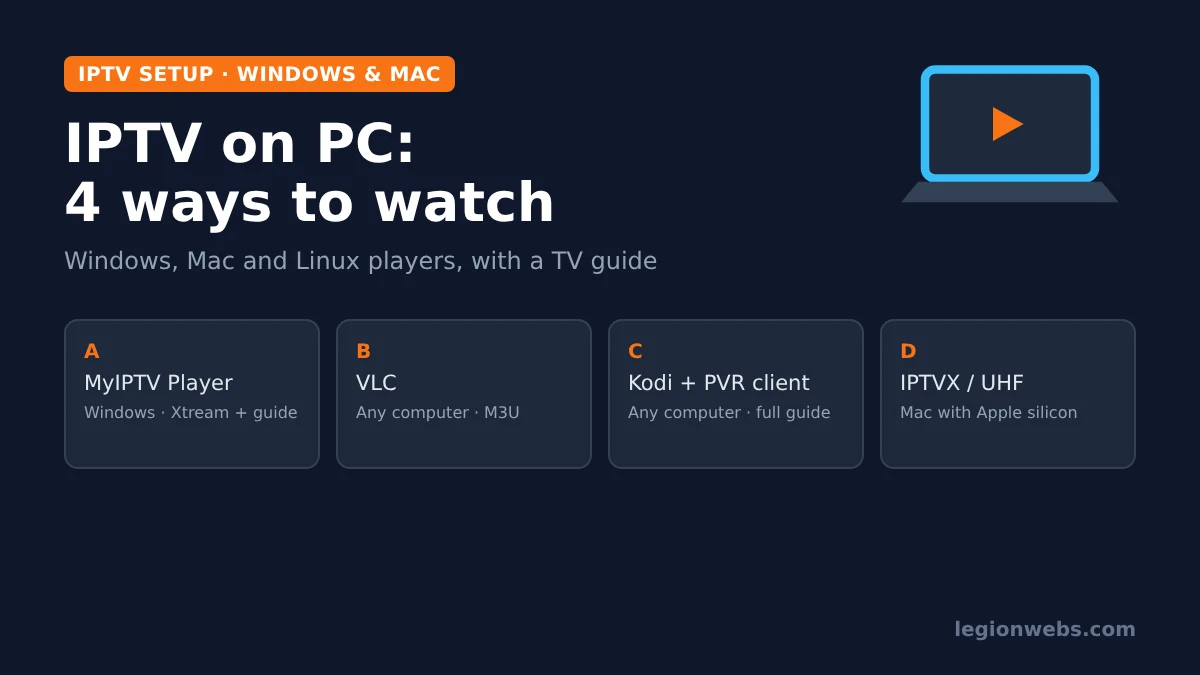
A laptop or desktop is a handy second screen for IPTV: you can keep a match running while you work, watch in a hotel, or use a big monitor in the office. However, Windows and macOS do not come with an IPTV player, and the best-known TV players such as TiviMate are not available for computers. So, in this lesson, you will pick the right player for your computer, add your subscription, and get a TV guide working.
Good to know: every player below plays the playlist from your IPTV provider; none of them includes channels. Only use a service that is licensed to offer its channels.
What you need
- A Windows 10 or 11 PC, a Mac, or a Linux computer
- Your playlist details: an M3U link, or Xtream Codes server, username and password
- The EPG (TV guide) link if your provider gives one separately
- A steady connection; for Full HD, see internet speed for IPTV
Step 1: Choose a player for IPTV on PC
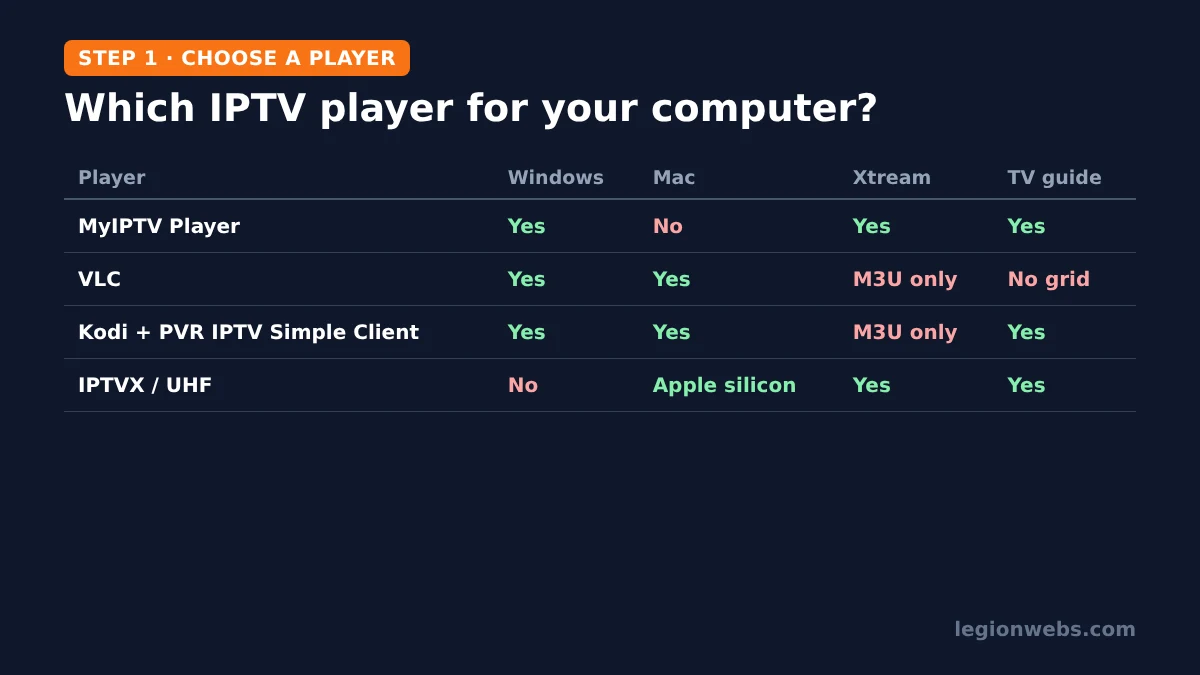
| Player | Works on | Get it from | Playlists | TV guide | Best for |
|---|---|---|---|---|---|
| MyIPTV Player | Windows | Microsoft Store | Xtream Codes (with catch-up), M3U | Yes | The easiest TV-style app on Windows |
| VLC media player | Windows, Mac, Linux | videolan.org | M3U | No guide grid | Quick playback of an M3U link |
| Kodi + PVR IPTV Simple Client | Windows, Mac, Linux | kodi.tv, then the official add-on repository | M3U | Yes (XMLTV) | A full TV guide on any computer |
| IPTVX or UHF | Mac with Apple silicon | Mac App Store (iPad versions) | Xtream Codes, M3U | Yes | Mac users who also use them on iPhone |
Avoid look-alikes. Search the Microsoft Store for “IPTV Smarters” and you will find several apps with similar names from different publishers. Because it is hard to tell which, if any, comes from the original developer, we recommend the players above instead. Likewise, only download VLC from videolan.org and Kodi from kodi.tv.
Option A: IPTV on PC with MyIPTV Player (Windows)
MyIPTV Player is a free-to-download Windows app with a TV-style interface. According to its Microsoft Store listing, it supports Xtream Codes with catch-up, M3U playlists, a built-in guide, favourites and PIN protection, and it can play through VLC or Windows Media Player.
- Open the Microsoft Store, search for MyIPTV Player and select Get (or Install).
- Open the app and go to Settings.
- Add your playlist: choose Xtream Codes and enter the server, username and password, or add a remote M3U link. Give it a name.
- If you have a separate EPG link, add it in the same settings area.
- Select the playlist, then go to Channels to start watching.
Tip: if a channel stutters, switch the player in the app’s settings between VLC and Windows Media Player; one often handles a stream better than the other.
Option B: Watch IPTV on PC with VLC
VLC is free, open source and plays almost anything, so it is the quickest way to test a playlist. However, it has no TV guide grid, so it works best for occasional viewing. For a fuller walkthrough, see our IPTV on VLC lesson.
- Install VLC from videolan.org.
- On Windows, open Media > Open Network Stream (Ctrl+N). On a Mac, open File > Open Network.
- Paste your M3U link and select Play (Open on Mac).
- Open the playlist to see every channel: View > Playlist on Windows (Ctrl+L), or Window > Playlist on Mac. Double-click a channel to watch it.
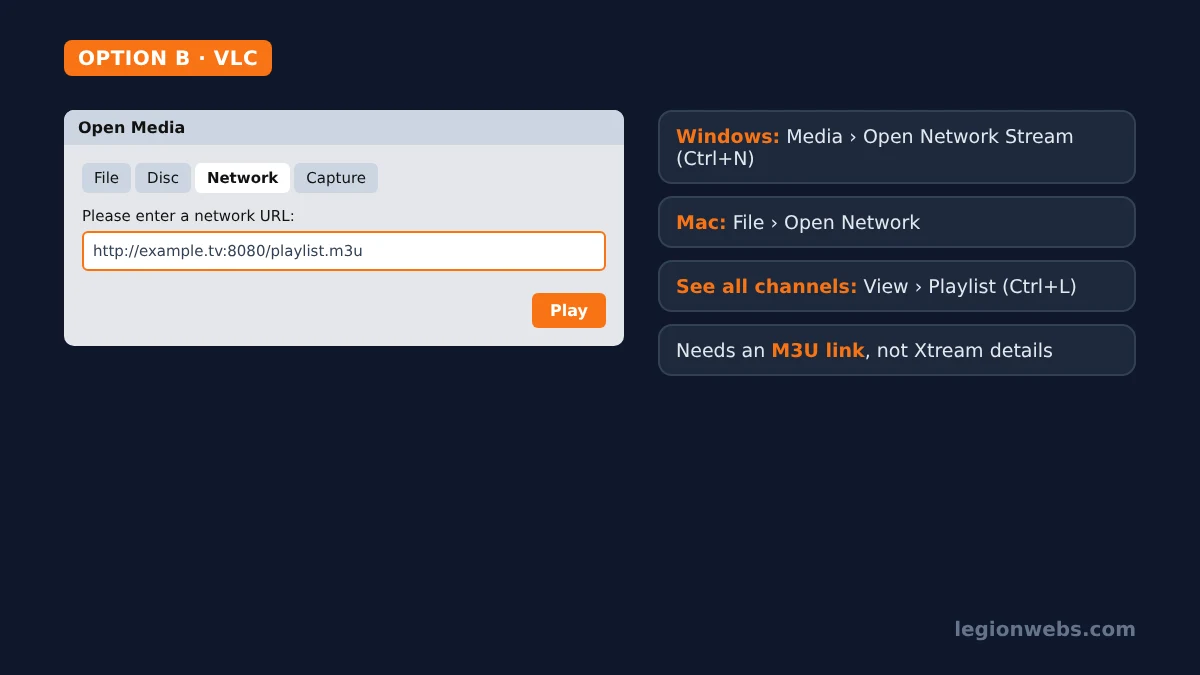
VLC needs an M3U link. If your provider only gave you Xtream Codes details, use MyIPTV Player or Kodi instead, or ask the provider for the M3U version; see M3U vs Xtream Codes for the difference.
Option C: IPTV on PC with Kodi and PVR IPTV Simple Client
Kodi turns any computer into a media centre, and its official PVR IPTV Simple Client add-on adds live TV with an XMLTV guide. Following the Kodi wiki:
- Install Kodi from kodi.tv (also in the Microsoft Store for Windows).
- Go to Settings > Add-ons > Install from repository > PVR clients > PVR IPTV Simple Client and select Install. The wiki advises disabling any other PVR add-ons first.
- Go to Settings > Add-ons > My add-ons > PVR clients, open PVR IPTV Simple Client and select Configure.
- Add your M3U playlist URL in the playlist settings and your XMLTV EPG URL in the guide settings, then save.
- Restart Kodi. Your channels appear under TV, with the guide alongside.
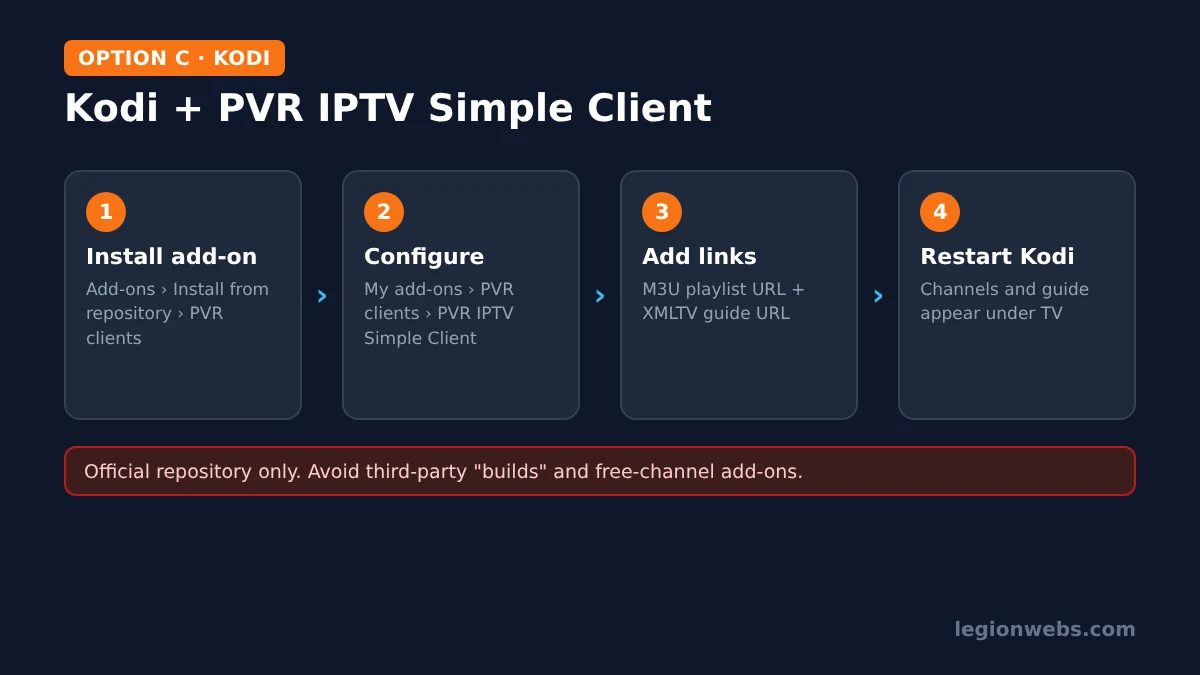
Important: only install add-ons from Kodi’s official repository. Third-party “builds” and add-ons that promise free channels are a common source of malware and unlicensed streams.
Option D: IPTV on a Mac
VLC and Kodi both run on macOS, so Options B and C work as described. In addition, Macs with Apple silicon (M1 or later) can install the iPad versions of IPTVX and UHF from the Mac App Store. Apple marks them as “not verified for macOS”, so a few things may behave slightly differently, but they bring the same guide and favourites you know from IPTV on iPhone.
Tips for smooth IPTV on PC
- Use a cable if you can. A laptop on Ethernet buffers far less than one on busy Wi-Fi.
- Close heavy apps. Cloud backups, game launchers and large downloads compete for bandwidth.
- Mind your connection limit. Many IPTV plans allow only one or two streams at once, so watching on the PC may stop the TV.
- Use a VPN on public Wi-Fi. In hotels and cafés, a VPN such as NordVPN or IPVanish keeps your connection private. Disclosure: affiliate links; we may earn a commission at no extra cost to you. See VPN for IPTV first, because some providers block VPN servers.
IPTV on PC not working? Quick fixes
| Problem | Likely cause | Fix |
|---|---|---|
| VLC shows an error when opening the link | Typo, expired line, or an Xtream login instead of M3U | Copy the link again; check the line; use MyIPTV Player or Kodi for Xtream |
| Only one channel plays in VLC | Playlist view closed | Open View > Playlist (Ctrl+L) |
| Kodi shows no channels | Add-on not enabled or wrong URL | Check the M3U URL in Configure, enable the add-on and restart Kodi |
| Guide empty | EPG link missing or time offset | Add the EPG URL; adjust the time shift; see EPG not loading |
| Buffering | Wi-Fi or provider overload | Use Ethernet, try another channel; see buffering fixes |
| Stream stops on the TV when PC starts | Plan connection limit | Watch on one screen at a time or upgrade the plan |
IPTV on PC: FAQ
Can I install TiviMate on Windows?
No. TiviMate is only made for Android TV devices. On Windows, MyIPTV Player or Kodi give you a TV-guide experience instead.
Is VLC good for IPTV?
For quick viewing, yes. It plays M3U playlists reliably but has no TV guide grid, so for regular use a dedicated player or Kodi is more comfortable.
Can I watch IPTV in a web browser?
Some providers offer their own web player. Otherwise, a desktop app is more reliable, because many IPTV streams do not play directly in browsers.
Does Kodi support Xtream Codes?
The official PVR IPTV Simple Client uses an M3U playlist and an XMLTV guide. Most providers can give you both as links, even if they also offer Xtream Codes.
Is it safe to watch IPTV on my computer?
Yes, with official software and a licensed provider. Avoid unofficial “free IPTV” downloads and Kodi builds, which often carry malware.
What’s next
- M3U vs Xtream Codes: which playlist type to ask your provider for.
- How to add EPG to IPTV: get a full TV guide in any player.
- IPTV on iPhone: watch the same subscription on your phone.
- IPTV on Firestick: set it up on your TV.
Free download
Firestick + IPTV Setup Checklist
Two printable pages: install, login, the settings that make it faster and quick fixes for buffering and an empty guide.
We'll send occasional new guides. No spam, unsubscribe any time. Privacy