
IPTV Smarters Not Working? Error Fixes Step by Step
This guide may contain affiliate links. If you buy through them we may earn a commission at no extra cost to you. As an Amazon Associate I earn from qualifying purchases. Learn more.
Lessons 12 of 13
Quick Overview: When IPTV Smarters is not working, the cause is usually one of four things: a login detail typed wrong, an expired or overloaded subscription, a connection problem, or a corrupted app cache. This lesson matches each error message to its fix, so you can get IPTV Smarters Pro playing again in a few minutes.
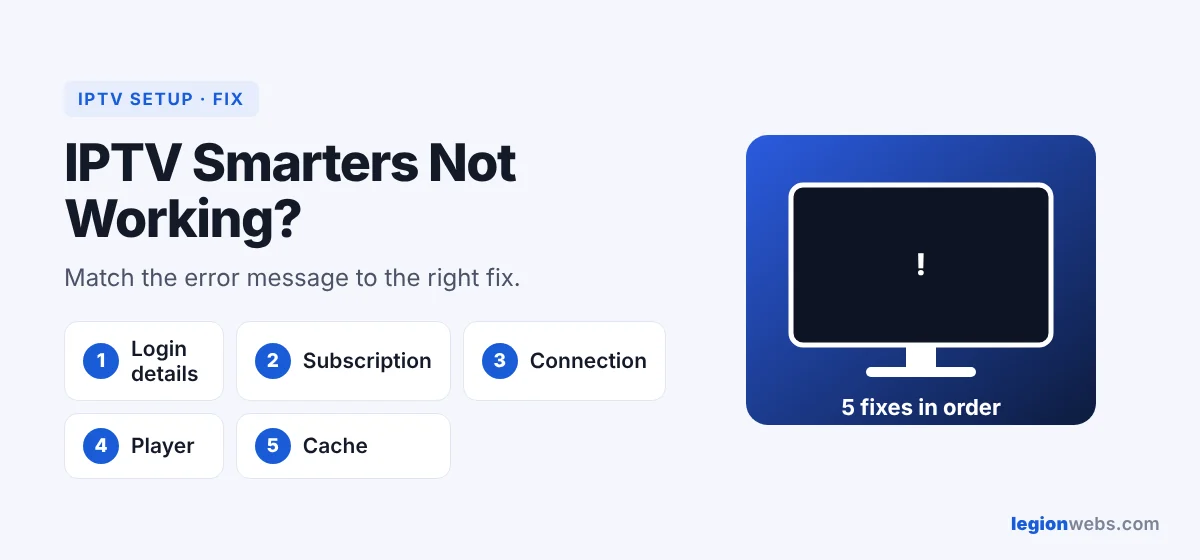
IPTV Smarters Pro is only a player, so most problems come from the login details or the service behind it, not from the app itself. Therefore, start by reading the exact error message, then jump to the matching fix below.
IPTV Smarters not working: error messages and fixes
| Error or symptom | Most likely cause | Fix |
|---|---|---|
| “Failed to authorize” / “Invalid details” | Wrong username, password or server URL | Fix 1 |
| Login worked before, now fails | Subscription expired or paused | Fix 2 |
| “Max connections reached” | Too many devices watching at once | Fix 2 |
| “No internet” / “Could not connect” | Network, DNS or VPN problem | Fix 3 |
| Channels load but will not play / black screen | Player setting or stream issue | Fix 4 |
| App freezes or closes | Corrupted cache or old version | Fix 5 |
Fix 1: Check your login details
- Server URL: include http:// and the port, for example
http://server.example:8080. Do not change http to https unless your provider says so. - Username and password: they are case-sensitive. Type them by hand instead of pasting, so no hidden space sneaks in.
- Login type: make sure you chose Xtream Codes for server details, or M3U for a playlist link. See M3U vs Xtream Codes.
Fix 2: Check your subscription and connections
Next, log in to your provider’s account page or contact support. Check that the subscription is active and how many devices it allows at the same time. If a phone or another TV is still playing, close it there first, then try again.
Fix 3: Fix the connection
- Restart your Fire TV and your router.
- Test that other apps, such as YouTube, play normally.
- If you use a VPN, turn it off and try again; then try a different VPN server.
- If nothing loads at all, your internet provider may be blocking the server. In that case, a VPN often helps; see How to Install a VPN on Firestick.
Fix 4: Change the player when channels will not play
IPTV Smarters has more than one built-in player. Open Settings → Player Selection (names vary by version) and switch to another player. Also, test the same channel in VLC: if it plays there, the stream is fine and the issue is the app setting. See IPTV on VLC.
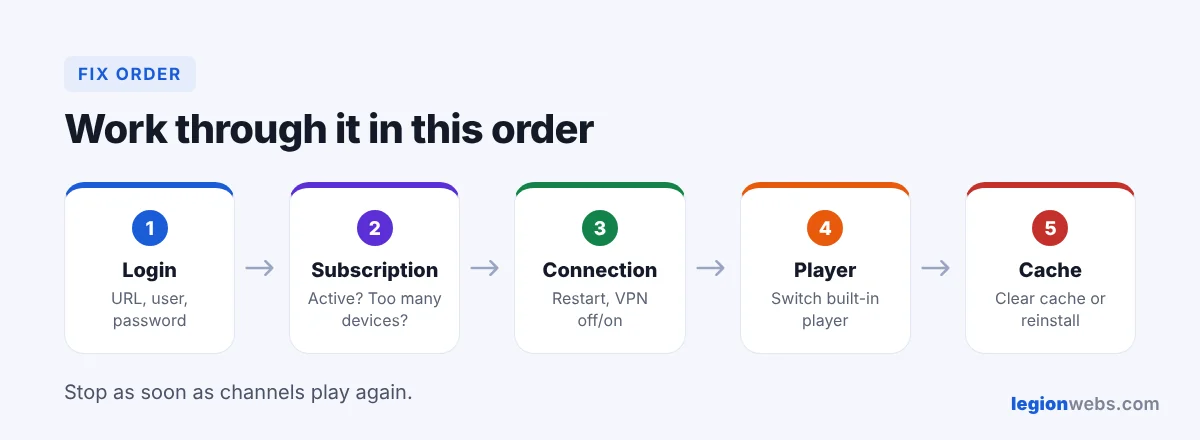
Fix 5: Clear the cache or reinstall
- Go to Settings → Applications → Manage Installed Applications → IPTV Smarters.
- Select Force stop, then Clear cache.
- Still broken? Select Clear data (this removes your login), then sign in again.
- As a last step, uninstall and reinstall the latest official version, as in our IPTV Smarters Pro lesson.
IPTV Smarters works but buffers
That is a different problem with its own fixes: Wi-Fi, buffer size and peak-time slowdowns. Follow How to Fix IPTV Buffering on Firestick. And if the TV guide is empty, see How to Add EPG to IPTV.
Frequently Asked Questions
Why is IPTV Smarters not working suddenly?
Most sudden failures come from the service side: an expired plan, a changed server address or a server outage. Contact your provider first.
Is there an alternative if Smarters keeps failing?
Yes. TiviMate and OTT Navigator use the same login. Compare them in Best IPTV App for Fire Stick.
Does IPTV Smarters have its own channels?
No. It is a player only, so it needs a login from a licensed IPTV service.
For a neutral background on how streaming players handle network streams, see the VLC project page, a useful tool for testing links.
What’s next
Once IPTV Smarters is working again, keep it smooth with our buffering fixes, or try a different player in TiviMate on Firestick.