
Fire Stick Storage Full? What to Delete and What to Keep (2026)
This guide may contain affiliate links. If you buy through them we may earn a commission at no extra cost to you. As an Amazon Associate I earn from qualifying purchases. Learn more.
Lessons 7 of 7
Quick Overview: When your Fire Stick storage is full, check what is using the space first, then uninstall apps you no longer open and delete leftover APK files in Downloader. After that, clear the cache of your biggest apps and restart. Meanwhile, keep your main streaming apps, one IPTV player and your VPN. If space keeps running out, a USB drive (on supported models) or a 16 GB model is the long-term fix.
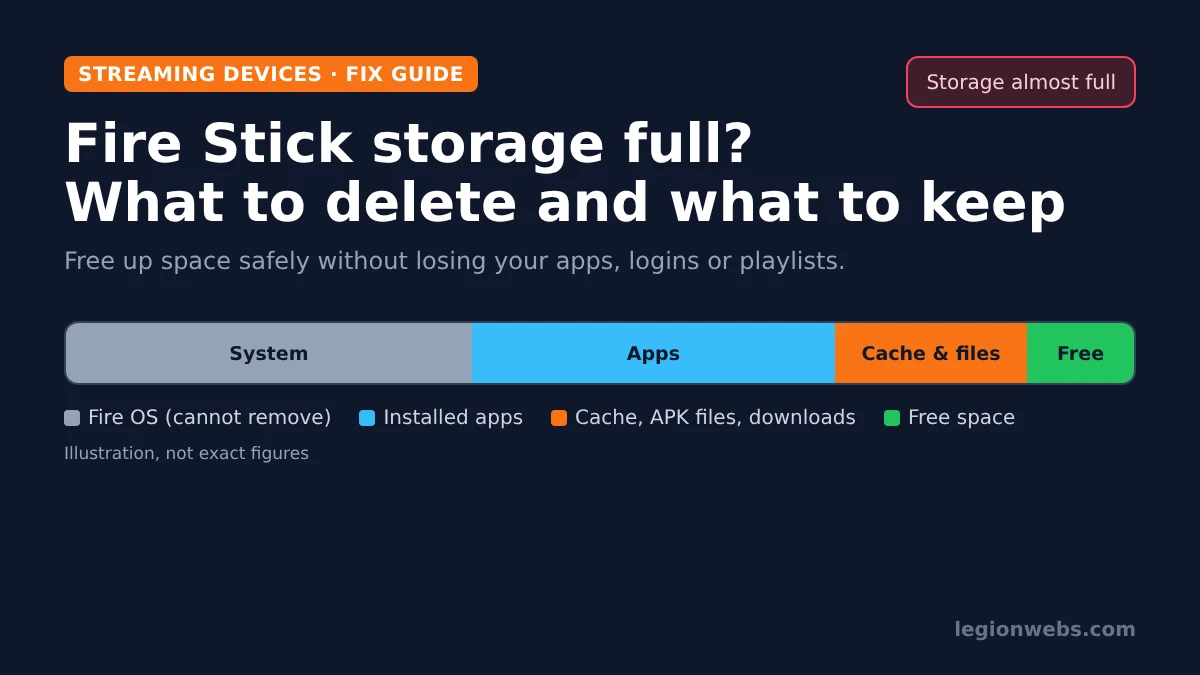
A Fire Stick storage full warning usually appears at the worst moment: an app will not update, a new app refuses to install, or the menus start to lag. After all, most Fire Sticks have only 8 GB of storage, and Fire OS itself takes a large part of that. Consequently, a handful of big apps and some forgotten files are enough to fill it.
This lesson focuses on decisions: what is safe to delete, what you should keep, and what to do when cleaning is no longer enough. For the step-by-step cache routine, see our separate lesson on how to clear cache on Firestick.
What you need
- Your Fire Stick and remote
- A list of the apps you actually use each week
- Logins for any app you might reinstall later
- About 15 minutes
Why is your Fire Stick storage full?
Storage fills up for four main reasons. First, streaming apps grow over time because they store cache, thumbnails and offline data. Second, Fire OS updates take more room with each version. Third, sideloaded apps leave their installer files (APKs) behind in Downloader. Finally, apps you tried once and forgot keep their full size.
| Fire TV model | Internal storage |
|---|---|
| Fire TV Stick 4K Max (2nd gen, 2023) | 16 GB |
| Fire TV Stick 4K Max (1st gen, 2021) | 8 GB |
| Fire TV Stick 4K (2nd gen, 2023) | 8 GB |
| Fire TV Stick 4K Select (Vega OS) | 8 GB |
| Fire TV Stick HD (2024) | 8 GB |
| Fire TV Stick Lite | 8 GB |
Step 1: See what is using your Fire Stick storage
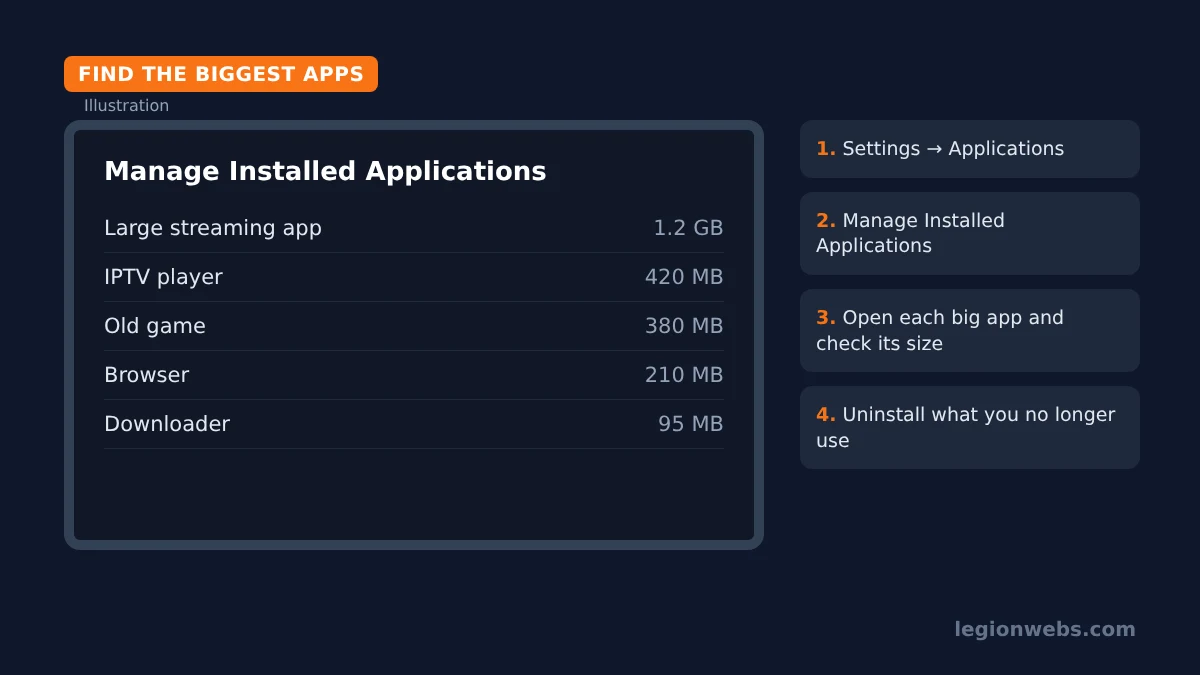
Before deleting anything, check how much space is free and which apps are the biggest. As a result, you remove the right things instead of guessing.
- Go to Settings > My Fire TV > About > Storage to see free space. On newer models, the menu is Device & Software > About.
- Next, go to Settings > Applications > Manage Installed Applications.
- Then open each app you suspect is large. The app screen shows its total size, including data and cache.
- Finally, write down the three or four biggest apps you rarely use.
Step 2: Fire Stick storage full? Decide what to delete and keep
Not every app is worth keeping. However, some are worth protecting. For that reason, use this checklist to decide quickly.
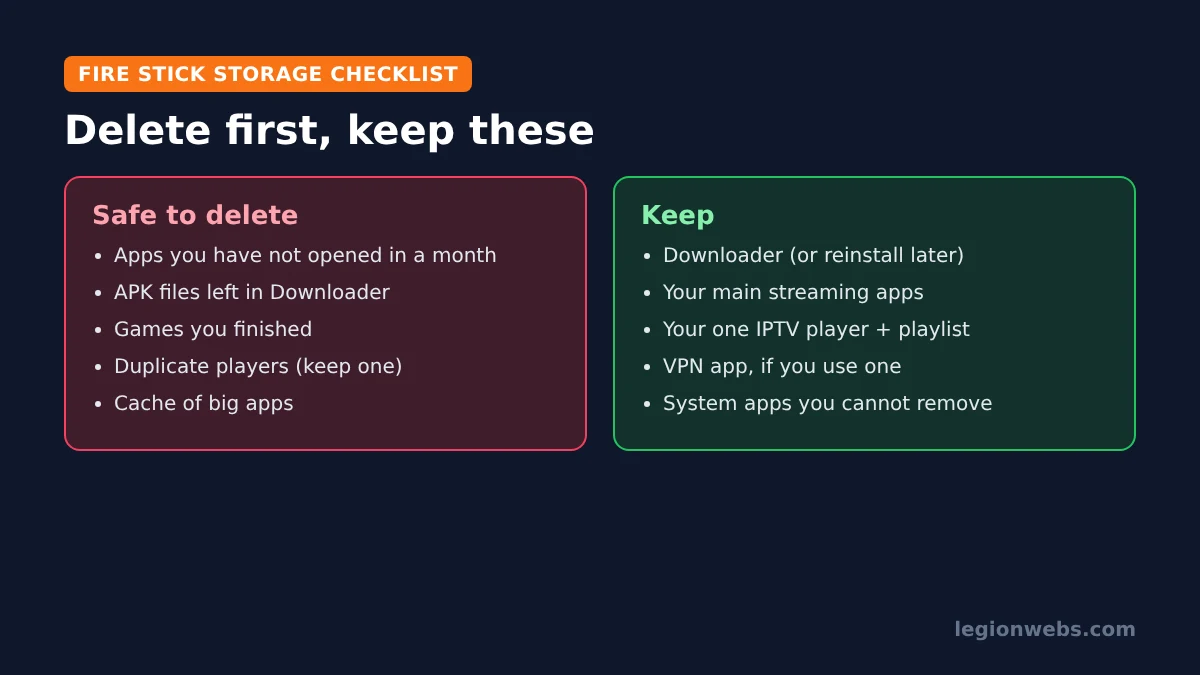
| Item | Delete? | Why |
|---|---|---|
| Apps not opened in the last month | Yes | You can reinstall them from the Appstore in a minute |
| APK files in Downloader | Yes | The app is already installed; the installer is no longer needed |
| Finished or unused games | Yes | Games are often the largest apps on the device |
| Second or third IPTV player | Yes, keep one | Each player stores its own EPG and logos |
| Your main streaming apps | Keep | Clear their cache instead of uninstalling |
| Your IPTV player and playlist | Keep | Reinstalling means entering your playlist details again |
| VPN app | Keep | Needed if you stream through a VPN |
| Downloader | Keep (small) | Useful for future installs; just delete its files |
| Built-in Amazon apps | Cannot remove | Some system apps have no uninstall option |
Step 3: Uninstall apps to fix a Fire Stick storage full warning
- Go to Settings > Applications > Manage Installed Applications.
- Select an app from your “delete” list.
- Choose Uninstall, then confirm.
- After that, repeat for each app on the list.
Alternatively, highlight an app on the home screen or in Your Apps & Games, press the Menu button (three lines) and choose Uninstall. In both cases, the result is the same.
Step 4: Delete leftover APK files in Downloader
Every time you install an app through Downloader, the installer file stays in its Files section. Over time, a few of these can take hundreds of megabytes, so they are an easy win.
- Open Downloader and select Files in the left menu.
- Highlight an APK file, then press the Menu button on the remote (or select the file).
- Choose Delete and confirm. Repeat for every installer you no longer need.
Also, need Downloader again later? Our lesson on installing Downloader on Fire Stick shows the steps, including the setting that allows apps from unknown sources.
Step 5: Clear the cache of your biggest apps and restart
For the apps you keep, clearing the cache frees space without losing your login or settings. Open each big app in Manage Installed Applications and choose Clear cache, never Clear data, unless you are ready to set the app up again. Then restart the Fire Stick from Settings > My Fire TV > Restart so Fire OS releases temporary files.
Step 6: Fire Stick storage still full? Add or upgrade storage
If you clean up every few weeks and still run out of room, then the device is simply too small for how you use it. You have two options:
- Add a USB drive: some Fire TV models accept a USB flash drive through an OTG adapter, and you can move supported apps to it. However, support depends on the model and on each app, so check whether your device offers the option when you plug a drive in.
- Upgrade to 16 GB: the Fire TV Stick 4K Max (2nd gen) has twice the storage of most sticks. Our 4K Max vs 4K Select comparison helps you decide whether the upgrade is worth it.
Fire Stick storage full: quick symptom guide
| What you see | Likely cause | Best fix |
|---|---|---|
| “Not enough storage” when installing | Too many large apps | Steps 1 to 3 |
| Apps will not update | No free space for the update file | Step 3, then Step 5 |
| Storage fills again within days | One app with a growing cache | Clear that app’s cache; reinstall it if it keeps growing |
| Menus lag and apps crash | Very low free space | Free at least 1 GB, then restart |
| Space does not return after deleting | Fire OS has not released files yet | Restart the Fire Stick |
| Storage full after every cleanup | Device too small for your apps | Step 6 |
Frequently Asked Questions
How much free space should a Fire Stick have?
In general, aim for at least 1 GB free, and ideally more. Otherwise, updates can fail and the device often slows down.
Will deleting apps remove my Amazon account or purchases?
No. In fact, apps from the Amazon Appstore stay linked to your account, so you can reinstall them for free at any time.
Does a factory reset fix a Fire Stick storage full problem?
Yes, but at the same time it removes every app and setting. Try the steps above first, and use our factory reset guide only as a last resort.
Why does my storage go down even when I do not install anything?
Apps update themselves and keep collecting cache, and Fire OS downloads system updates in the background. As a result, free space shrinks slowly over time.
What’s next
- Keep the stick fast with our routine for clearing cache on Firestick.
- Fire Stick dropping off the network too? Read Fire Stick not connecting to WiFi.
- Streams still stuttering? See how to fix buffering on Fire Stick.