
How to Factory Reset a Fire Stick (2 Methods)
This guide may contain affiliate links. If you buy through them we may earn a commission at no extra cost to you. As an Amazon Associate I earn from qualifying purchases. Learn more.
Lessons 5 of 5
Quick Overview: To factory reset a Fire Stick, go to Settings → My Fire TV → Reset to Factory Defaults, or hold Back + Right on the remote for 10 seconds. A reset erases your apps, logins and settings, so it is a last step for a stick that is very slow, keeps crashing, or that you are giving away. This lesson shows both methods, what to back up first, and how to set up again.
A factory reset returns your Fire TV to the state it was in when you first unboxed it. It fixes deep software problems that a restart or cache cleanup cannot. However, it also removes everything you installed. Therefore, try clearing the cache and a restart first, and only reset when those do not help.
When to factory reset a Fire Stick
- The stick is very slow or crashes, even after clearing cache and restarting.
- You are selling or giving the stick away.
- You forgot the parental control PIN.
- An update failed and the stick does not work properly.
Before you reset: what you lose and what to save
| Erased by the reset | Kept |
|---|---|
| Installed apps and their logins | Your Amazon account and purchases |
| IPTV playlists and player settings | Appstore apps can be downloaded again |
| Wi-Fi password and preferences | Subscriptions you pay for (Netflix, IPTV, VPN) |
So write down your IPTV login (or keep the welcome email), your VPN login and your Wi-Fi password. If your player has a backup option, as TiviMate Premium does, save a backup first.
Method 1: Factory reset Fire Stick from Settings
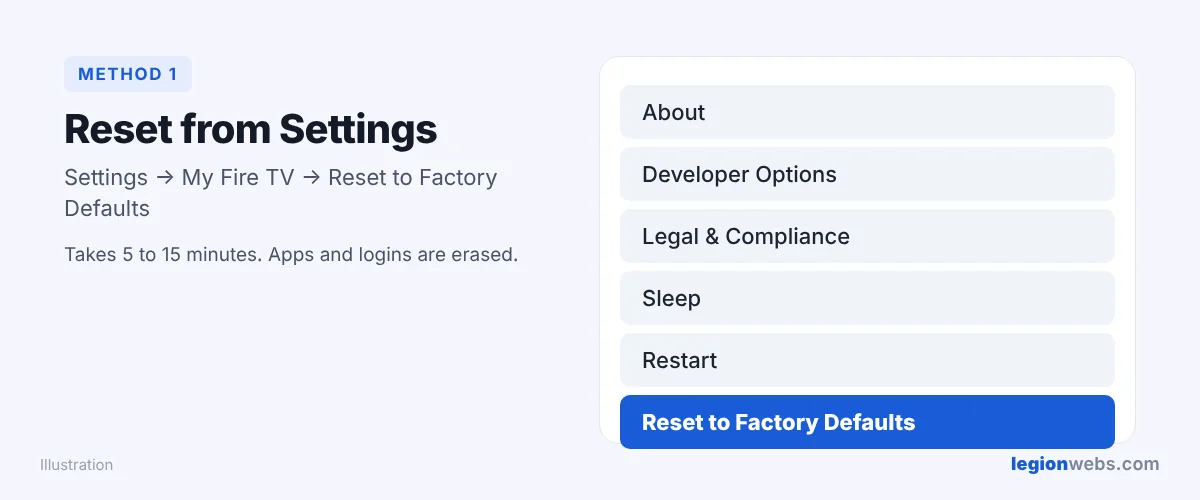
- First, press Home and open Settings.
- Then select My Fire TV.
- Scroll down and select Reset to Factory Defaults.
- Enter your PIN if asked, then select Reset.
- Finally, wait. The stick restarts and can take 5 to 15 minutes.
Method 2: Reset with the remote buttons
Use this when the menus freeze or you cannot reach Settings:
- Press and hold Back and the Right side of the navigation ring together.
- Then keep holding for 10 seconds.
- When the reset message appears, select OK, or simply wait and it starts by itself.
Lost the remote? You can open the same Settings menu with the free Fire TV phone app, as long as the stick is still on your Wi-Fi.
After the reset: set up again in 10 minutes
- Pair the remote (hold Home for 10 seconds if it does not pair by itself).
- Next, connect to Wi-Fi, preferably 5 GHz.
- After that, sign in to your Amazon account.
- Reinstall your apps; for IPTV players, start with Downloader.
- Add your IPTV login again, as in IPTV on Firestick.
Factory reset Fire Stick: troubleshooting
| Problem | Fix |
|---|---|
| Reset stuck on the logo for a long time | Wait up to 20 minutes. If nothing changes, unplug for a minute and plug back in. |
| Remote does not work after the reset | Hold Home for 10 seconds, or see Fire Stick remote not working and Amazon’s remote reset steps. |
| Downloader no longer installs apps | Turn on Developer Options and Install unknown apps again. |
| Asks for a PIN you do not know | Reset your Prime Video PIN in your Amazon account settings online. |
Frequently Asked Questions
Does a factory reset remove my Amazon account?
It signs the stick out of your account. However, your account, purchases and subscriptions stay safe. You simply sign in again.
How long does a Fire Stick factory reset take?
Usually 5 to 15 minutes. In addition, allow about 10 minutes to set everything up again.
Will a reset make my old Fire Stick faster?
Often, yes, because it clears out old apps and files. Still, very old models have little memory; in that case a newer Fire TV Stick 4K Max makes the biggest difference.
What’s next
Your Fire Stick is fresh again. From now on, keep it fast with How to Clear Cache on Firestick, and set up your apps with the IPTV on Firestick guide.