
How to Fix IPTV Buffering on Firestick (2026): 10 Fixes That Work
This guide may contain affiliate links. If you buy through them we may earn a commission at no extra cost to you. As an Amazon Associate I earn from qualifying purchases. Learn more.
Lessons 6 of 7
Quick Overview: To fix IPTV buffering on Firestick, first find out where the problem is: your internet, your Fire TV, the player app, or the IPTV service. This lesson gives you a 30-second test, then 10 fixes in order, from the quickest (a restart) to the most powerful (a wired connection or a VPN).
Buffering means your player is running out of video faster than it can download it. The picture stops, the wheel spins, and the channel jumps back in a few seconds later. It is annoying, but it almost always has a clear cause. Instead of trying random tips, the fastest way to fix IPTV buffering on Firestick is to follow this lesson from top to bottom and stop as soon as the problem is gone.
Before you fix IPTV buffering on Firestick: find the cause
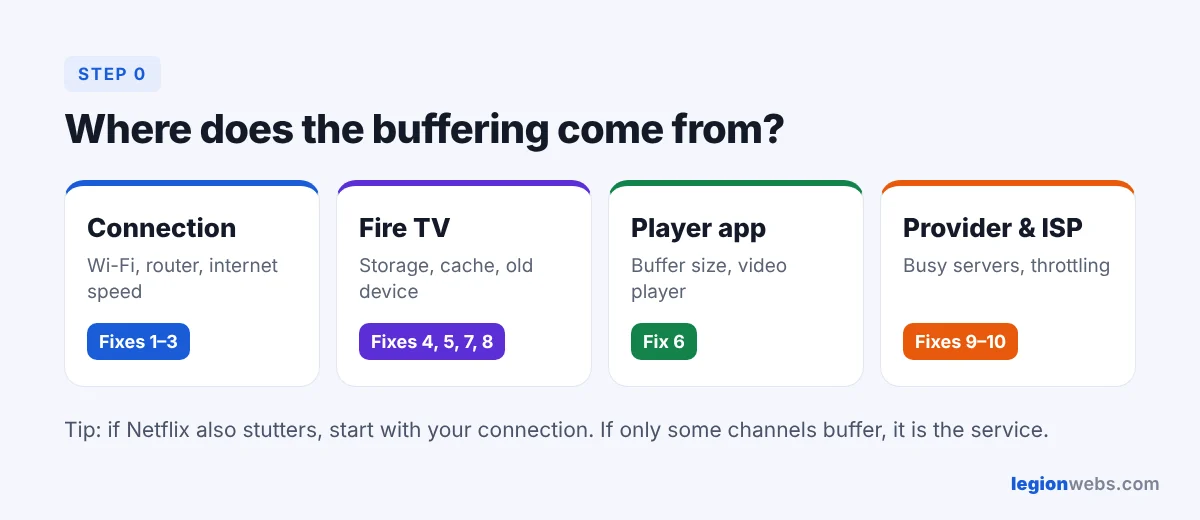
Watch for a few minutes and notice when the buffering happens. The pattern tells you where to look.
| What you notice | Most likely cause | Start with |
|---|---|---|
| Every channel buffers, and Netflix or YouTube stutter too | Your Wi-Fi or internet connection | Fixes 1–3 |
| Every channel buffers, but Netflix and YouTube play fine | The player app, or your internet provider slowing IPTV traffic | Fixes 4–7, then 9 |
| Only some channels buffer | The IPTV service’s servers for those channels | Fix 10 |
| It only buffers in the evening or during big matches | Busy servers or traffic slowdowns at peak time | Fixes 9 and 10 |
| The whole Fire TV feels slow, not just IPTV | Full storage or an old device | Fixes 4, 5 and 8 |
What you need
- Your Fire TV remote and about 15 minutes
- Access to your Wi-Fi router
- Optional: an Ethernet adapter for Fire TV for a wired connection
- Optional: a VPN, if your internet provider slows down streaming
Fix 1: Restart your Firestick and router to clear IPTV buffering
A restart clears temporary memory and gives your router a fresh connection. It sounds too simple, but it solves a surprising number of buffering problems.
- On the Fire TV, go to Settings → My Fire TV → Restart. You can also hold Select and Play/Pause together for about 5 seconds.
- Unplug your router, wait 30 seconds, then plug it back in.
- Wait until the router lights are stable, then open your IPTV app again.
Fix 2: Check your internet speed
Next, check how much speed actually reaches the Fire TV, not your phone. Go to Settings → Network, highlight your Wi-Fi network and press Play/Pause to see the connection status. For a real number, open a speed test website in the Silk Browser on the Fire TV.
As a reference, Netflix recommends 5 Mbps for Full HD and 15 Mbps for 4K. Live IPTV has less time to buffer ahead, so give it more room:
| Quality | Minimum | Comfortable for live IPTV |
|---|---|---|
| SD | 3 Mbps | 5 Mbps |
| HD / Full HD | 5 Mbps | 10–15 Mbps |
| 4K | 15 Mbps | 25+ Mbps |
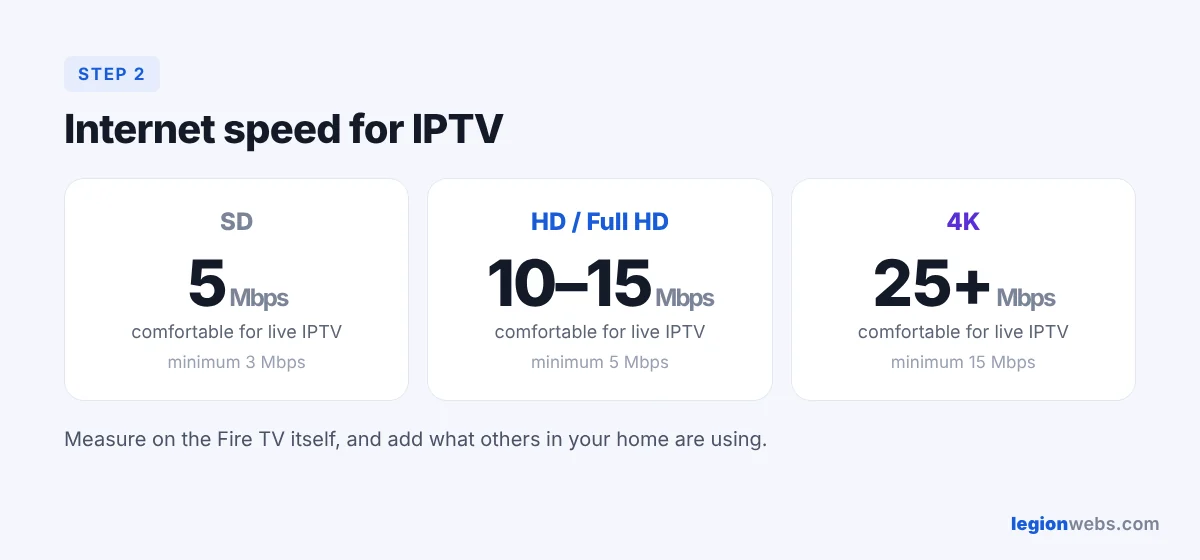
If other people in your home are streaming or downloading at the same time, add their usage on top. When your speed is below the comfortable level, the next fix usually helps the most.
Fix 3: Improve your Wi-Fi or use a cable to stop IPTV buffering
- Use the 5 GHz network. If your router shows two networks, connect the Fire TV to the 5 GHz one in Settings → Network. It is faster and less crowded than 2.4 GHz.
- Move the router or the stick. Walls, metal and the TV itself block the signal. Use the HDMI extender that came with your Fire TV so the stick sits away from the back of the TV.
- Go wired. An Ethernet adapter for Fire TV connects the stick to your router with a cable. For live sports, this is the most reliable fix there is.
Fix 4: Clear the IPTV app’s cache on Firestick
- Go to Settings → Applications → Manage Installed Applications.
- Select your IPTV player, for example TiviMate or IPTV Smarters.
- Select Force stop, then Clear cache.
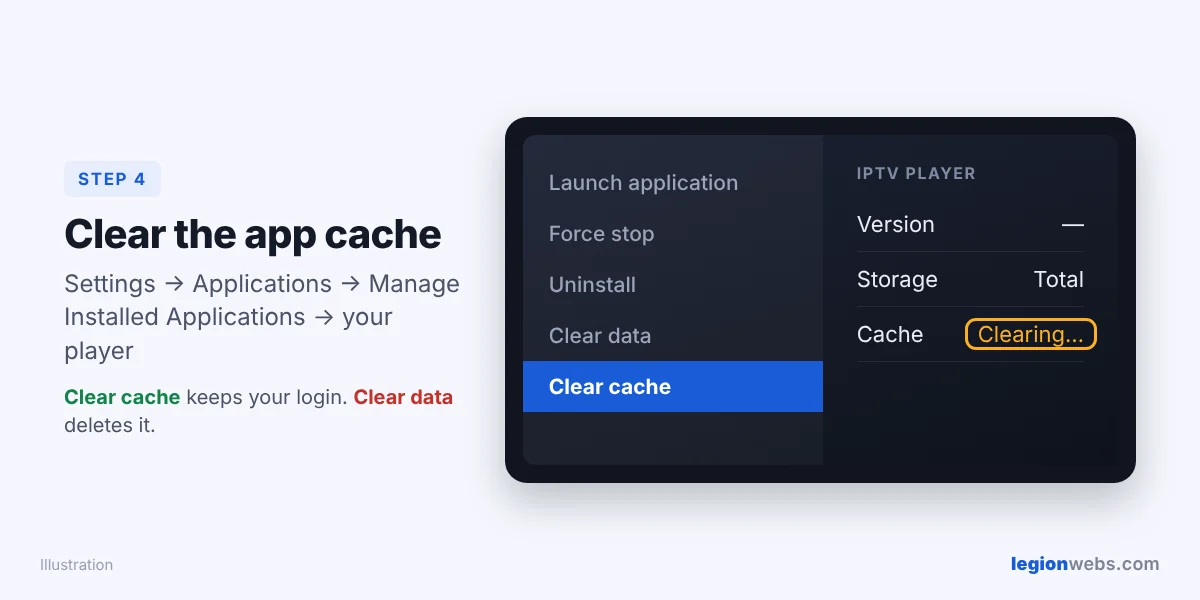
Important: do not choose Clear data unless you want to start over. It deletes your playlist login, favorites and settings.
Fix 5: Free up storage and close background apps
Fire TV Sticks have little storage, and when it is nearly full, everything slows down. Check the free space in Settings → My Fire TV → About → Storage. Then uninstall apps you never use, and delete old installer files in the Downloader app (Files tab). Before you watch, force stop apps that may still run in the background.
Fix 6: Change the IPTV player settings to reduce buffering
Your player app has settings that make a real difference:
- Buffer size: a larger buffer gives the stream more time to recover from small drops. In TiviMate, see our TiviMate best settings.
- Video player: IPTV Smarters lets you switch between its built-in players. If one stutters, try another, as shown in our IPTV Smarters lesson.
- Quality: if your service offers SD, HD and 4K versions of a channel, pick one level lower to test.
Still buffering in one app only? Try a different player with the same login. Our best IPTV app for Fire Stick comparison helps you choose.
Fix 7: Turn off Data Monitoring and autoplay
Two Fire TV features use resources in the background. Turn off Settings → Preferences → Data Monitoring. Then go to Settings → Preferences → Featured Content and switch off video and audio autoplay. As a result, the Home screen stops playing trailers while your stream loads.
Fix 8: Update Fire OS and your player
Updates often fix playback bugs. Go to Settings → My Fire TV → About → Check for updates, and update your IPTV player from the place you installed it. If your stick is an older model that struggles even after these fixes, a newer device such as the Fire TV Stick 4K Max handles live streams much better. Avoid the 4K Select if you use sideloaded players, because it runs Vega OS and cannot install them.
Fix 9: Use a VPN when your provider causes IPTV buffering
Some internet providers slow down streaming traffic, especially in the evening. This is called throttling. A typical sign is that your speed test looks fine, yet IPTV buffers at peak times. A VPN encrypts your traffic, so the provider cannot single out your streams.
However, a VPN is not magic. It cannot make a slow connection faster or fix an overloaded IPTV server, and it adds a small speed cost. For the best result, choose a server close to you and a fast protocol such as WireGuard.
Fix 10: Check the IPTV service itself
If only some channels buffer, or everything buffers during big events while your connection tests fine, the problem is on the service side. Nothing on your Fire TV can fix that. Contact your provider and ask whether they have a backup server or a different stream format. If the problem keeps coming back, test another licensed service. Many offer a free IPTV trial, so you can compare before you pay.
Good to know: IPTV players have no channels of their own. Only use services that have the rights to the channels they offer.
Troubleshooting
| Problem | Fix |
|---|---|
| Picture freezes but the sound keeps playing | Switch the video player or decoder in the app settings (Fix 6). |
| Buffering starts after a few minutes of watching | Increase the buffer size and clear the cache (Fixes 4 and 6). |
| Channels will not load at all | Check your subscription is active and your login is correct. Then restart (Fix 1). |
| Buffering got worse after installing a VPN | Pick a closer server or another protocol. Turn the VPN off to compare. |
| Fire TV says “Network disconnected” now and then | Move to 5 GHz or use an Ethernet adapter (Fix 3). |
Frequently Asked Questions
What is the quickest way to fix IPTV buffering on Firestick?
Restart the Fire TV and the router, connect to 5 GHz Wi-Fi, and clear the player’s cache. Together, these three steps fix most cases in under five minutes.
Why does IPTV buffer when Netflix works fine?
Netflix stores videos on servers close to you and downloads far ahead. Live IPTV cannot buffer much ahead, and it often comes from servers farther away. So weak points in the app, the service or your provider show up with IPTV first.
Does a VPN fix IPTV buffering?
Only when your internet provider slows down streaming traffic. In that case, it can help a lot. If the cause is weak Wi-Fi or a busy IPTV server, a VPN will not help.
What internet speed do I need for IPTV?
For a comfortable experience, aim for 10–15 Mbps per HD stream and 25 Mbps or more for 4K, measured on the Fire TV itself.
Will clearing the cache delete my playlist?
No. Clear cache only removes temporary files. Clear data is the option that deletes your login and settings.
Is Ethernet better than Wi-Fi for IPTV?
Yes. A cable gives a steady connection without interference from walls or neighbors’ networks, which is exactly what live streams need.
What’s next
Now you know how to fix IPTV buffering on Firestick, and your streams should play smoothly. If you have not chosen a player yet, compare them in Best IPTV App for Fire Stick. New to IPTV? Start with IPTV Basics, or see the full list of lessons on the site map.