
How to Install IPTV Smarters Pro on Firestick (2026 Guide)
This guide may contain affiliate links. If you buy through them we may earn a commission at no extra cost to you. Learn more.
Lessons 3 of 6
Quick Overview: IPTV Smarters Pro is a free IPTV player: it plays the channels, movies and series from an IPTV subscription you already have, with a clean TV guide. Because it is not in the Amazon Appstore, you install IPTV Smarters Pro on Firestick with Downloader from the official website, and then log in with the details your provider sent you. Allow about 10 minutes.
IPTV Smarters Pro is one of the most popular ways to watch IPTV on a Fire TV Stick because it is free, easy to navigate with a remote, and works with almost every provider. In this lesson you will install IPTV Smarters Pro on Firestick, log in, and set it up for smooth playback.
Important: IPTV Smarters does not include any channels. In other words, it is only a player, like a DVD player without discs. You need a subscription from an IPTV provider, and you should only use services that are licensed to offer their content.
What you need
- A Fire TV Stick running Fire OS (the 4K Select and 2nd-gen HD models do not support it)
- The Downloader app, set up as shown in our Downloader lesson
- Your IPTV login details: username, password and server URL (or an M3U link)
- About 10 minutes
Step 1: Download IPTV Smarters Pro from the official website
- Open Downloader on your Fire TV Stick.
- Select the address bar, type iptvsmarters.com and select Go. The official IPTV Smarters website then opens inside Downloader.
- Next, move the cursor to the Downloads section of the site.
- Choose the Android / Fire TV (APK) download for IPTV Smarters Pro.
- Finally, wait for the download to finish.
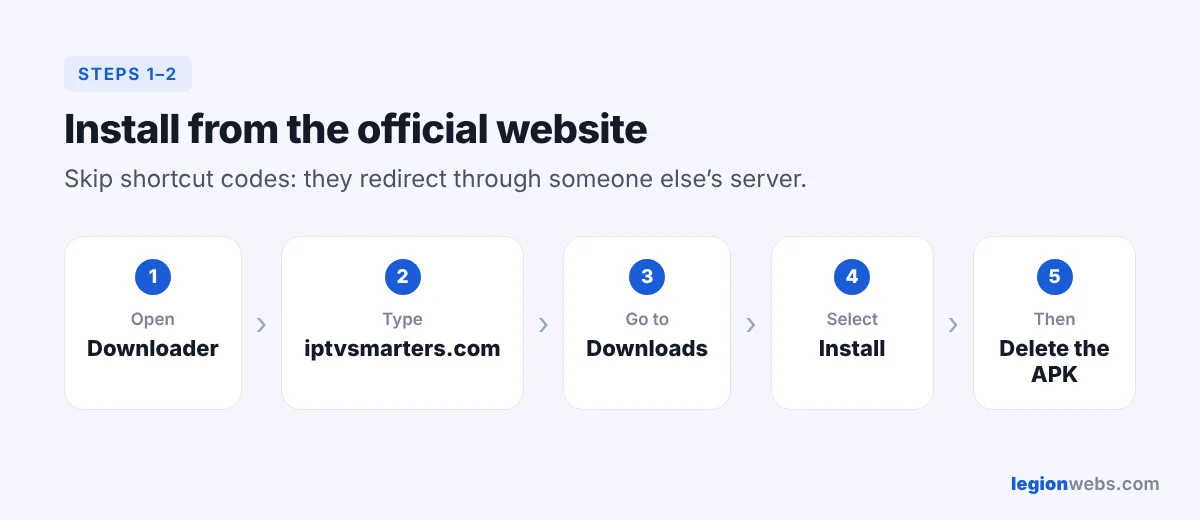
Why not use a shortcut code? Many websites give you a short Downloader code. However, those codes redirect through someone else’s server, so you cannot see which file you get. Downloading from the official website is the safest way to avoid modified copies of the app.
Step 2: Install the app
- When the install screen appears, select Install.
- When it says App installed, select Done (not Open).
- Downloader shows a prompt to delete the file. Select Delete, then Delete again. This frees storage on your Fire TV Stick.
If you see “There was a problem parsing the package”, the download was incomplete. Delete it and download again.
Step 3: Open IPTV Smarters and accept the terms
- Press and hold the Home button, choose Apps, and scroll to the end to find IPTV Smarters Pro.
- Open it. On the first launch, read the Terms of Use and then select Accept.
- Choose the TV layout when the app asks which device you are using.
Tip: highlight the app, press the menu button (three lines) and choose Move to put it on your home screen.
Step 4: Log in to IPTV Smarters Pro on Firestick
Your provider gives you one of two login types. Xtream Codes API is the better choice when available, because channels, movies and the TV guide load automatically.
| Field | What to enter |
|---|---|
| Any Name | Any name you like, for example Living Room |
| Username | The username from your provider |
| Password | The password from your provider |
| URL | The server address, including http:// and the port, for example http://example.com:8080 |
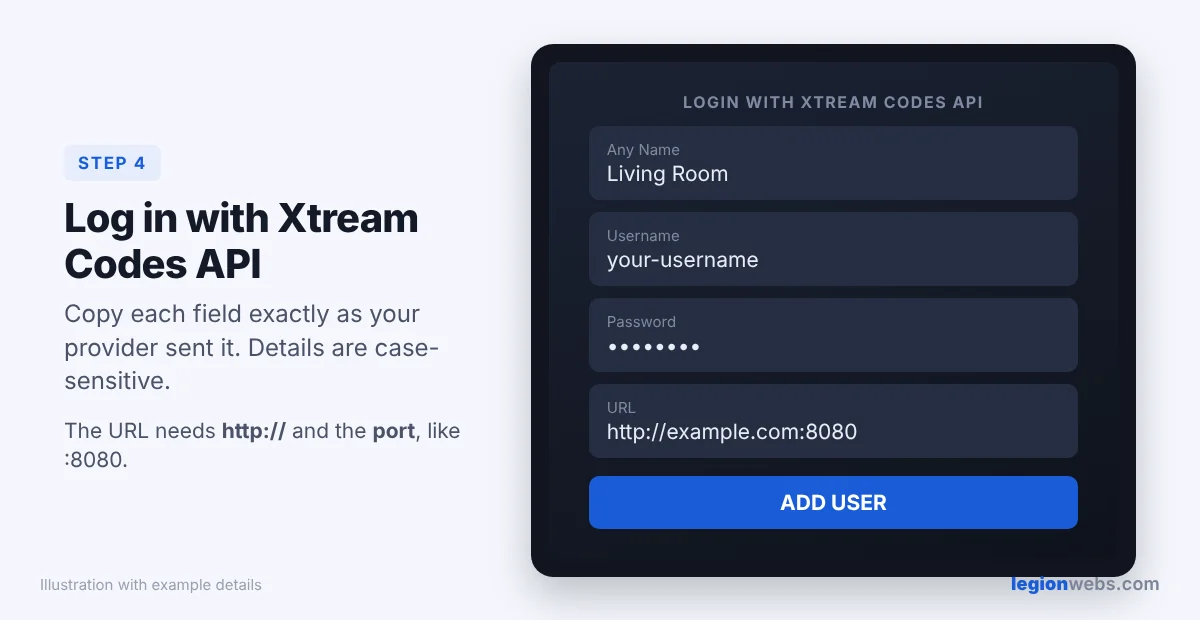
- Select Login with Xtream Codes API.
- Fill in the four fields exactly as your provider sent them. In particular, note that they are case-sensitive.
- Select Add User. The app downloads your channels, movies, series and TV guide. This can take a minute the first time.
Only have an M3U link? Choose Load Your Playlist or File/URL, give it a name, select M3U URL, paste the link and select Add User. However, with M3U you may need to add the TV guide (EPG) yourself from the app settings.
Step 5: Settings for smooth playback
Open Settings (the gear icon on the main screen) and check these:
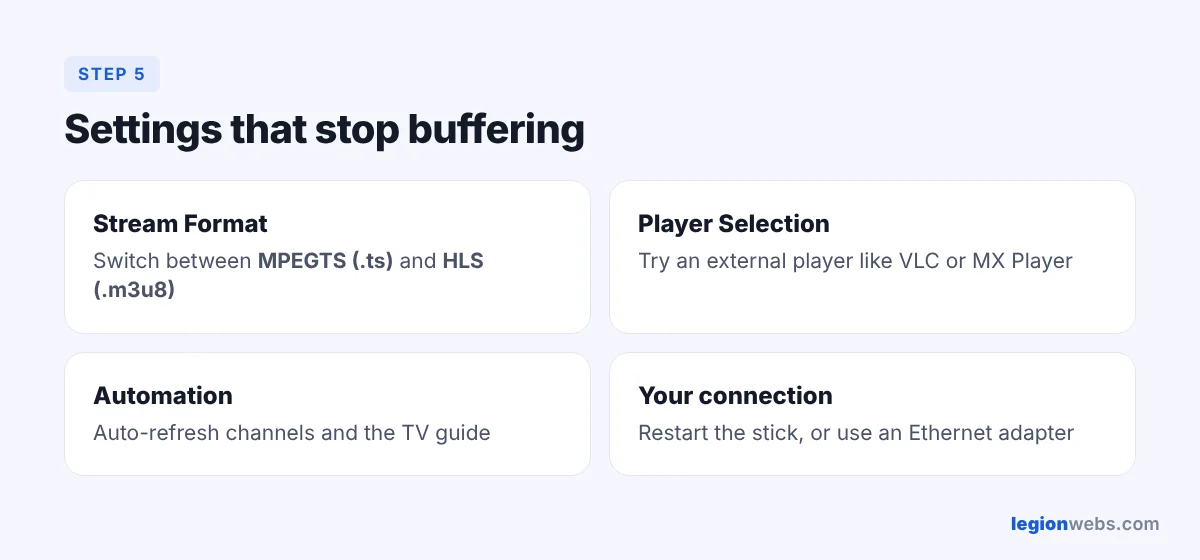
- Stream Format: if channels buffer, try switching between MPEGTS (.ts) and HLS (.m3u8). One usually works better with your provider.
- Player Selection: keep the built-in player, or choose an external player such as VLC or MX Player if videos stutter.
- Automation: turn on automatic refresh of channels and EPG so your guide stays current.
- Parental Control: set a PIN and lock adult or unwanted categories.
- Time Format and EPG Time Shift: fix the TV guide if programme times are off by an hour.
How to use the main screen
| Section | What it does |
|---|---|
| Live TV | Live channels, sorted by category |
| Movies / Series | On-demand videos from your provider |
| Catch up | Watch shows from the past days, if your provider supports it |
| Install EPG | Download or refresh the TV guide |
| Multi-Screen | Watch up to four channels at once (needs a strong connection) |
Troubleshooting
| Problem | Fix |
|---|---|
| “Invalid username or password” | Retype the details carefully. Check the URL includes http:// and the port. Ask your provider if your account is active. |
| Channels load but the guide is empty | Go to Install EPG and refresh. With M3U logins, add the EPG link from your provider. |
| Buffering or freezing | Change the Stream Format, try an external player, restart the Fire TV Stick, and test your internet speed. A wired Ethernet adapter helps a lot. |
| App crashes or is slow | Go to Settings → Applications → Manage Installed Applications → IPTV Smarters Pro → Clear cache. |
| Cannot install the app | Your Fire TV may run Vega OS, or the download was incomplete. See our Downloader lesson. |
Frequently Asked Questions
Is IPTV Smarters Pro free?
Yes, the player is free to download and use. Instead, you pay only for the IPTV subscription you load into it.
Is IPTV Smarters Pro legal?
Yes. It is a legal media player that does not provide any content. What matters is the service you use with it: choose providers that are licensed to distribute their channels.
Does IPTV Smarters Pro work on every Firestick?
It works on every Firestick that runs Fire OS, including the Fire TV Stick 4K Max, 4K Plus, the 1st-gen HD model and the Fire TV Cube. It does not work on the Fire TV Stick 4K Select or the 2nd-gen Fire TV Stick HD, which run Vega OS.
Why is IPTV Smarters not in the Amazon Appstore?
It is not currently listed there, so Fire TV users install it from the official website using Downloader, as shown above.
Can I use one account on several devices?
That depends on your provider. For example, many subscriptions allow only one stream at a time, so check how many connections your plan includes.
What’s next
Your player is ready. Next, compare it with other players in IPTV Setup by Device. Still need a service to load into it? You can test one first with a free IPTV trial.