
EPG Not Loading? 7 Fixes for Your IPTV TV Guide (2026)
This guide may contain affiliate links. If you buy through them we may earn a commission at no extra cost to you. As an Amazon Associate I earn from qualifying purchases. Learn more.
Lessons 14 of 15
Quick Overview: If your EPG is not loading, first look at what the guide shows. An empty guide usually needs an EPG update, a corrected EPG link or a cleared cache. Wrong times need the EPG time shift. A few blank channels need matching to the right EPG entry, and a guide that stops after a day or two needs automatic updates. This lesson covers each case in TiviMate, IPTV Smarters and OTT Navigator.
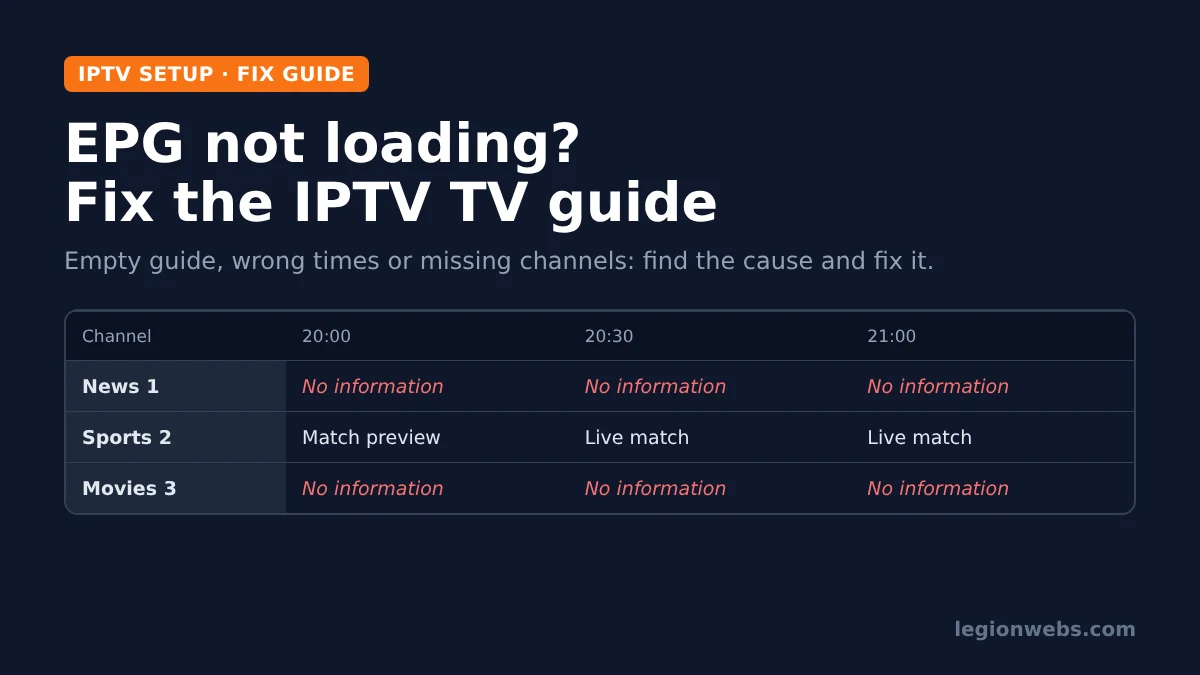
The EPG (electronic program guide) is the TV guide grid in your IPTV player. When the EPG is not loading, channels still play, but you see “No information” instead of show names. That makes it hard to find anything, and it also breaks features like reminders and catch-up.
If you have not added a guide yet, start with our lesson on how to add EPG to IPTV. This lesson is for when you already set it up, but it is empty, wrong or incomplete.
What you need
- Your IPTV player (TiviMate, IPTV Smarters, OTT Navigator or similar)
- Your playlist details and EPG link from your provider
- A stable internet connection
- About 10 to 15 minutes
Important: IPTV players do not include channels or guide data. Both come from the service you subscribe to, so only use licensed IPTV services and legal EPG sources.
EPG not loading? Match the symptom to the fix
Different problems look different in the guide. Therefore, check what you see first, and then jump to the matching fix.
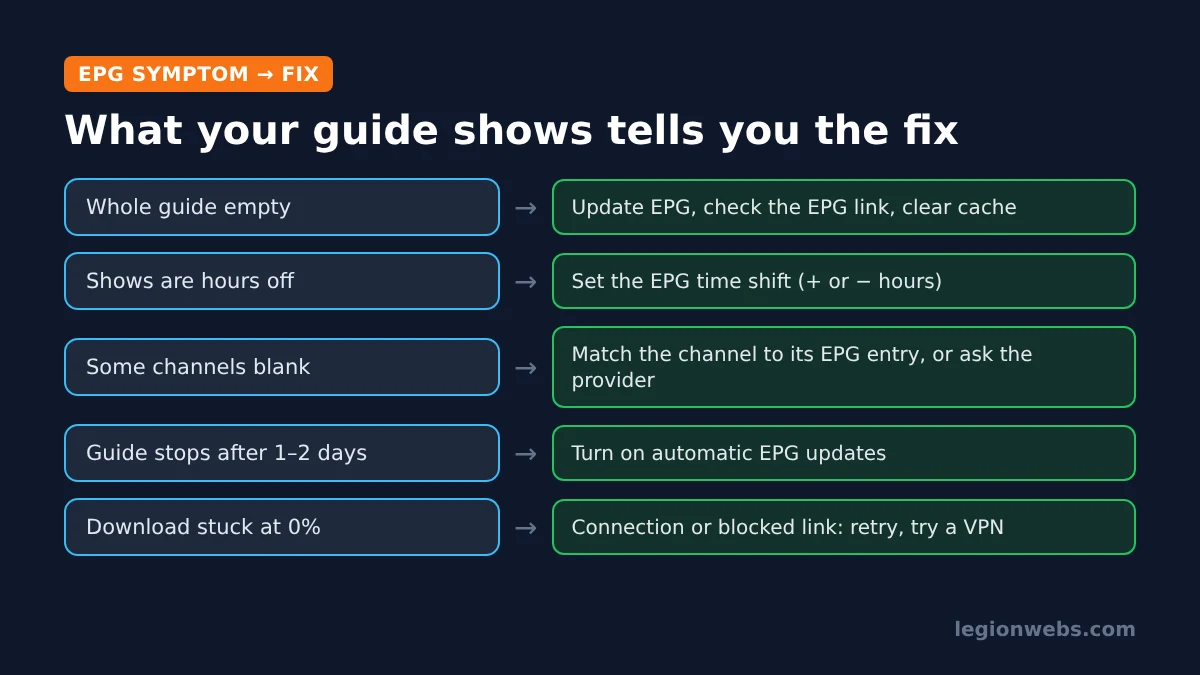
| What you see | Most likely cause | Go to |
|---|---|---|
| The whole guide says “No information” | EPG never downloaded, wrong link or broken cache | Fix 1, 2 and 3 |
| Shows are one or more hours off | Time zone difference | Fix 4 |
| Most channels work, a few are blank | Channel not matched to its EPG entry | Fix 5 |
| Guide was fine but stops after a day or two | Automatic updates are off | Fix 6 |
| EPG download stuck at 0% or shows an error | Connection problem or blocked link | Fix 7 |
Fix 1: EPG not loading at all? Update it manually
Most players download the guide in the background. If that download was interrupted, for example by closing the app, the guide stays empty. A manual update usually solves it.
- TiviMate: open Settings > EPG and choose the option to update the EPG now.
- IPTV Smarters: on the home screen, use the refresh or Install EPG option, or find EPG in Settings.
- OTT Navigator: open Settings > Playlists, select your playlist and refresh its EPG.
Afterwards, keep the app open until the update reaches 100%. Large guides can take a few minutes on a Fire Stick, so be patient. Menu names change between app versions, so if an option looks different, look for “EPG” or “TV guide” in the app’s settings.
Fix 2: Check the EPG link
If the update fails or finishes with nothing, the EPG link itself may be wrong. This happens often after a provider changes its server address or after a typing mistake.
- Open the playlist or EPG settings in your player and find the EPG URL.
- Compare it character by character with the link in your provider’s welcome email or account page.
- If you use Xtream Codes login, the guide usually loads automatically. In that case, remove any old external EPG link that might override it.
- Save, then run Fix 1 again.
Not sure which login type you use? Our guide to M3U vs Xtream Codes explains the difference and why it matters for the guide.
Fix 3: Clear the cache when the EPG is not loading
A damaged guide file can block every new download. Clearing the cache removes it without deleting your playlist.
- On a Fire Stick, go to Settings > Applications > Manage Installed Applications.
- Select your IPTV player and choose Clear cache. Do not choose Clear data, because that removes your playlist and settings.
- Open the player again and update the EPG (Fix 1).
In addition, make sure the device has free space. A guide for hundreds of channels needs room to unpack, and a full device often causes an EPG that is not loading. Our lesson on Fire Stick storage full shows what to delete.
Fix 4: Correct wrong times with the EPG time shift
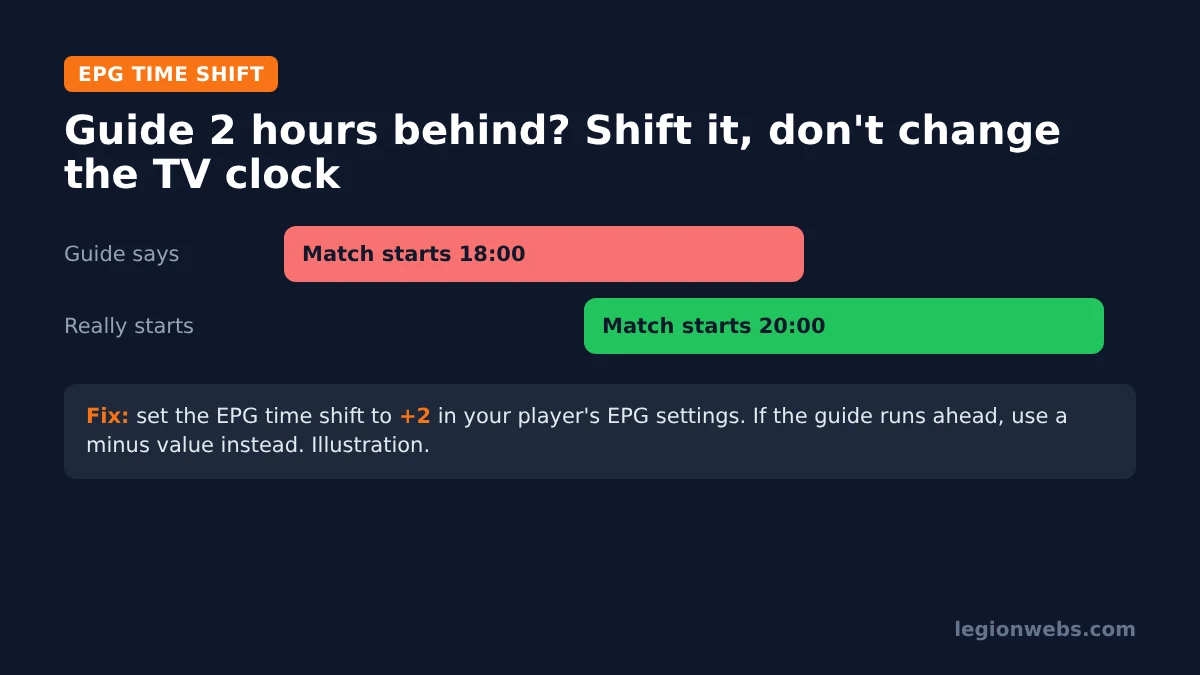
When the guide shows the right shows at the wrong time, the guide data uses a different time zone from yours. Do not change your device clock. Instead, use the time shift setting in the player.
- Find a show whose real start time you know, such as the evening news.
- Count how many hours the guide is off, and in which direction.
- Open the EPG settings in your player and find Time shift (in some apps, “EPG timeshift” or “time offset”).
- Enter a plus value if the guide runs behind, or a minus value if it runs ahead. For example, a guide two hours behind needs +2.
- Reload the guide and check the same show again.
Remember that daylight saving changes can move the guide by one hour twice a year, so check the time shift again after the clocks change.
Fix 5: Fill in blank channels
If most channels have a guide but a few do not, those channels are not matched to an entry in the EPG file. In other words, the player cannot tell which schedule belongs to them.
- Some players, including TiviMate, let you open a channel’s settings and pick its guide entry by hand. Search for the channel name and select the closest match.
- Channels that are new or regional are often simply missing from the provider’s guide. In that case, report the channel names to your provider so they can add them.
- Movie and series categories (VOD) never have guide data, so blank rows there are normal.
Fix 6: Turn on automatic EPG updates
Guide files usually cover only a few days ahead. If the guide is full today but empty in two days, the player is not updating it.
- In your player’s EPG settings, set the update interval to once a day, or turn on “update on app start” where available.
- Moreover, open the player at least every couple of days so it has a chance to update.
- Finally, avoid force-closing the app while an update runs.
Fix 7: EPG still not loading? Check the connection
If the download is stuck at 0% or shows an error, the player cannot reach the guide server. First, test other apps to confirm your internet works, and restart the device and router. If your Fire Stick is not connecting to WiFi properly, fix that first.
Some internet providers block certain guide addresses. In that case, a VPN can help the player reach the server; see how to install a VPN on Firestick. If none of this works, the guide server itself may be down, so contact your IPTV provider.
Frequently Asked Questions
Why does my EPG say “No information”?
The player has no guide data for that channel. Usually the EPG has not downloaded yet, the link is wrong, or the channel is not matched to a guide entry.
How long should I wait before calling the EPG not loading?
Small guides load in seconds. However, a guide for thousands of channels can take several minutes on a Fire Stick, especially on the first download.
Is the EPG not loading a problem with my player or my provider?
Try the same login in a second player. If the guide is empty there too, the problem is the provider’s guide. If it works, the problem is your first player’s settings.
Does the EPG affect catch-up?
Yes. Catch-up uses the guide to know where each past show starts, so a broken or shifted guide also breaks catch-up.
For background on how program guides work, see the electronic program guide overview on Wikipedia.
What’s next
- Set up a guide from scratch: how to add EPG to IPTV.
- Streams freezing as well? Read how to fix IPTV buffering on Firestick.
- Choosing a player with a better guide: best IPTV app for Fire Stick.
Free download
Firestick + IPTV Setup Checklist
Two printable pages: install, login, the settings that make it faster and quick fixes for buffering and an empty guide.
We'll send occasional new guides. No spam, unsubscribe any time. Privacy