
Internet Speed for IPTV: How Many Mbps Do You Need?
This guide may contain affiliate links. If you buy through them we may earn a commission at no extra cost to you. As an Amazon Associate I earn from qualifying purchases. Learn more.
Lessons 8 of 8
Quick Overview: The internet speed for IPTV that works reliably is about 10 Mbps per Full HD stream and 25 Mbps per 4K stream, measured on the device itself, in the evening. Add those numbers up for every screen that watches at the same time, then add headroom for everything else in the house. A steady connection matters as much as raw speed, so Ethernet or a strong WiFi signal often fixes more than a faster plan.
Buffering is the most common IPTV complaint, and the first question is always the same: is my internet fast enough? The answer depends on three things: the picture quality you watch, how many screens stream at once, and how steady your connection is at the busiest time of day. In this lesson, you will learn how much speed each quality needs, how to work out your own household number, and how to test the speed where it counts: on your TV device.
If you are new to IPTV, start with what is IPTV. Otherwise, let’s look at the numbers.
Internet speed for IPTV by picture quality
Big streaming services publish their minimum speeds. For example, Netflix recommends at least 3 Mbps for HD (720p), 5 Mbps for Full HD (1080p) and 15 Mbps for 4K. Similarly, YouTube lists about 20 Mbps for 4K. However, these are minimums for on-demand video, which can buffer ahead and adjust quality on the fly.
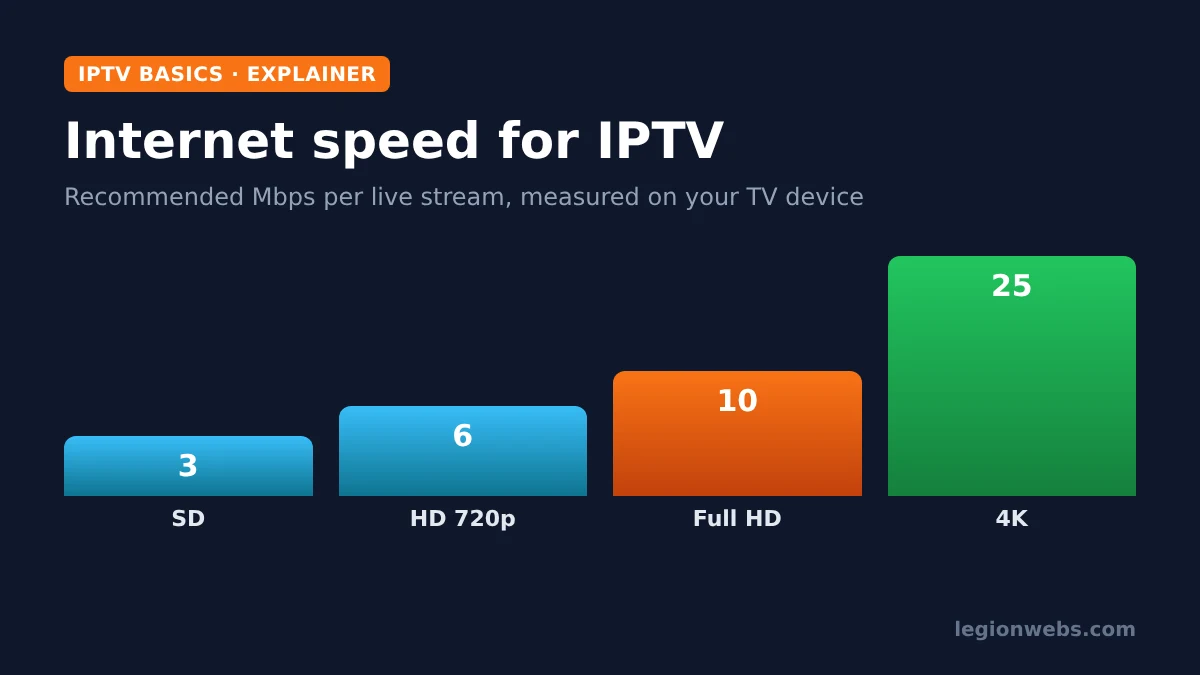
Live IPTV is less forgiving. A live channel cannot load minutes ahead, many IPTV streams use higher bitrates than Netflix, and a playlist channel usually does not drop to a lower quality when your connection dips. For that reason, we recommend roughly double the on-demand minimum:
| Picture quality | On-demand minimum (Netflix) | Our recommendation for live IPTV | Data per hour (approx.) |
|---|---|---|---|
| SD (480p) | Not listed | 3 Mbps | 1.4 GB |
| HD (720p) | 3 Mbps | 6 Mbps | 2.7 GB |
| Full HD (1080p) | 5 Mbps | 10 Mbps | 4.5 GB |
| 4K (2160p) | 15 Mbps | 25 Mbps | 11 GB |
Note that speeds are in megabits per second (Mbps), the unit internet providers use. Some apps show megabytes per second (MB/s) instead; in that case, multiply by 8 to compare. For instance, 3 MB/s equals 24 Mbps.
How to work out the speed your household needs
The figures above are per stream. In practice, though, your internet is shared by every TV, phone and laptop in the house. Use this simple sum:
- Count the screens that watch at the same time at your busiest moment, for example a big match night.
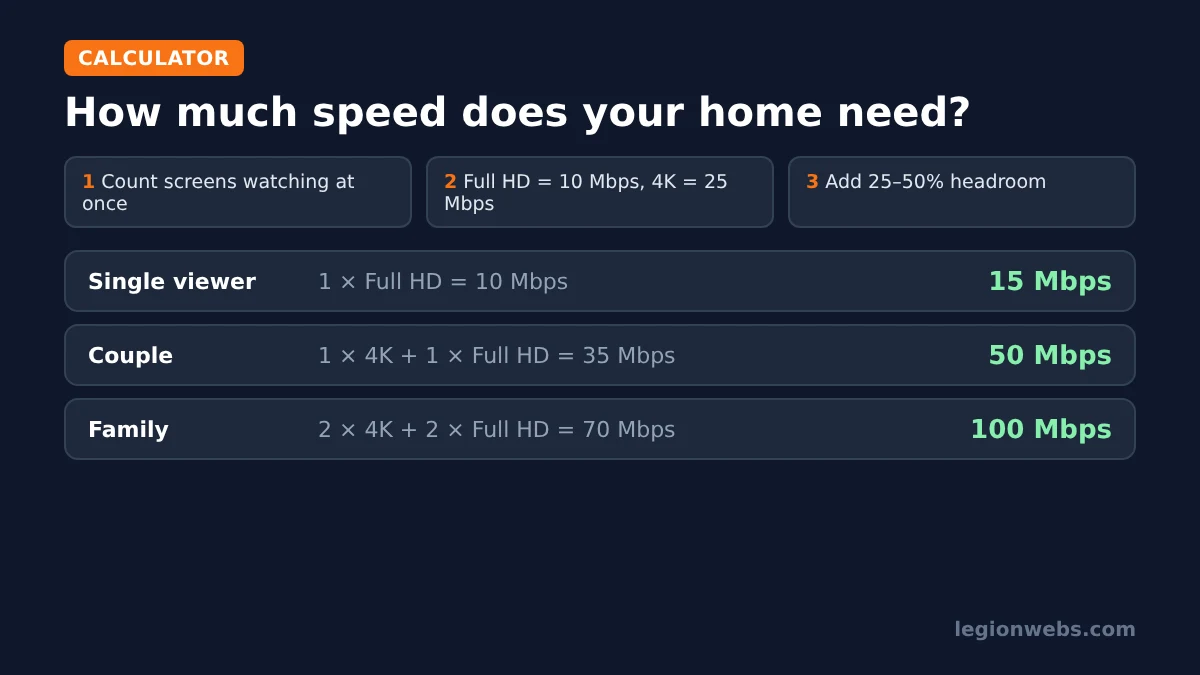
- Multiply each by its quality. Use 10 Mbps for each Full HD screen and 25 Mbps for each 4K screen.
- Add 25 to 50 percent headroom for phones, video calls, game downloads and backups running at the same time.
| Household | Streams at once | Streaming total | With headroom |
|---|---|---|---|
| Single viewer | 1 x Full HD | 10 Mbps | 15 Mbps |
| Couple | 1 x 4K + 1 x Full HD | 35 Mbps | 50 Mbps |
| Family | 2 x 4K + 2 x Full HD | 70 Mbps | 100 Mbps |
Consequently, a 100 Mbps plan comfortably covers most families, while a 30 to 50 Mbps plan suits one or two viewers. Upload speed matters far less for watching IPTV; a few Mbps is enough.
How to test your internet speed for IPTV on Fire TV
Your plan’s advertised speed is what reaches the router, not what reaches your TV. A Fire Stick behind the TV, far from the router, may get only a fraction of it. Therefore, always test on the streaming device itself.
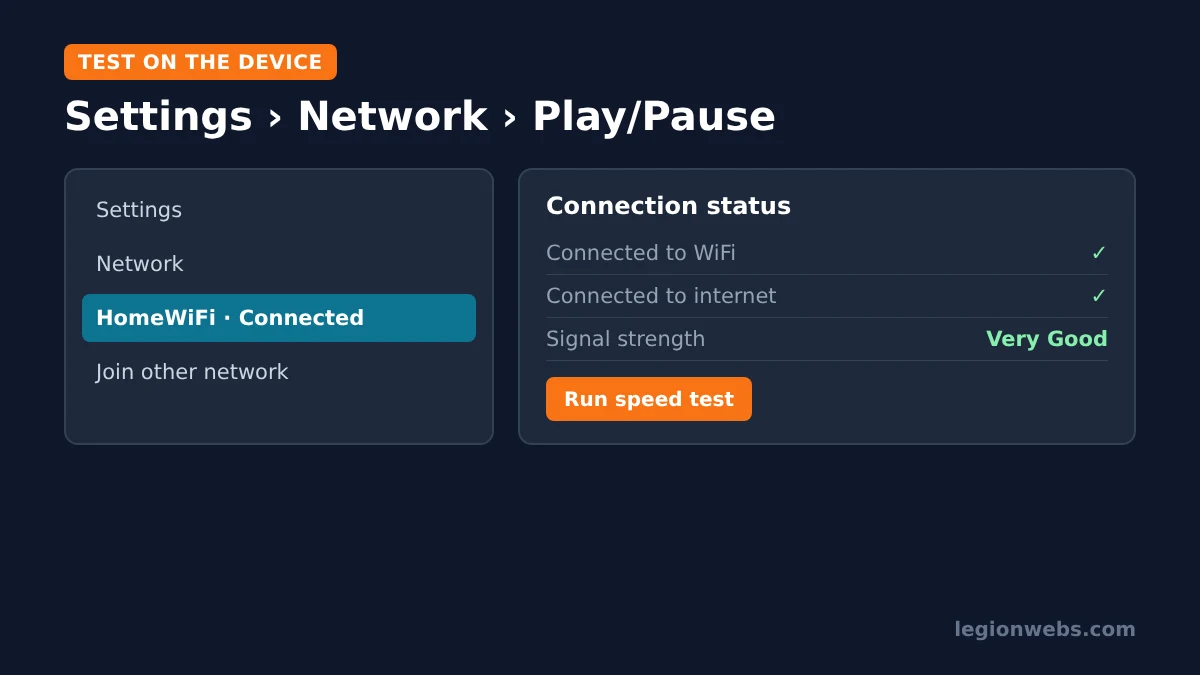
- Press Home, open Settings and select Network.
- Highlight the network you are connected to and press Play/Pause on the remote to open the connection status.
- On recent Fire OS versions, choose Run speed test (if your model offers it) and wait for the result.
- If your model has no built-in test, open the Silk browser and visit a speed test site such as fast.com instead.
Test at least twice: once in the afternoon and once between 8 and 10 p.m., when networks are busiest. If the evening result drops well below the table above, you have found the reason for your buffering. Android TV and Google TV users can use a speed test app from Google Play or the same website in a browser.
Why a steady connection matters more than speed
A 200 Mbps plan can still buffer if the signal keeps dropping. In other words, IPTV needs a connection that stays steady for hours, not just a high peak. Three things decide that:
- WiFi signal: walls, the TV itself and distance weaken WiFi. On Fire TV, a signal rated below “Very Good” in the network status often explains dropouts. Our Fire Stick WiFi fixes cover how to improve it.
- Ethernet: a wired connection removes WiFi problems entirely. Fire Sticks need an Ethernet adapter; many Android TV boxes have a port built in.
- Ping and jitter: ping is the delay to the server, and jitter is how much that delay jumps around. For live TV, a steady ping matters more than a low one. If a speed test shows large jumps, check for other heavy users on your network.
7 ways to get more out of your connection
- Use Ethernet for the main TV whenever possible.
- Use the 5 GHz WiFi band if the device is in the same room as the router; it is faster at short range.
- Move the router higher and into the open, away from the TV cabinet and thick walls.
- Use the HDMI extender that came with your Fire Stick, so the stick is not hidden behind the TV.
- Pause big downloads, such as game updates and cloud backups, during live events.
- Restart the router every few weeks, or whenever speeds drop for no reason.
- Check for evening slowdowns. If speeds are fine by day but drop only at night on streaming, your internet provider may be slowing video traffic. A VPN can help in that case; see VPN for IPTV.
Also, keep in mind that a VPN itself costs some speed. With a modern protocol such as WireGuard and a nearby server, the loss is usually small, but test before and after to be sure.
When the problem is not your internet speed
Sometimes your speed test looks great and channels still buffer. In that case, the bottleneck is elsewhere:
| Sign | Likely cause | What to do |
|---|---|---|
| Only one or two channels buffer | That channel’s source | Try the backup version of the channel, or tell your provider |
| Every channel buffers at the same time, everywhere | Overloaded provider servers | Wait, then ask your provider; consider a more reliable service |
| Fast speed test, but the app stutters | An underpowered or full device | Clear the cache and free storage; see best Firestick settings |
| Picture freezes but sound continues | Player decoder setting | Switch between hardware and software decoding in your player |
For player-specific steps, see TiviMate not working and fix IPTV buffering on Firestick. And because service quality varies so much, our guide on how to choose an IPTV service explains what to check before you pay. As always, choose a provider that is licensed to offer its channels.
Internet speed for IPTV: FAQ
Is 10 Mbps enough for IPTV?
For one Full HD stream, usually yes, as long as the 10 Mbps is steady and measured on the TV device. It is not enough for 4K or for several screens at once.
How much speed do I need for 4K IPTV?
Plan for about 25 Mbps per 4K stream. Netflix’s minimum is 15 Mbps, but live IPTV needs extra headroom.
Does IPTV need a fast upload speed?
No. Watching IPTV uses download speed. A few Mbps of upload is plenty.
How much data does IPTV use?
Roughly 4.5 GB per hour for Full HD and up to about 11 GB per hour for 4K at the speeds we recommend. Therefore, avoid capped or mobile data plans for regular IPTV viewing.
Is WiFi good enough for IPTV?
Yes, if the signal is strong and stable. If you see regular buffering, though, an Ethernet connection is the most reliable fix.
What’s next
- Fix IPTV buffering on Firestick: step-by-step fixes once you know your speed.
- IPTV devices: which streaming devices handle 4K IPTV best.
- VPN for IPTV: when a VPN helps with evening slowdowns.
- IPTV glossary: the terms used in this lesson, explained.
Free download
Firestick + IPTV Setup Checklist
Two printable pages: install, login, the settings that make it faster and quick fixes for buffering and an empty guide.
We'll send occasional new guides. No spam, unsubscribe any time. Privacy