
IPVanish on Firestick: Install, Set Up and Best Settings
This guide may contain affiliate links. If you buy through them we may earn a commission at no extra cost to you. As an Amazon Associate I earn from qualifying purchases. Learn more.
Lessons 7 of 7
Quick Overview: To set up IPVanish on Firestick, install IPVanish VPN from the Amazon Appstore, sign in with your IPVanish account, accept the connection request and press Connect. Then add the free IPVanish VPN Kill Switch companion app, switch the protocol to WireGuard and use split tunneling for apps that dislike VPNs. The whole job takes about 10 minutes.
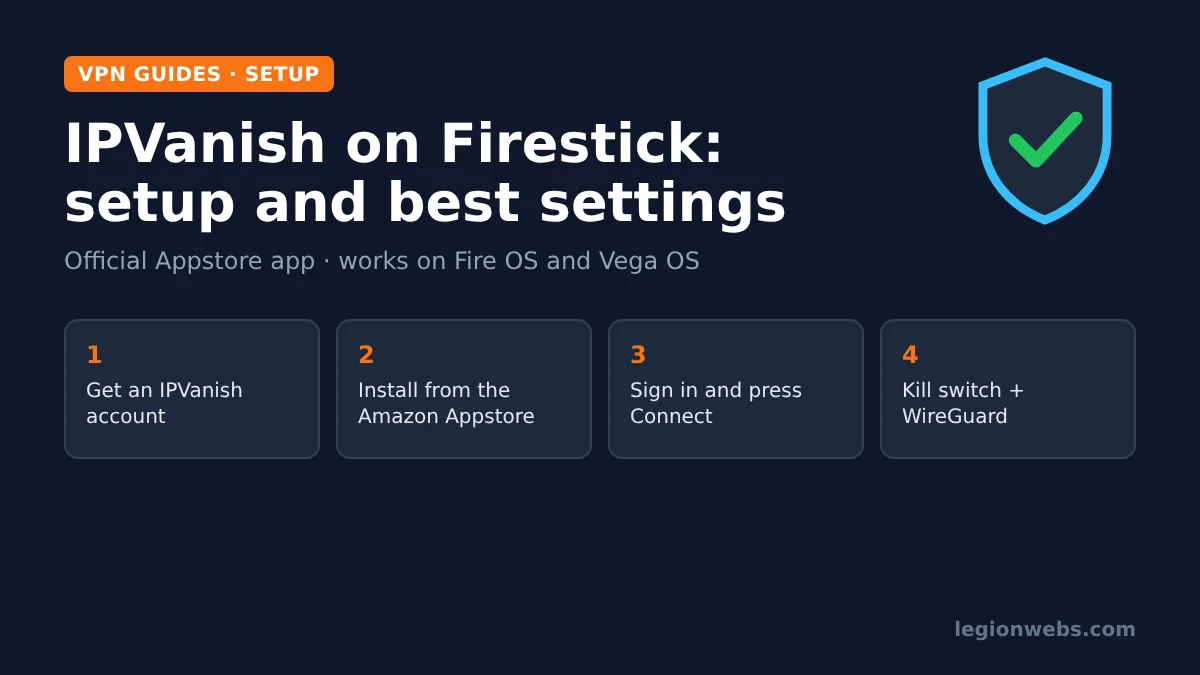
IPVanish is one of the few VPNs with a real, remote-friendly app for Fire TV, so you do not need a phone, a router trick or a sideloaded file to protect your streaming. In this lesson, you install IPVanish on Firestick the official way, connect for the first time, turn on the kill switch and then set the handful of options that actually matter on a TV. After that, you will find a troubleshooting table for the problems people hit most often.
The steps work on every current Fire TV Stick (Lite, HD, 4K and 4K Max), on the Fire TV Cube and on Fire TV smart TVs. IPVanish also has an app for Amazon’s newer Vega OS devices such as the Fire TV Stick 4K Select. Because menu names can change between app versions, we describe each setting by what it does as well as by its label.
Disclosure: Legion Webs is an IPVanish affiliate. If you sign up through our links, we may earn a commission at no extra cost to you. It does not change the steps or what we recommend.
What you need
- A Fire TV Stick, Fire TV Cube or Fire TV smart TV signed in to your Amazon account
- An IPVanish subscription (you can create one on a phone or computer in a few minutes)
- Your IPVanish email and password
- About 10 minutes
Step 1: Get an IPVanish account
The Fire TV app needs an active account before it will connect. Therefore, set this up first on your phone or computer, where typing an email and card details is much easier than with a remote.
- Open the IPVanish Fire TV offer page on your phone or computer.
- Choose a plan. The Essential plan covers the VPN itself; the Advanced plan adds extras such as cloud storage. For a Fire Stick, Essential is enough.
- Create your account and note the email and password, because you will type them on the TV in Step 3.
Every IPVanish plan allows unlimited devices, so the same login also covers your phone, laptop and any other TV in the house. In addition, new customers on one- or two-year plans get a 30-day money-back guarantee. Prices change often, so check the current price on the offer page rather than relying on figures you see in older articles.
Step 2: Install IPVanish on Firestick from the Appstore
IPVanish is listed in the Amazon Appstore, so you install it like any other Fire TV app. There is no need to enable unknown sources or use Downloader for this, and the official listing also updates itself automatically.
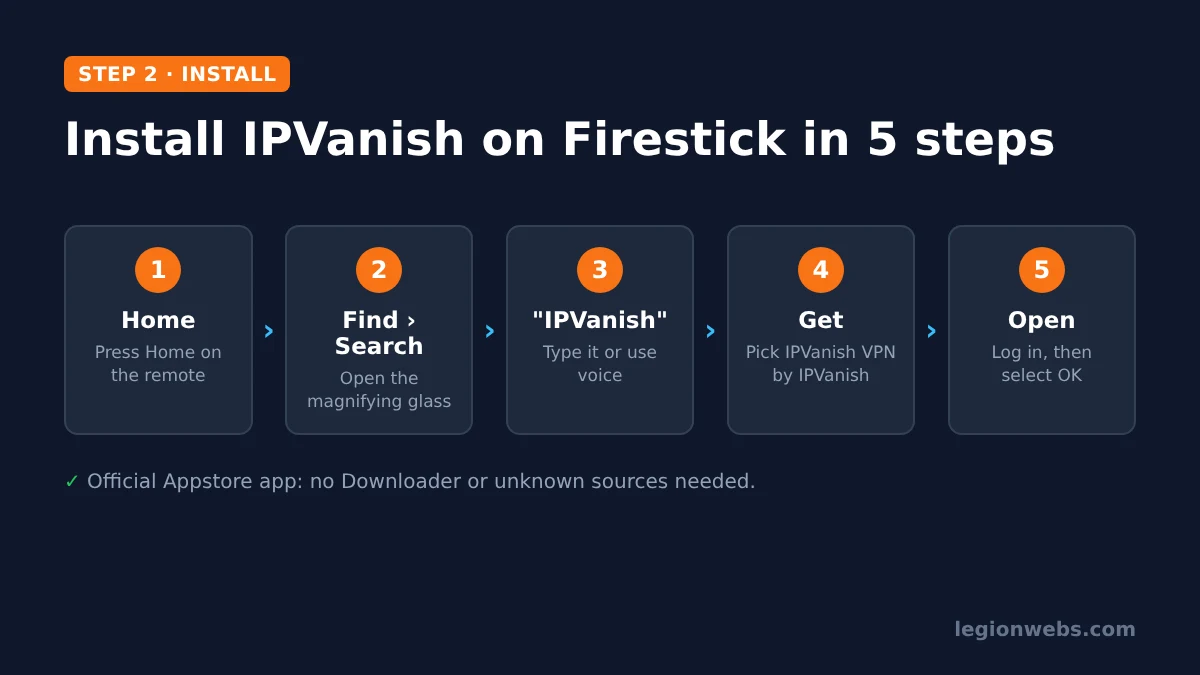
- Press Home on the remote, then open Find and select Search (the magnifying glass).
- Type IPVanish with the on-screen keyboard, or hold the microphone button and say “IPVanish”.
- Select IPVanish VPN from the results. Make sure the publisher is IPVanish, not a look-alike app.
- Choose Get or Download and wait for the install to finish.
- Select Open. Later, you will find it under Apps & Channels (or Your Apps).
Tip: move the app to the front of your app row. Highlight it, press the Menu button (three lines) and choose Move to front. As a result, it is one click away whenever you want to change server.
Step 3: Sign in and connect for the first time
- Open IPVanish and choose Log in. Enter your IPVanish email and password with the remote.
- Fire TV shows a Connection request asking to let IPVanish set up a VPN connection. Select OK. You only see this once.
- On the home screen, press Connect. By default, the app picks a fast server for you.
- To choose a country yourself, open the location option, pick a country or city, then press Connect again.
- Wait for the status to show that you are connected, then press Home. IPVanish keeps running in the background while you watch.
To confirm that the VPN works, open the Silk browser and visit an IP check site such as dnsleaktest.com. The location shown should match the server you chose, not your home city. If it still shows your real location, see the troubleshooting table below.
Step 4: Turn on the IPVanish kill switch on Firestick
A kill switch blocks all internet traffic if the VPN connection drops, so your streams never quietly carry on without protection. On Fire OS devices, IPVanish provides this as a separate, free companion app rather than a switch inside the main app.
- Go back to Find > Search and search for IPVanish VPN Kill Switch.
- Install it, open it and sign in with the same IPVanish account.
- Accept the permission and the connection request it asks for.
- Press the large button in the middle of the screen to switch the kill switch on.
- Return to the main IPVanish app and connect as normal.
From now on, if the VPN drops, apps lose internet instead of using your normal connection. This is the behaviour you want. However, it also means that a dropped VPN looks like “no internet”, so if apps suddenly stop loading, open IPVanish and reconnect first. On a Vega OS stick, check the main app’s settings for the current kill switch option, because Vega OS apps are built differently.
Best IPVanish settings on Firestick
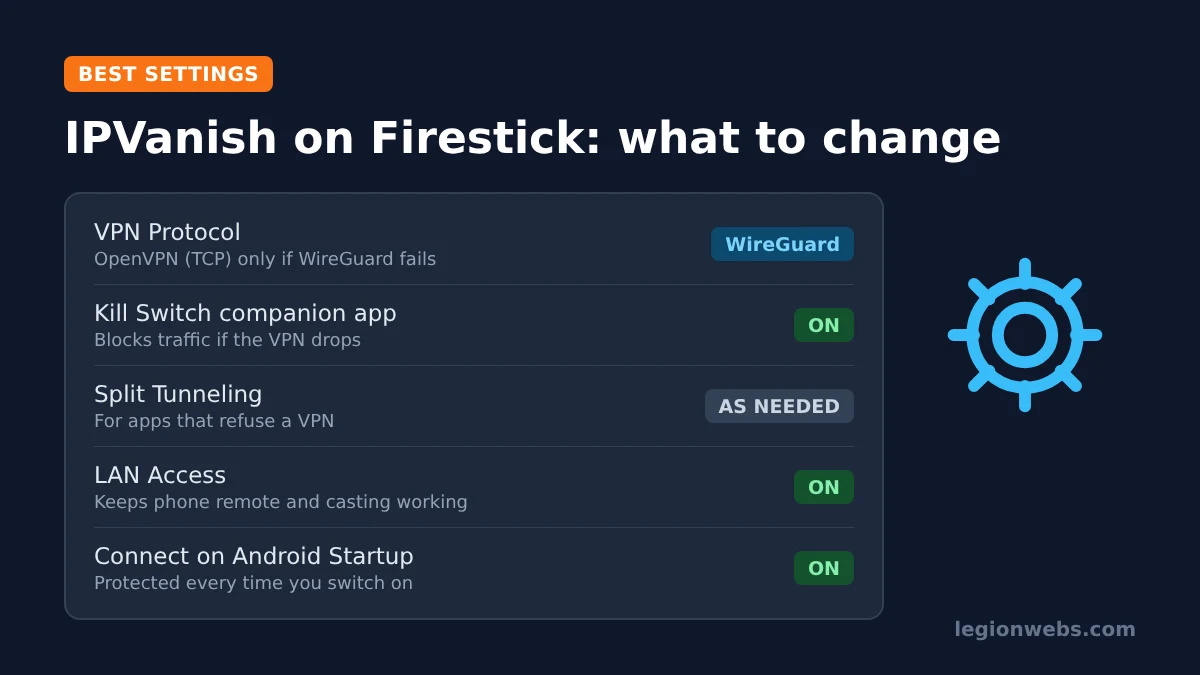
Open the gear icon in the IPVanish app to reach its settings. Most defaults are fine. Still, these five options make the biggest difference on a TV, so it is worth two minutes to set them.
| Setting | What it does | Our recommendation |
|---|---|---|
| VPN Protocol | Chooses how the app connects. Options include WireGuard, IKEv2, OpenVPN (UDP) and OpenVPN (TCP). | WireGuard for speed. Switch to OpenVPN (TCP) only if WireGuard will not connect on your network. |
| Split Tunneling (App Filter in some versions) | Lets chosen apps bypass the VPN while everything else stays protected. | Exclude apps that refuse to play over a VPN, for example some shopping or banking apps. |
| LAN Access | Lets devices on your home network still reach the Fire Stick. | On, so the Fire TV phone remote app and casting keep working. |
| Connect on Android Startup | Starts IPVanish when the Fire Stick turns on. | On if you want protection every time without thinking about it. |
| Scramble (under OpenVPN) | Disguises OpenVPN traffic on networks that block VPNs. | Off at home. Only use it on strict hotel or office WiFi. |
Which server to pick for streaming
Distance matters more than anything else for speed. In short, the closer the server, the less your stream slows down. Use these rules of thumb:
- For everyday privacy: pick a server in your own country, ideally your nearest city. This keeps speeds closest to your normal connection.
- When you travel: connect to your home country to keep using the services you already pay for, within their terms.
- If a server feels slow: try another city in the same country before you change anything else. Server load changes during the day, especially in the evening.
- Virtual locations: IPVanish labels virtual server locations in the app. They work, but a physical server nearby is usually faster.
As a quick check, run a speed test before and after you connect. If the drop is large enough that 4K streams start to buffer, switch to a closer server or try a different protocol.
Using IPVanish on Firestick with IPTV apps
Many people add a VPN because their internet provider slows down streaming traffic in the evening, or because they want privacy on shared WiFi. In that case, simply connect IPVanish first and then open your IPTV player, such as TiviMate or IPTV Smarters Pro. Everything the player loads then goes through the VPN.
Some IPTV providers lock your account to one IP address or block VPN servers. If your channels stop loading after you connect, ask your provider whether VPNs are allowed. Alternatively, add the player to split tunneling so that it uses your normal connection while other apps stay protected. For a deeper look, read our lesson on using a VPN for IPTV.
Note: a VPN protects your privacy; it does not make an unlicensed service legal. Only use IPTV services that hold the rights to the channels they offer.
IPVanish on Firestick not working? Quick fixes
| Problem | Likely cause | Fix |
|---|---|---|
| App will not connect | Protocol blocked on your network | Change VPN Protocol to OpenVPN (TCP) or IKEv2, then connect again. |
| Connected, but apps show no internet | Kill switch active after a drop | Open IPVanish and reconnect. If it keeps happening, restart the Fire Stick. |
| Kill switch does nothing | VPN permission not granted | Open the Kill Switch app, go to its settings and request the VPN permission again. |
| Streams buffer more than before | Server too far away or busy | Pick a nearer city and use WireGuard. See our buffering fixes. |
| One app refuses to play | That service blocks VPN IPs | Add the app to Split Tunneling or try another server. |
| Settings look different from this lesson | Old app version | Update IPVanish from the Appstore under Apps & Channels. |
Still stuck? Our lesson on VPN not working on Firestick covers network-level causes, and IPVanish support is available around the clock.
Is IPVanish a good choice for Firestick?
For most households, yes. Its main strengths on a TV are the native Appstore app, a Vega OS version for the newest sticks, WireGuard support and unlimited devices on one plan, which suits homes with several TVs. In addition, its no-logs policy has been independently audited. On the other hand, IPVanish is based in the United States and offers no dedicated streaming servers, and you need the separate companion app for the kill switch on Fire OS. Tom’s Guide’s IPVanish review is a good independent read if you want more detail.
If you are still choosing, compare it with the others in our best VPN for Firestick lesson. Otherwise, you can get IPVanish for Fire TV here and follow the steps above.
IPVanish on Firestick: FAQ
Is IPVanish available in the Amazon Appstore?
Yes. Search for IPVanish on your Fire TV and install IPVanish VPN directly. You do not need to sideload it with Downloader.
Does IPVanish work on the Fire TV Stick 4K Select (Vega OS)?
Yes. IPVanish released an app for Vega OS, so you install it from the Appstore in the same way. Some settings may sit in different places than on Fire OS sticks.
How many devices can I use IPVanish on?
All plans allow unlimited simultaneous devices, so one subscription can cover every Fire Stick, phone and computer in your home.
Is there a free trial of IPVanish on Firestick?
Not on Fire TV itself. Instead, new customers on one- or two-year plans get a 30-day money-back guarantee, which lets you test it on your Fire Stick and ask for a refund if it does not suit you.
Should I leave IPVanish connected all the time?
You can. With Connect on Android Startup and the kill switch on, your Fire Stick is always protected. Use split tunneling for any app that will not work over the VPN instead of turning the VPN off.
What’s next
- How to install any VPN on Firestick: the general method, including for providers without a Fire TV app.
- VPN for IPTV: when a VPN helps IPTV streams and when it gets in the way.
- NordVPN on Firestick: the same setup for NordVPN, if you are comparing the two.
- Best Firestick settings: speed up the rest of your Fire TV.
Free download
Firestick + IPTV Setup Checklist
Two printable pages: install, login, the settings that make it faster and quick fixes for buffering and an empty guide.
We'll send occasional new guides. No spam, unsubscribe any time. Privacy