
VPN on Smart TV: How to Set Up a VPN on Any TV
This guide may contain affiliate links. If you buy through them we may earn a commission at no extra cost to you. As an Amazon Associate I earn from qualifying purchases. Learn more.
Lessons 9 of 9
Quick Overview: How you get a VPN on smart TV depends on the TV’s system. Android TV, Google TV, Fire TV and Apple TV (tvOS 17 or later) can install a VPN app directly. Samsung (Tizen), LG (webOS), Roku and most other TVs cannot, so you protect them with a VPN on your router, by sharing a VPN connection from a computer, or with SmartDNS, which changes your streaming location but does not encrypt anything. This lesson shows each route step by step.
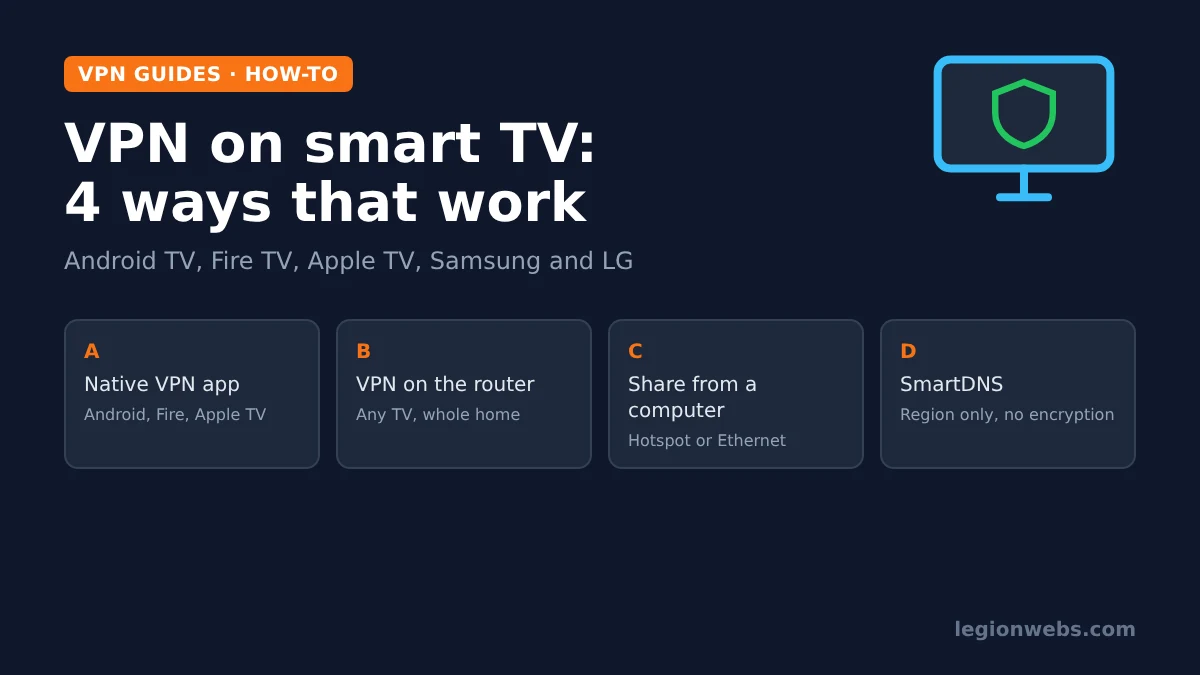
Smart TVs are now the main screen for streaming and IPTV, yet most of them were never designed to run a VPN. As a result, the same question has four different answers depending on the brand. In this lesson, you will find out which group your TV belongs to, then follow the matching method: the native app, the router, a shared connection or SmartDNS.
Disclosure: Legion Webs is an affiliate of NordVPN and IPVanish. If you sign up through our links, we may earn a commission at no extra cost to you.
Step 1: Check whether your TV can run a VPN app
The TV’s operating system decides everything. You usually see it on the start-up screen or in Settings > About. According to NordVPN’s smart TV guide, support splits like this:
| TV system | Common brands | VPN app? | Best route |
|---|---|---|---|
| Android TV / Google TV | Sony, TCL, Hisense (some), Philips Android, Sharp | Yes | Native app from Google Play |
| Fire TV | Fire TV Sticks, Toshiba, Insignia, some Panasonic | Yes | Native app from the Amazon Appstore |
| Apple TV (tvOS 17+) | Apple TV box | Yes | Native app from the App Store |
| Tizen | Samsung | No | Router, shared connection or SmartDNS |
| webOS | LG | No | Router, shared connection or SmartDNS |
| Roku OS, VIDAA, SmartCast | Roku TVs, Hisense VIDAA, Vizio | No | Router, or add a Fire TV or Google TV stick |
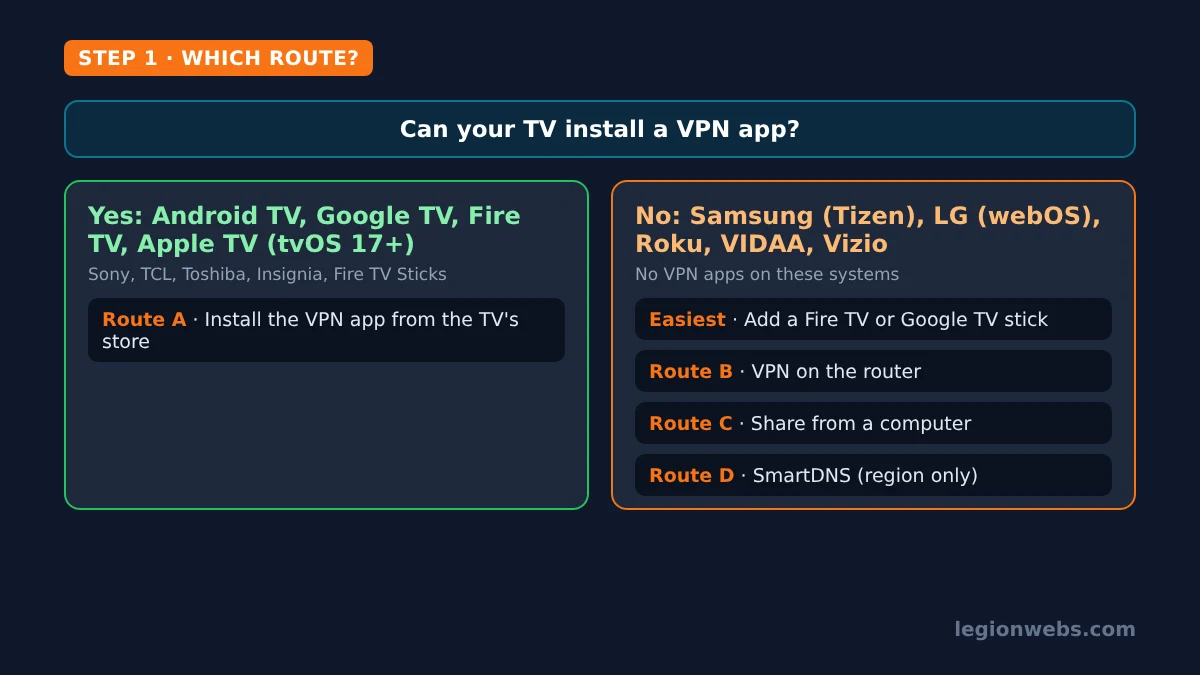
Quickest fix for any TV: plug in a streaming stick that supports VPN apps, such as a Fire TV Stick 4K Max, and watch through it. Then follow our install a VPN on Firestick lesson. This is often cheaper and simpler than configuring a router.
Route A: Install a VPN app on Android TV, Fire TV or Apple TV
If your TV runs one of these systems, this is the easiest and best route, because you get full encryption, a kill switch and split tunneling on the TV itself.
- Open the TV’s app store: Google Play on Android TV and Google TV, the Amazon Appstore on Fire TV, or the App Store on Apple TV.
- Search for your VPN, for example NordVPN or IPVanish, and install it. Check that the developer is the VPN company itself.
- Open the app and sign in. NordVPN lets you sign in by scanning a QR code with your phone, which saves typing with the remote.
- Accept the connection request the TV shows the first time.
- Choose a nearby server and press Connect.
On Apple TV, VPN apps need tvOS 17 or later, so update the box first under Settings > System > Software Updates. For Fire TV, our step-by-step lessons cover NordVPN on Firestick and IPVanish on Firestick, including the best settings.
Route B: Put the VPN on your router (Samsung, LG and every other TV)
A router VPN protects every device on your Wi-Fi, including TVs that cannot install apps. However, it is the most technical route, and it only works if your router supports VPN connections.
- Check your router. Log in to its admin page and look for a VPN client section with OpenVPN or WireGuard. Many internet provider routers only offer a VPN server, which is not the same thing.
- Download the configuration. In your VPN account, find the manual setup or router section and download the configuration file for a nearby server.
- Upload it to the router and enter your VPN’s service credentials (these are often different from your normal login).
- Connect and test. On the TV, open the web browser or a streaming app and check that the location matches your VPN server.
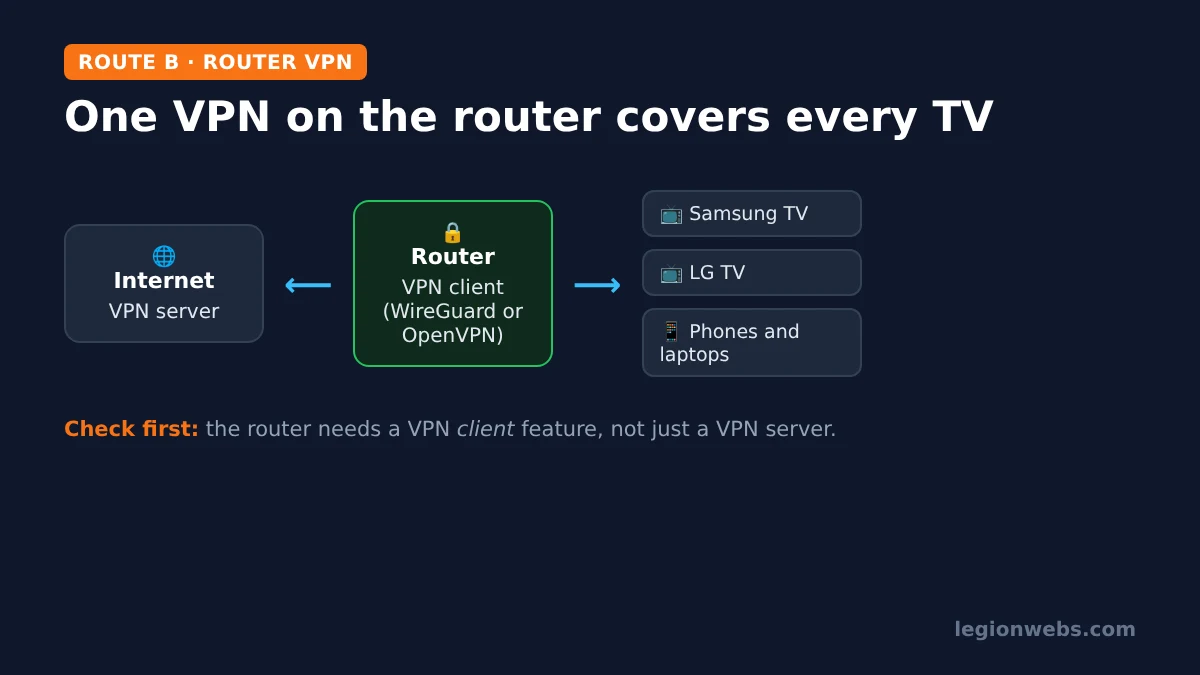
Keep in mind that everything in the house then goes through the VPN, which can slow down devices that do not need it. In addition, a router’s processor limits VPN speed. For that reason, routers with WireGuard support are worth choosing, because WireGuard is much lighter than OpenVPN.
Route C: Share a VPN connection from your computer
If you have no VPN-capable router, a computer can act as one. Connect the VPN on a Windows PC or Mac, then share that connection with the TV, either over an Ethernet cable or as a Wi-Fi hotspot.
- Connect your VPN on the computer.
- Windows: open Settings > Network & internet > Mobile hotspot, choose to share the VPN connection, and turn the hotspot on. Mac: use Internet Sharing in System Settings to share over Ethernet or Wi-Fi.
- On the TV, connect to the computer’s hotspot (or plug in the cable).
This works well for a one-off evening, but the computer must stay on and connected the whole time. Therefore, it is a stopgap rather than a daily setup.
Route D: SmartDNS on Samsung and LG TVs
SmartDNS is a feature some VPN providers include, such as NordVPN. It changes the DNS servers your TV uses so streaming services can see a different region. Crucially, it does not encrypt your traffic or hide your activity from your internet provider. So use it for streaming location only, not for privacy.
Here is how NordVPN’s SmartDNS works on an LG TV, according to NordVPN’s own guide:
- On a phone or computer connected to the same network as the TV, log in to your Nord Account, open Services > NordVPN and click Activate under SmartDNS. This registers your home IP address.
- On the TV, open Settings > Network > Network Connection, select your network and open the expert or advanced settings.
- Set DNS to Manual and enter 103.86.96.103 (and 103.86.99.103 as a second server, if the TV allows it).
- Save and restart the TV.
On a Samsung TV, the DNS setting sits in the network’s IP settings instead; the addresses are the same. Because SmartDNS is tied to your home IP address, re-activate it in your Nord Account if your internet provider changes your IP.
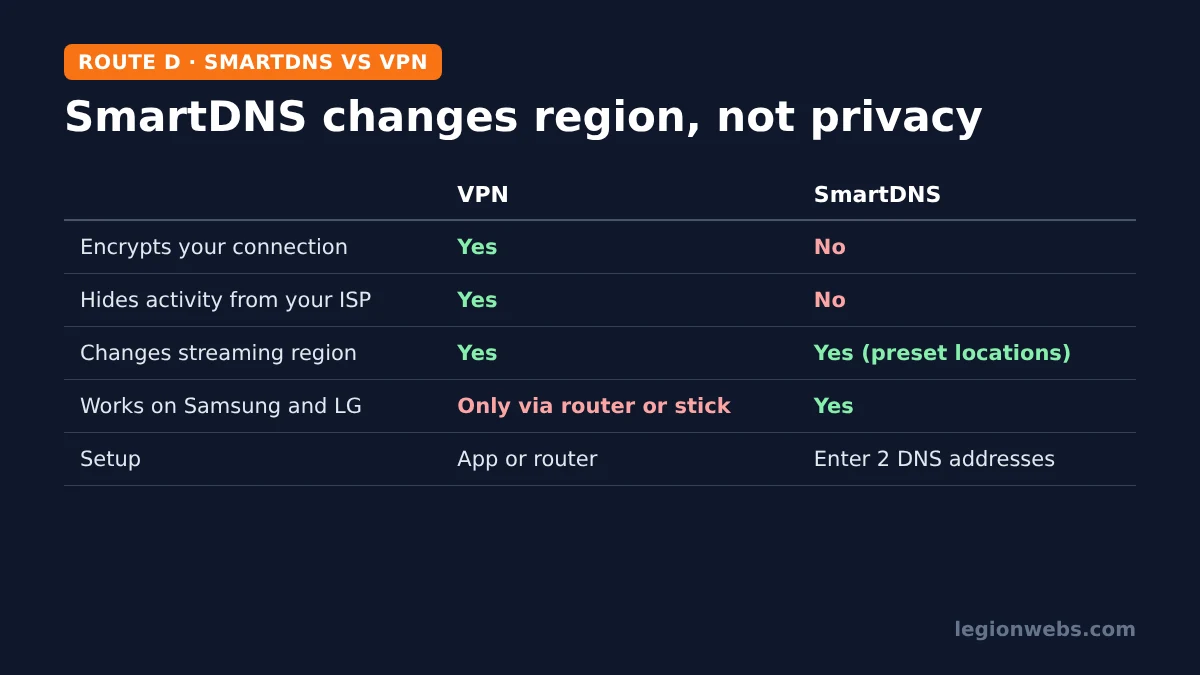
Which VPN on smart TV method should you use?
| Method | Encrypts traffic | Works on Samsung/LG | Difficulty | Best for |
|---|---|---|---|---|
| Native VPN app | Yes | No | Easy | Android TV, Fire TV, Apple TV |
| Streaming stick + app | Yes | Yes (through the stick) | Easy | Any TV with an HDMI port |
| Router VPN | Yes | Yes | Hard | Whole-home protection |
| Shared from a computer | Yes | Yes | Medium | Occasional use |
| SmartDNS | No | Yes | Easy | Changing streaming region only |
In short, most people with a Samsung or LG TV are best served by adding a Fire TV or Google TV stick and using a VPN app there. Not sure which VPN to pick? Compare them in NordVPN vs IPVanish and best VPN for Firestick.
VPN on smart TV not working? Quick fixes
| Problem | Likely cause | Fix |
|---|---|---|
| VPN app not in the TV’s store | The TV system does not support VPN apps | Use a router, SmartDNS or a streaming stick |
| Apple TV cannot find the VPN app | tvOS older than 17 | Update tvOS, then search again |
| SmartDNS stopped working | Your home IP address changed | Re-activate SmartDNS in your VPN account |
| Streaming app shows an error | The service blocks that VPN server | Try another server, or use split tunneling for that app |
| Slow or buffering after a router VPN | Router processor too weak | Use WireGuard, a closer server, or a VPN app on a stick instead |
For IPTV specifically, see VPN for IPTV; and for Fire TV app errors, VPN not working on Firestick. As always, a VPN protects your privacy but does not make an unlicensed service legal, so stream only from licensed providers.
VPN on smart TV: FAQ
Can I install a VPN on a Samsung smart TV?
Not as an app, because Samsung’s Tizen system does not support VPN apps. Use a router VPN, a shared connection, SmartDNS, or a streaming stick with a VPN app.
Can I install a VPN on an LG TV?
No, LG’s webOS does not run VPN apps either. The same alternatives apply, and NordVPN publishes SmartDNS steps for LG TVs.
Is SmartDNS the same as a VPN?
No. SmartDNS only changes how your TV looks up streaming servers. It does not encrypt your connection or hide your activity.
Does a VPN slow down my smart TV?
A little. With a nearby server and a modern protocol such as WireGuard, most people do not notice it. A router VPN is usually slower than an app on a stick.
Which VPNs have smart TV apps?
Both NordVPN and IPVanish have apps for Android TV, Fire TV and Apple TV. Neither can run on Samsung or LG TVs as an app.
What’s next
- Install a VPN on Firestick: the simplest way to add a VPN to any TV.
- NordVPN vs IPVanish: which VPN suits your household.
- VPN for IPTV: when a VPN helps IPTV and when it gets in the way.
- IPTV on Samsung and LG smart TVs: set up IPTV on the same TVs.
Free download
Firestick + IPTV Setup Checklist
Two printable pages: install, login, the settings that make it faster and quick fixes for buffering and an empty guide.
We'll send occasional new guides. No spam, unsubscribe any time. Privacy