
VPN Kill Switch: What It Is and How to Turn It On
This guide may contain affiliate links. If you buy through them we may earn a commission at no extra cost to you. As an Amazon Associate I earn from qualifying purchases. Learn more.
Lessons 12 of 12
Quick Overview: A VPN kill switch blocks your internet traffic the moment your VPN connection drops, so your real IP address and activity are never exposed while the VPN reconnects. There are two kinds: a system-wide kill switch that stops all traffic, and an app kill switch that stops only chosen apps. Turn it on in your VPN’s settings on computers and phones. On a Fire TV Stick, support varies: IPVanish offers a free companion kill switch app, while NordVPN says its kill switch is not available there.
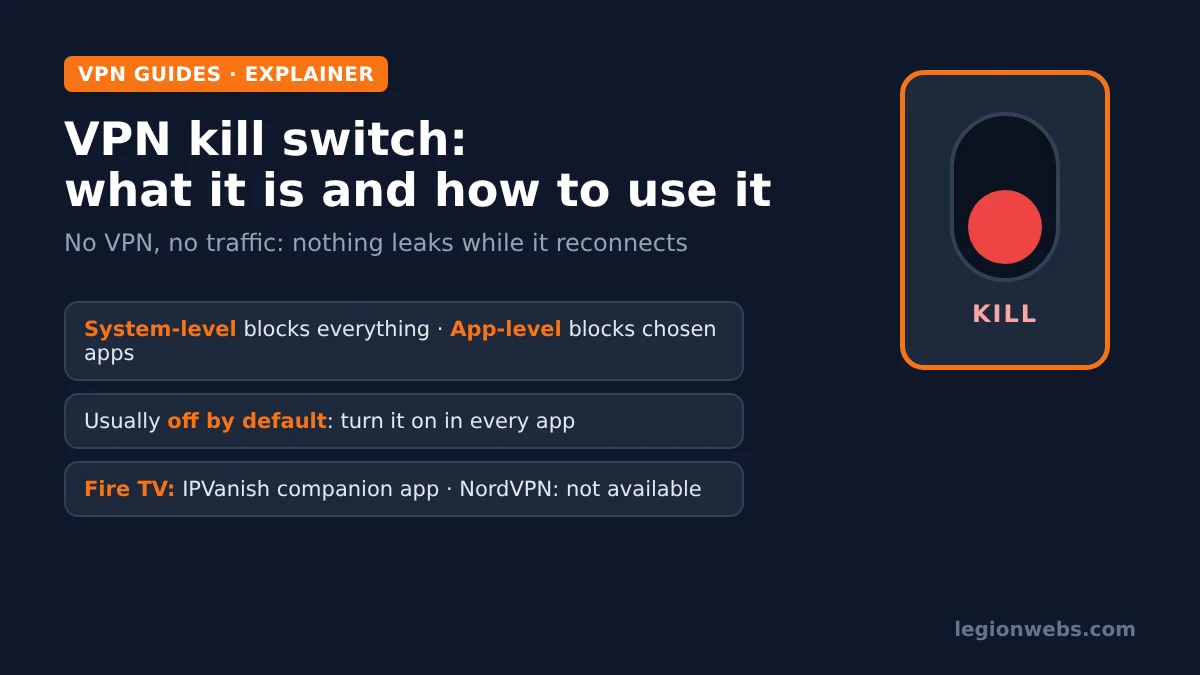
No VPN connection is perfect. Wi-Fi blips, a router restarts, a server goes offline, or your device wakes up from sleep, and for a few seconds the VPN tunnel is down. Without protection, your apps simply carry on over your normal connection, exposing your real IP address to whatever you were streaming or browsing. A kill switch closes that gap. In this lesson, you will learn how a VPN kill switch works, which type to use, how to turn it on for each device, and how to test it.
Disclosure: Legion Webs is an affiliate of NordVPN and IPVanish. If you sign up through our links, we may earn a commission at no extra cost to you.
How a VPN kill switch works
Normally, all your traffic travels through the encrypted VPN tunnel. This safety feature watches that tunnel. As soon as it drops, it blocks internet access, either for the whole device or for chosen apps, until the VPN reconnects. As a result, nothing slips out unprotected, even for a second.
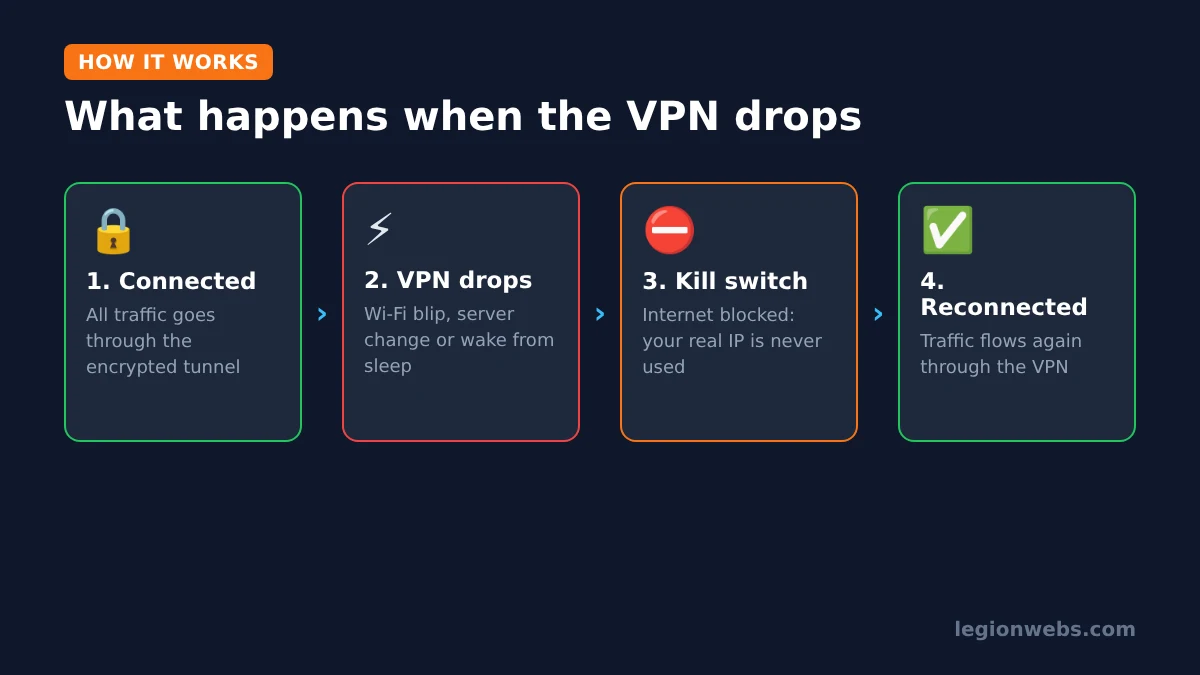
The trade-off is simple: when the VPN drops, your apps briefly show “no internet”. For most people that is exactly what they want, because a short pause is better than a silent leak.
Two types of VPN kill switch
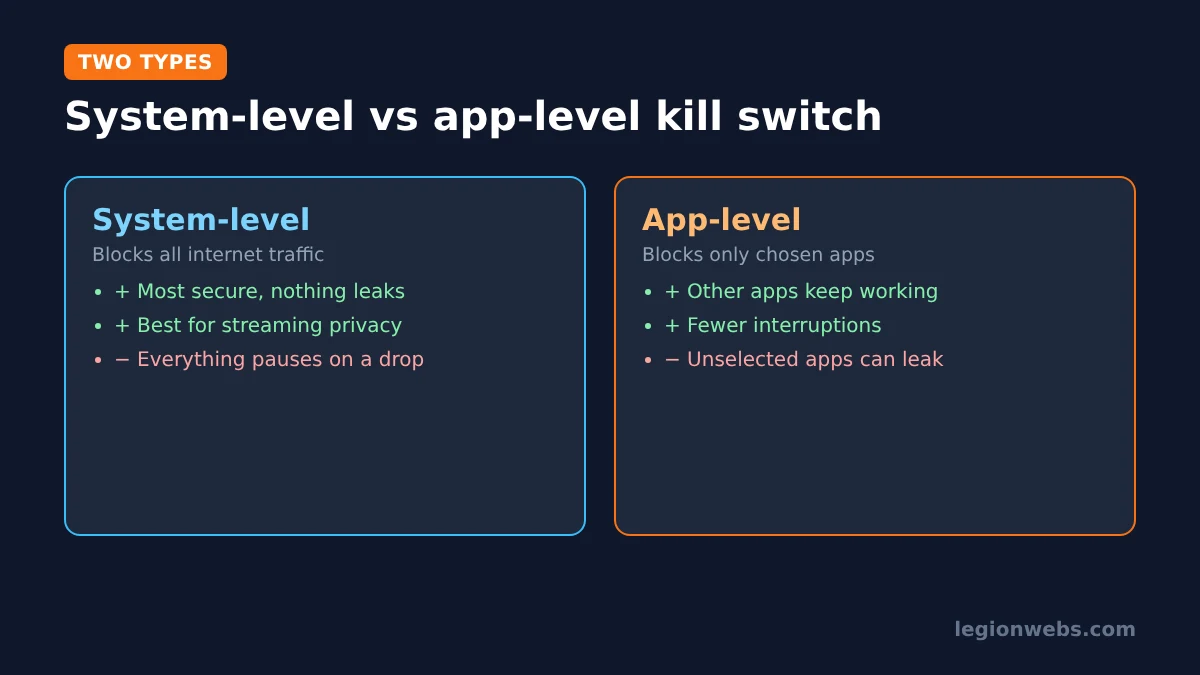
According to NordVPN’s explanation, kill switches come in two kinds:
| Type | What it blocks | Pros | Cons |
|---|---|---|---|
| System-level (internet kill switch) | All internet traffic on the device | Most secure; nothing leaks | Interrupts everything on an unstable connection |
| App-level (app kill switch) | Only the apps you choose | Other apps keep working during a blip | Apps you did not select can still leak |
Other VPNs may call the same idea “network lock” or “block connections without VPN”. Whatever the name, the job is the same.
How to turn on the VPN kill switch on each device
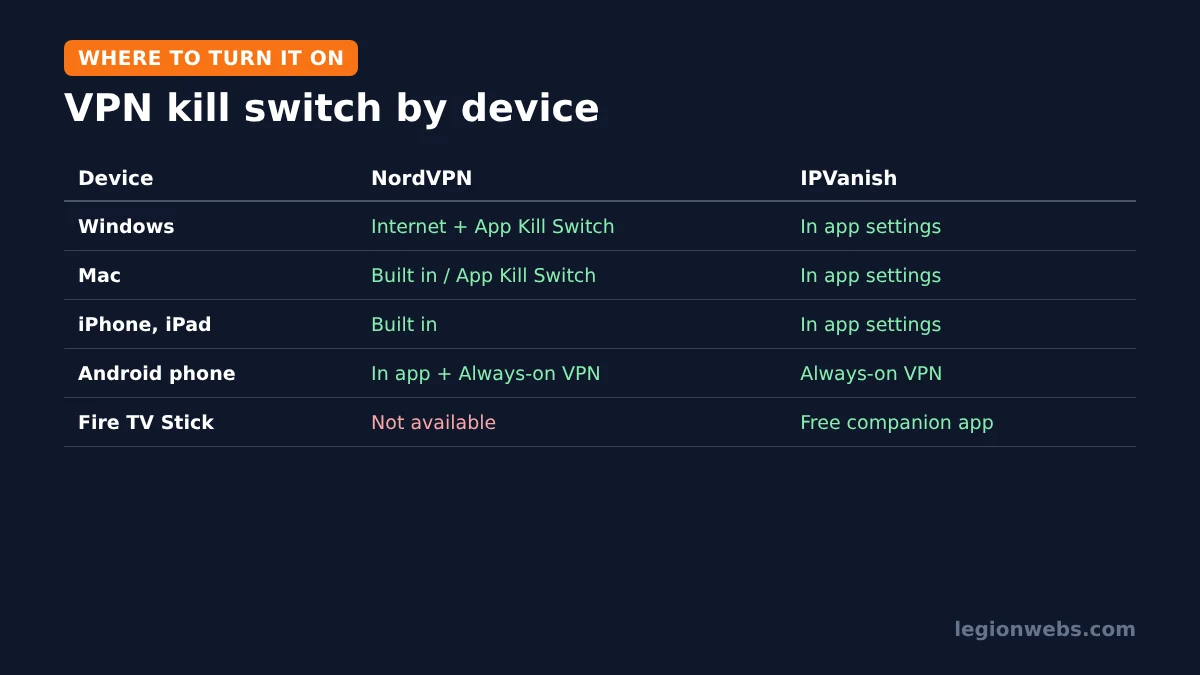
Support differs by platform, and the feature is usually off by default, so check it on every device. The table below uses NordVPN and IPVanish as examples, based on their own support pages.
| Device | NordVPN | IPVanish |
|---|---|---|
| Windows | Internet Kill Switch and App Kill Switch in the app settings | Kill switch in the app settings |
| Mac | Built in (App Store version) or App Kill Switch (website version) | Kill switch in the app settings |
| iPhone and iPad | Built into the app | Kill switch in the app settings |
| Android phone | Kill Switch in the app, plus Android’s Always-on VPN | Android’s Always-on VPN settings |
| Fire TV Stick | Not available, according to NordVPN support | Free IPVanish VPN Kill Switch companion app |
Windows and Mac
Open the app’s Settings and look for Kill Switch. In NordVPN on Windows, you can turn on the Internet Kill Switch (blocks everything) and, separately, the App Kill Switch (closes chosen apps). For streaming and IPTV on a computer, the Internet Kill Switch is the safer choice.
Android phones
Android has a system-level version of this protection built in. According to NordVPN’s support guide, you enable it under Settings > Connections > More connection settings > VPN on Samsung phones (other brands use Settings > Network & internet > VPN). Tap the gear icon next to your VPN, then turn on Always-on VPN, and if offered, Block connections without VPN. Availability depends on your phone’s software.
Fire TV Stick
This is where VPNs differ most. NordVPN’s support page states that this feature is not available on Amazon Fire TV Stick because of technical limitations. IPVanish, by contrast, offers a free IPVanish VPN Kill Switch companion app in the Amazon Appstore: install it, sign in, accept the permission and switch it on. Our IPVanish on Firestick lesson shows every step.
So if this protection on your Fire Stick matters to you, IPVanish is the one to choose. If you prefer NordVPN on Fire TV, turn on auto-connect instead, so the VPN reconnects automatically and quickly; see NordVPN on Firestick.
How to test your VPN kill switch
It is worth checking that the kill switch actually works. Here is a simple, safe test on a computer or phone:
- Turn on the kill switch and connect the VPN.
- Open an IP check site, such as dnsleaktest.com, and note the VPN location it shows.
- Simulate a drop: briefly turn Wi-Fi off and on, or restart your router.
- Straight after the connection returns, and before the VPN app shows “Connected” again, try to reload the page.
- Pass: the page does not load until the VPN reconnects, and then it shows the VPN location again. Fail: the page loads and shows your real location.
Note that disconnecting manually in the app usually does not trigger it, because the app treats that as your choice. Therefore, always test with a real connection drop.
Should you use a VPN kill switch for streaming and IPTV?
Yes, in most cases. If you stream for privacy reasons, this feature makes sure that privacy does not disappear during a reconnect. However, keep two things in mind:
- Brief interruptions: when the VPN drops, your stream pauses until it reconnects. On a stable connection this is rare; on weak Wi-Fi, fix the signal first with our Wi-Fi fixes.
- Split tunneling exceptions: apps you exclude from the VPN with split tunneling are not protected by the VPN anyway, so the switch does not apply to them. See VPN for IPTV for when that makes sense.
As always, a VPN protects your privacy; it does not make an unlicensed service legal, so only use licensed IPTV providers.
VPN kill switch problems and fixes
| Problem | Likely cause | Fix |
|---|---|---|
| No internet at all | Tunnel dropped while the switch is on | Open the VPN app and reconnect, or turn the kill switch off briefly |
| Internet keeps cutting out | Unstable Wi-Fi or a busy server | Improve the signal, try a nearer server, or switch protocol |
| Kill switch option missing | Not supported on that device | Check the table above; on Fire TV, use IPVanish’s companion app or auto-connect |
| IPVanish Kill Switch app does nothing | VPN permission not granted | Open the Kill Switch app settings and request the VPN permission again |
| Android Always-on VPN missing | Phone software does not offer it | Use the kill switch inside the VPN app instead |
VPN kill switch: FAQ
What is a VPN kill switch in simple words?
It is a safety feature that cuts your internet if the VPN stops working, so your real connection is never used by mistake.
Should I always turn the kill switch on?
If you use a VPN for privacy, yes. The only downside is a short “no internet” moment when the VPN drops.
Does NordVPN have a kill switch on Fire TV?
No. NordVPN’s support page says the kill switch is not available on Amazon Fire TV Stick. It is available in NordVPN’s apps for computers and phones.
Does a kill switch slow down my internet?
No. It only acts when the VPN drops. Your speed while connected depends on the VPN server and protocol, not on the kill switch.
Is “block connections without VPN” the same thing?
Yes. On Android, that system option works as a device-wide kill switch together with Always-on VPN.
What’s next
- IPVanish on Firestick: set up IPVanish and its kill switch app on Fire TV.
- NordVPN vs IPVanish: how the two compare beyond the kill switch.
- What is a VPN: the basics, if you are new to VPNs.
- VPN not working on Firestick: fixes when the VPN will not connect.
Free download
Firestick + IPTV Setup Checklist
Two printable pages: install, login, the settings that make it faster and quick fixes for buffering and an empty guide.
We'll send occasional new guides. No spam, unsubscribe any time. Privacy