
How to Make a WordPress Website: Step-by-Step Guide (2026)
This guide may contain affiliate links. If you buy through them we may earn a commission at no extra cost to you. As an Amazon Associate I earn from qualifying purchases. Learn more.
Lessons 13 of 14
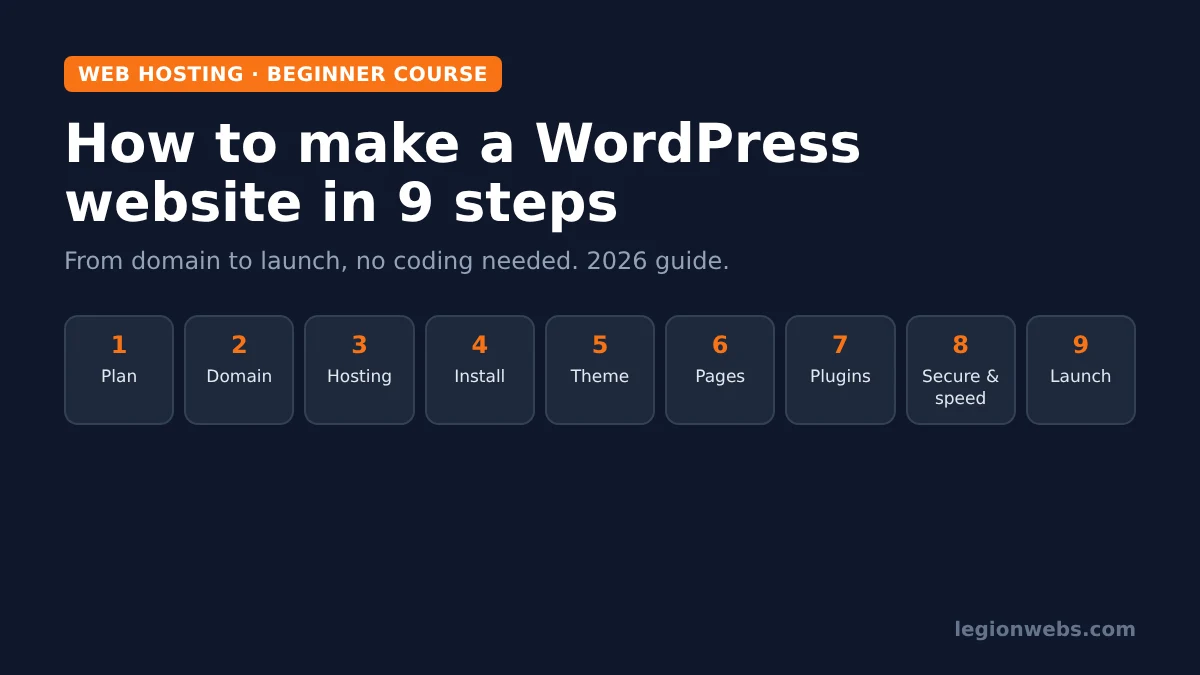
Quick Overview: To make a WordPress website, you need four things: a domain name, web hosting, WordPress itself (free) and a theme. Plan your pages first, register a domain, choose hosting with one-click WordPress, install it, pick a theme, and build your main pages: Home, About, Services and Contact. Then add a few essential plugins, secure the site with HTTPS and backups, and run a short launch checklist. Most beginners finish a simple site in one afternoon, without writing any code.
WordPress powers a large share of the web, from personal portfolios to online shops. Moreover, it is free, flexible and has thousands of themes and plugins. However, the first setup can feel confusing, because you have to connect several parts that come from different places.
This lesson is the first step of our “Launch your first website” course. It walks through the whole process to make a WordPress website for a business, service or portfolio. If you want to start a blog instead, our lesson on starting a WordPress blog on Hostinger focuses on that.
What you need
- A computer with a web browser
- A payment card for the domain and hosting
- Your logo, a few photos and short texts about you or your business
- About 3 to 4 hours for a simple five-page site
What you need to make a WordPress website
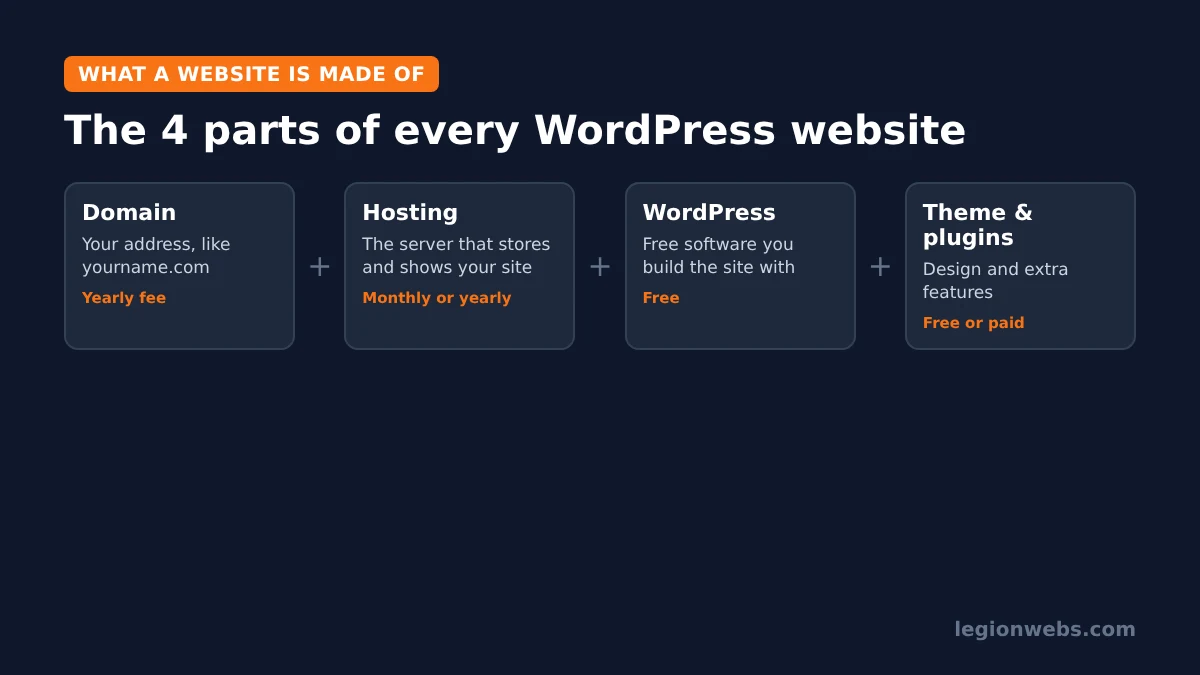
First, it helps to know the difference between WordPress.org and WordPress.com. This lesson uses WordPress.org, the free software you install on your own hosting. As a result, it gives you full control, lets you install any theme or plugin, and lets you run ads or sell products. WordPress.com, by contrast, is a hosted service where some features depend on the plan you pay for.
| Part | What it is | Typical cost |
|---|---|---|
| Domain name | Your web address, such as yourname.com | Yearly fee; sometimes free for the first year with hosting |
| Web hosting | The server that stores your files and shows your site | Monthly or yearly plan |
| WordPress | The software you build and edit the site with | Free |
| Theme | The design and layout | Free or paid |
| Plugins | Extra features such as forms, SEO and backups | Mostly free versions available |
Step 1: Plan your website
Before you buy anything, spend 15 minutes on a simple plan. As a result, the rest of the build goes much faster.
- Goal: what should a visitor do? Call you, book, buy or read?
- Pages: most small sites need Home, About, Services (or Shop), Contact and a Privacy Policy.
- Content: collect your logo, photos and two or three sentences for each page.
- Examples: note two or three sites you like, so you know what style to look for in a theme.
Step 2: Choose and register a domain
Pick a domain that is short, easy to spell and close to your brand name. A .com works almost everywhere, while a country ending such as .co.uk can help local businesses. Also, avoid hyphens and numbers when you can.
You can register the domain with your hosting company or with a separate registrar. In practice, either way works. Not sure how the two fit together? Our guide to domain vs web hosting explains the difference.
Step 3: Choose WordPress hosting
For a first website, shared or managed WordPress hosting is enough. Look for these features:
- One-click WordPress install
- Free SSL certificate (HTTPS)
- Automatic daily or weekly backups
- Support available by chat at any hour
- Data centres close to your visitors
We use and recommend Hostinger for beginners, because its hPanel makes WordPress setup simple and plans include SSL and backups. If you want to compare options first, read how to choose web hosting and types of web hosting.
Step 4: Install WordPress
Most hosts install WordPress for you. Although the exact screens differ, the steps are the same:
- In your hosting panel, choose to create or add a website and select WordPress.
- Pick your domain and choose the language.
- Create your admin username, a strong password and your admin email. Do not use “admin” as the username.
- Wait a minute or two while the host installs WordPress.
- Open yourdomain.com/wp-admin and log in.
After that, go to Settings > General to set the site title, tagline and time zone. Then, in Settings > Permalinks, choose Post name so your page addresses are short and readable.
Step 5: Choose a theme
Go to Appearance > Themes > Add New. Choose a lightweight, regularly updated theme with good reviews; popular free options include Kadence, Astra and GeneratePress. In fact, many of them offer starter templates that import a complete demo site, which you then edit with your own text and photos.
When you compare themes, check three things: that it looks good on a phone, that it loads fast, and that it was updated recently. In addition, avoid themes that require many extra plugins just to work.
Step 6: Create your main pages
Go to Pages > Add New and build the pages from your plan with the block editor. Above all, keep each page focused:
| Page | What to include |
|---|---|
| Home | One clear headline, what you offer, a main button (call, book or buy), and trust signals such as reviews |
| About | Who you are, why you started, and a real photo |
| Services or Shop | Each service or product with a short description and price or “contact for a quote” |
| Contact | A form, email, phone and, for local businesses, your address and a map |
| Privacy Policy | WordPress includes a draft under Settings > Privacy; edit it for your site |
Next, go to Settings > Reading and set your Home page as the static front page. Finally, add the pages to your menu under Appearance > Menus (or the Site Editor, depending on your theme).
Step 7: Add essential plugins
Plugins add features, but each one also adds weight. Therefore, start with only the essentials:
| Need | Plugin type | Popular example |
|---|---|---|
| SEO | Titles, descriptions and sitemaps | Yoast SEO |
| Contact form | Forms that email you | WPForms Lite or Contact Form 7 |
| Backups | Scheduled copies of your site | UpdraftPlus, or your host’s backups |
| Speed | Caching and image optimisation | LiteSpeed Cache on LiteSpeed hosting |
| Security | Login protection and alerts | Wordfence or your host’s tools |
Install plugins from Plugins > Add New, and only from the official directory or trusted developers. Also, delete any plugin you stop using.
Step 8: Secure and speed up your site
- HTTPS: turn on your host’s free SSL certificate so the padlock shows. If you also use Cloudflare, set its SSL mode correctly; otherwise you may see errors such as Cloudflare error 525.
- Updates: keep WordPress, your theme and plugins updated.
- Backups: make sure automatic backups run, and download one copy every month.
- Images: upload images in WebP format and no wider than your content area needs.
- Logins: use a strong password and turn on two-factor login if your security plugin or host offers it.
Step 9: Launch your WordPress website
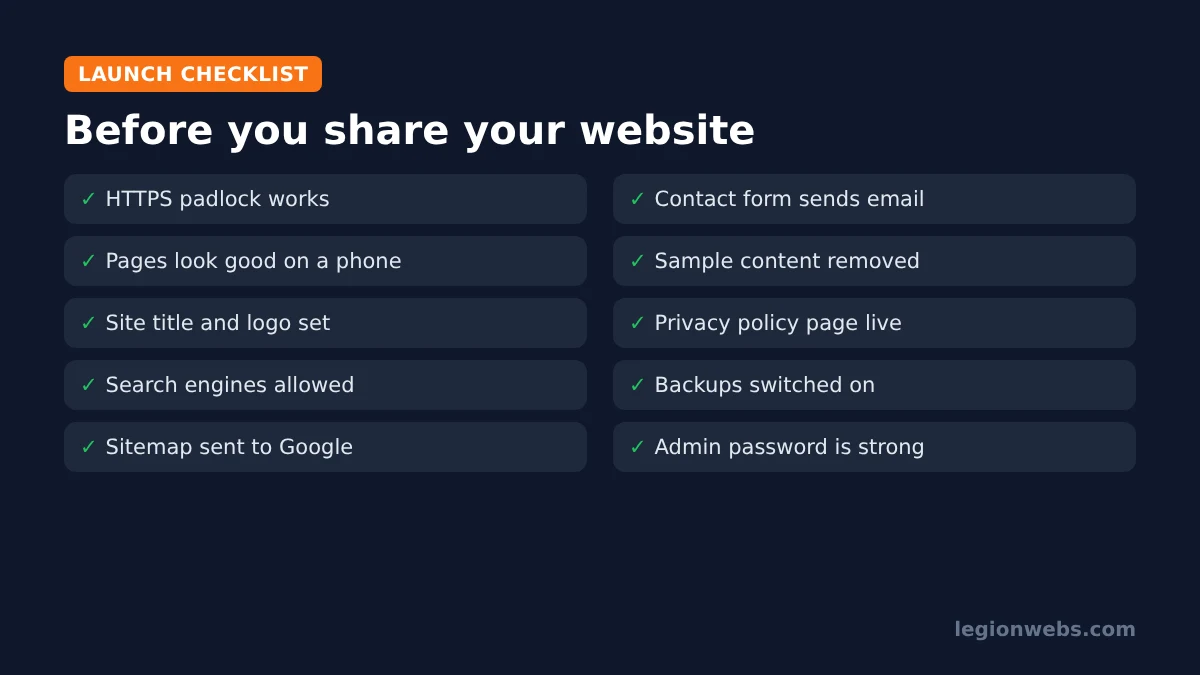
Before you share the link, run through this checklist. In particular, make sure Settings > Reading > Search engine visibility is not ticked, because that option hides your site from Google.
- Delete the sample page, sample post and the default comment.
- Test the contact form and check that the email arrives.
- Open every page on your phone.
- Set a site icon (favicon) under the Customizer or Site Editor.
- Submit your sitemap in Google Search Console and Bing Webmaster Tools.
Your first 30 days after launch
Launching is only the start. In the first month, a few simple habits make your new site safer and help it get found.
- Week 1: share the site with friends or customers and ask them to try the contact form on their phones. Then fix anything that confuses them.
- Week 2: check Google Search Console. Specifically, make sure your pages are indexed and that there are no errors.
- Week 3: add one helpful page or article, for example answers to the questions customers ask most often. New, useful content gives search engines a reason to visit again.
- Week 4: run updates, download a backup, and review your site speed with a free test such as PageSpeed Insights.
After that, a monthly routine is enough: update, back up, check Search Console, and add or improve one page. Over time, this steady work matters more than any single plugin or design change.
How much does it cost to make a WordPress website?
The software is free, so your main costs are the domain and hosting. In addition, you might pay for a premium theme or plugin later, but most small sites run well on free versions. Because hosting companies often show a low first-term price and a higher renewal price, always check the renewal cost before you choose a plan. As a rule, a simple business site costs far less per year than hiring a designer, and you keep full control.
Common mistakes when you make a WordPress website
| Mistake | Why it hurts | Do this instead |
|---|---|---|
| Installing dozens of plugins | As a result, a slower site and more security risk | Keep only what you use |
| Using a heavy, outdated theme | Poor speed and broken layouts after updates | Choose a lightweight, updated theme |
| Leaving “discourage search engines” on | Consequently, Google ignores the site | Untick it at launch |
| No backups | Otherwise, one error can wipe your work | Turn on automatic backups |
| Huge images | Therefore, slow pages on phones | Resize and use WebP |
For WordPress’s own beginner documentation, see the official WordPress documentation.
Frequently Asked Questions
Is WordPress free?
Yes, the WordPress software is free. In other words, you only pay for the domain, the hosting and any premium themes or plugins you choose.
Do I need coding skills to make a WordPress website?
No. The block editor and starter templates let you build pages by dragging and typing. Instead, coding only helps for advanced custom changes.
How long does it take to make a WordPress website?
A simple five-page site takes about one afternoon once you have your texts and photos. However, larger sites or shops take longer, mainly because of the content.
Can I move my WordPress website to another host later?
Yes. In fact, WordPress sites can be copied to any host. Our lesson on migrating a website to a new host shows how.
What’s next
- Want a blog too? Follow how to start a WordPress blog on Hostinger.
- Learn your control panel: cPanel vs hPanel.
- New to hosting terms? Start with what is web hosting.
Free download
Firestick + IPTV Setup Checklist
Two printable pages: install, login, the settings that make it faster and quick fixes for buffering and an empty guide.
We'll send occasional new guides. No spam, unsubscribe any time. Privacy
We recommend Hostinger for beginners: affordable plans, free SSL, one-click WordPress install and 24/7 support.
Get started with Hostinger →