
How to Start a WordPress Blog on Hostinger (Step-by-Step 2026)
This guide may contain affiliate links. If you buy through them we may earn a commission at no extra cost to you. As an Amazon Associate I earn from qualifying purchases. Learn more.
Lessons 10 of 11
Quick Overview: To start a WordPress blog on Hostinger, you choose a hosting plan, pick a domain, create a WordPress site in hPanel, and publish your first post. The whole setup takes about 30 minutes, and you need no coding skills. This lesson walks you through every step, plus the first settings every new blog should change.
WordPress powers a large share of the web because it is free, flexible and easy to learn. However, WordPress needs a home on the internet: a web host. In this lesson we use Hostinger, because it installs WordPress for you, includes SSL security, and has a simple control panel called hPanel. New to hosting terms? First read our lessons on web hosting basics.
What you need
- A Hostinger hosting plan that includes WordPress
- A name for your blog and a domain idea (for example yourname.com)
- An email address and a strong password
- About 30 minutes
Step 1: Choose a Hostinger plan for your WordPress blog
Go to Hostinger and open the WordPress or web hosting plans. For a new blog, a shared plan is plenty. Before you pay, compare three things: how many websites the plan allows, whether a free domain is included for the first year, and the renewal price. Longer terms usually cost less per month, so pick the length you are comfortable with.
Tip: if you plan to run several sites later, choose a plan that allows more than one website. Upgrading later is possible, but it is simpler to start right.
Step 2: Pick a domain for your WordPress blog on Hostinger
- Keep it short, easy to spell and easy to say out loud.
- Prefer .com, or your country’s ending if your readers are local.
- Avoid hyphens and numbers, since people mistype them.
Then, claim the domain during checkout or right after it, in hPanel.
Step 3: Create your WordPress blog on Hostinger
After payment, Hostinger opens hPanel. According to Hostinger’s own guide, the steps are:
- Go to Websites and select Create website (or Add website).
- Choose WordPress.
- Connect your domain and pick the server location closest to your readers.
- Enter your admin email and a strong password, and choose the language.
- Choose Build from scratch for full control, or the AI option for a quick start.
- Wait about two minutes while WordPress installs.
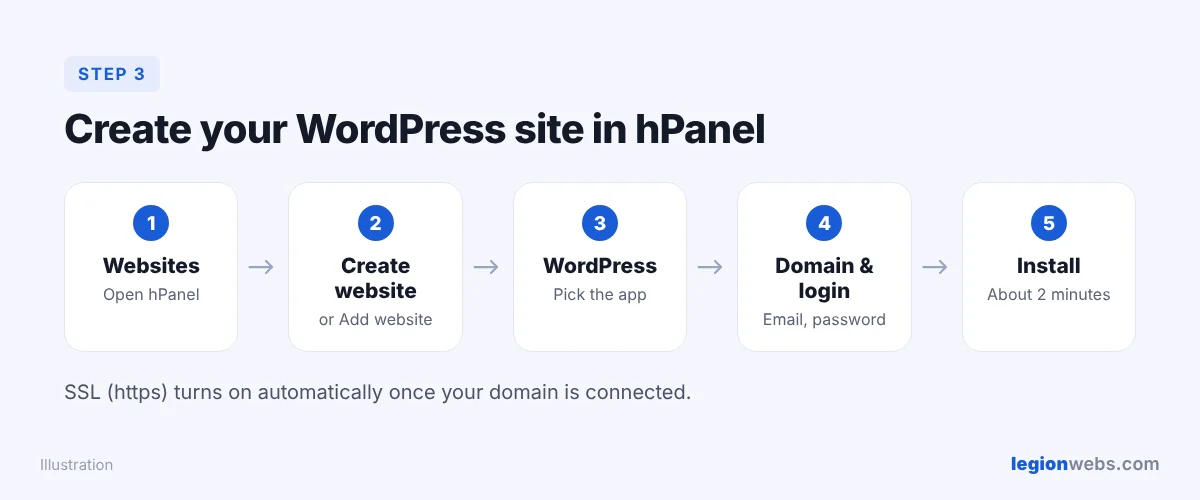
Hostinger turns on SSL (the padlock and https://) automatically once your domain is connected. If the padlock does not appear within a few hours, check the SSL section of your website in hPanel.
Step 4: Log in to your WordPress blog
First, open yourdomain.com/wp-admin and sign in with the email or username and password from Step 3. Alternatively, use the Admin panel or Edit website button in hPanel, which logs you in directly.
Step 5: Set up your WordPress blog the right way
Before you write, change these five settings. They take ten minutes and save headaches later.
| Where | What to do | Why |
|---|---|---|
| Settings → General | Set the site title, tagline and time zone | Shows correctly in Google and on posts |
| Settings → Permalinks | Choose Post name | Clean, readable links that help SEO |
| Appearance → Themes | Pick a fast, simple theme such as Kadence or Astra | Speed and easy mobile reading |
| Plugins → Add New | Add an SEO plugin (for example Yoast SEO) and a backup plugin | Search optimization and safety |
| Settings → Discussion | Decide on comments, and require approval | Avoids spam |
Also, delete the sample “Hello world!” post and the sample page, so your blog starts clean.
Step 6: Publish your first blog post
- Go to Posts → Add New.
- Write a clear title that matches what people search for.
- Add short paragraphs, subheadings and at least one image.
- Choose a category, then select Publish.
Finally, add your blog to Google Search Console and Bing Webmaster Tools so search engines find your posts faster.
WordPress blog on Hostinger: troubleshooting
| Problem | Fix |
|---|---|
| The domain shows an error after setup | New domains can take a few hours to work everywhere. So wait, then clear your browser cache. |
| No padlock (SSL) on the site | Check the SSL section in hPanel and make sure the domain points to Hostinger. |
| Forgot the WordPress password | Use “Lost your password?” on the login page, or change it in hPanel. |
| “Error establishing a database connection” | In that case, contact Hostinger support, because this is a server-side setting, not something you broke. |
Frequently Asked Questions
How much does a WordPress blog on Hostinger cost?
WordPress itself is free. However, you pay for hosting, and sometimes the domain after the first year. Prices change with promotions, so check the current plans on Hostinger.
Do I need coding skills for a WordPress blog on Hostinger?
No. Instead, Hostinger installs WordPress for you, and you write posts in a visual editor.
Can I move my blog to another host later?
Yes. In fact, WordPress sites can be moved with a migration plugin or by your new host’s migration service.
Should I use the AI website option?
It is a quick way to get a first design. Still, review every page and replace the sample text with your own words.
What’s next
Your WordPress blog on Hostinger is live. Next, learn how hosting works behind the scenes in our Web Hosting lessons, or see the full list on the site map.
We recommend Hostinger for beginners: affordable plans, free SSL, one-click WordPress install and 24/7 support.
Get started with Hostinger →