
How to Change Location on Firestick (Country, Time Zone and VPN)
This guide may contain affiliate links. If you buy through them we may earn a commission at no extra cost to you. As an Amazon Associate I earn from qualifying purchases. Learn more.
Lessons 10 of 10
Quick Overview: To change location on Firestick, you first need to know which “location” you mean. There are three: the Amazon account country (which decides your Appstore and Prime Video catalog), the device settings for time zone and local information, and your network location (your IP address), which a VPN changes. This lesson shows how to change each one step by step, what each change does, and what you lose when you switch your Amazon country.
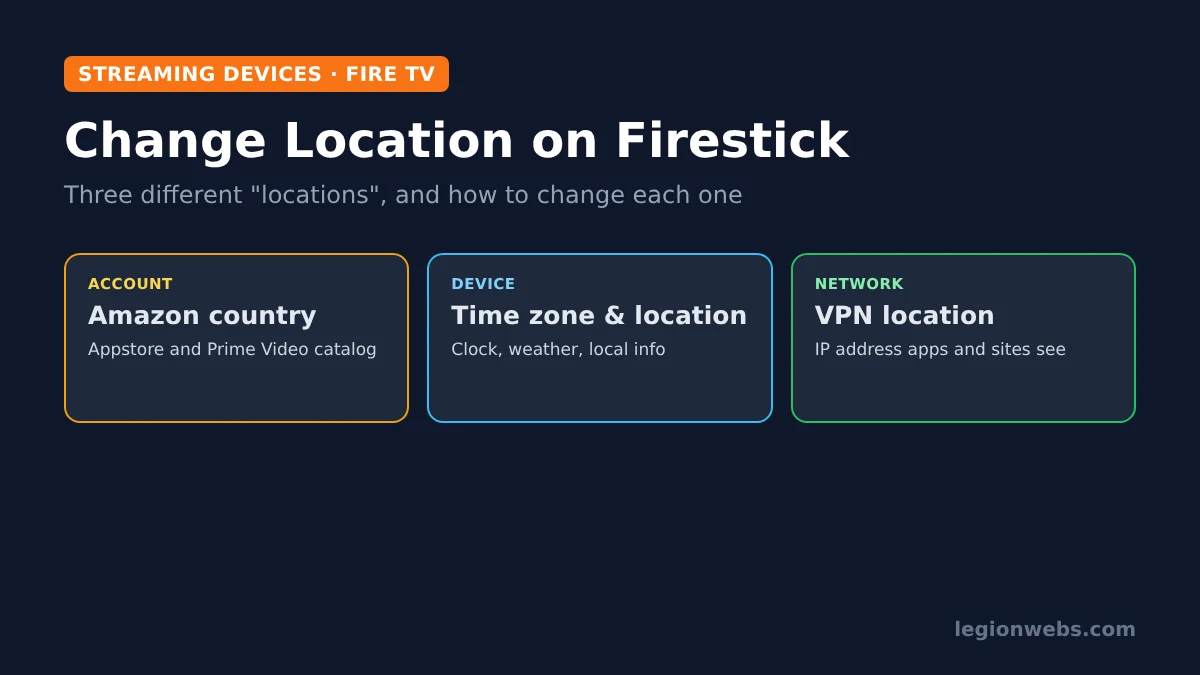
Maybe you have moved abroad, your clock shows the wrong time, or an app says it is not available where you are. In each case, the fix is “change the location”, but the right setting is different every time. Changing the wrong one wastes time and, in the case of your Amazon country, can even hide your past purchases. So let’s start by matching your goal to the right setting.
What you need: your Fire TV Stick and remote, the Amazon account it is registered to, a phone or computer for the Amazon website, and (only for Method 3) a VPN with a Fire TV app.
Which location do you need to change?
| Your goal | Setting to change | Where |
|---|---|---|
| You moved to another country for good | Amazon account country | Amazon website (Method 1) |
| Wrong clock, weather or local info | Time zone and location | Fire TV Settings (Method 2) |
| More privacy on your network, or an app checks your IP address | Network location (IP address) | VPN app (Method 3) |
| Travelling for a short time | Usually nothing | Keep your home settings |
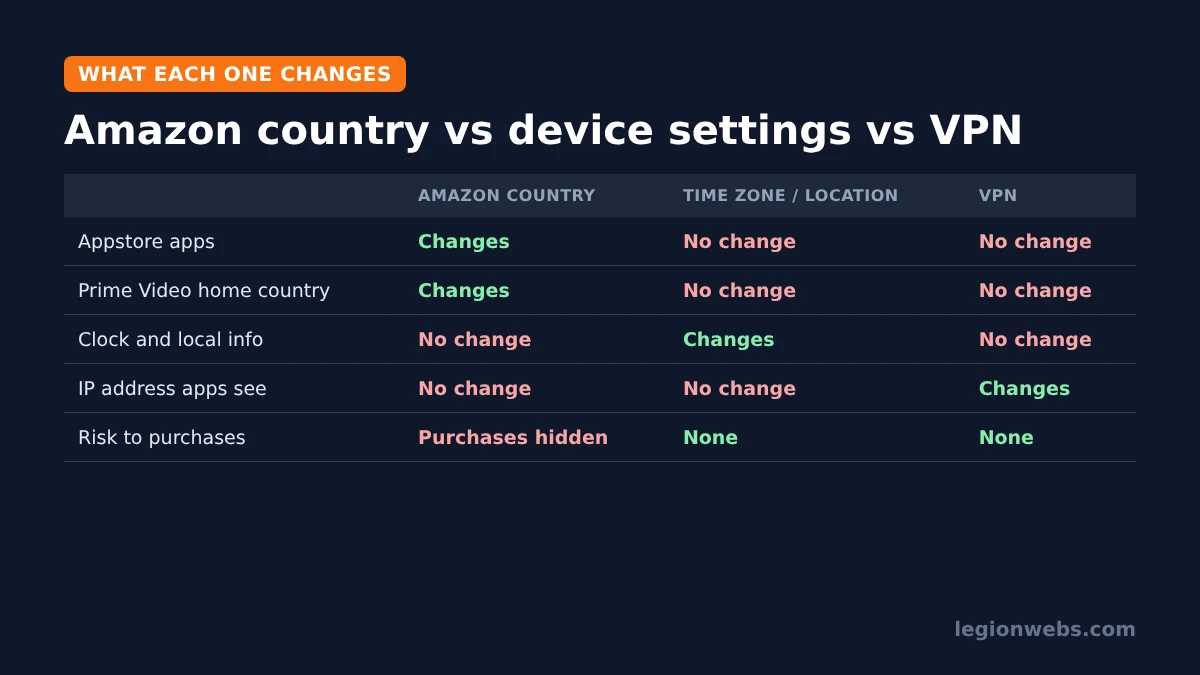
Method 1: Change your Amazon account country
Your Fire TV Stick follows the country of the Amazon account it is registered to. In other words, that country decides which apps you see in the Appstore and which Prime Video catalog you get. If you have moved, change it on the Amazon website:
- On a phone or computer, sign in to the Amazon account linked to your Firestick.
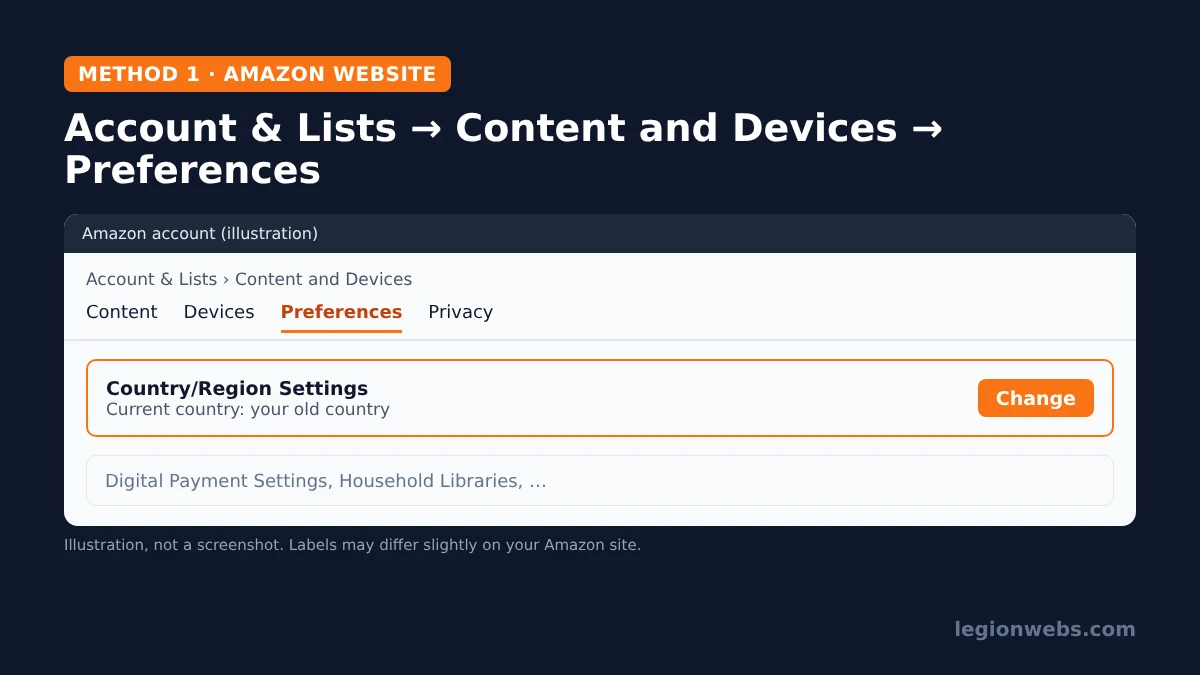
- Go to Account & Lists > Content and Devices (labelled “Manage your content and devices” on some Amazon sites).
- Open the Preferences tab and select Country/Region Settings.
- Select Change, enter your address in the new country, and select Update.
- On the Fire TV Stick, restart it under Settings > My Fire TV > Restart, then follow any on-screen prompts.
What you lose when you change country
Before you switch, read the trade-offs. According to Amazon’s help page on using Fire TV in another country:
- You lose access to your Prime Video purchases and rentals. Purchases come back if you switch back; rentals do not.
- Content availability varies by country, so some apps and games may disappear or stop working.
- Fire TV devices officially work in a limited list of countries, so check that your new country is supported.
Therefore, only change your Amazon country if you have really moved. If you are just travelling, Amazon suggests keeping your settings and using Prime Video’s titles available while abroad instead.
If you do decide to switch, a quick checklist helps:
- Note which apps you use most, so you can reinstall or replace them afterwards.
- Finish any Prime Video rentals first, because they do not come back.
- Check that your streaming subscriptions (and your IPTV provider) work in the new country.
- Keep your old address handy in case you need to switch back.
Method 2: Change time zone and location in Fire TV settings
If your clock is wrong or local information (such as weather) shows the wrong place, you only need the device settings. As a result, nothing changes with your account or purchases.
- Press and hold the Home button, then select Settings.
- Open Preferences.
- Select Time Zone and choose your region and time zone.
- Back in Preferences, select Location (where available) and enter your ZIP or postal code or choose your area.
- Return to the home screen. Apps that show time or local info may need to be reopened.
Menu names can vary slightly between Fire OS versions and newer Vega OS models. If you do not see an option, see our Vega OS Fire TV lesson to check which system your stick runs. For other useful settings, see best Firestick settings.
Method 3: Change your network location with a VPN
Websites and apps see your IP address, which reveals your approximate location. A VPN, however, replaces it with the address of a VPN server, which also hides your activity from your internet provider. To change location on Firestick this way:
- Install a VPN that has a Fire TV app; our install a VPN on Firestick lesson shows how.
- Open the VPN app and sign in.
- Pick a server location from the list, or use quick connect for the fastest nearby server.
- Wait for Connected, then open your streaming app.
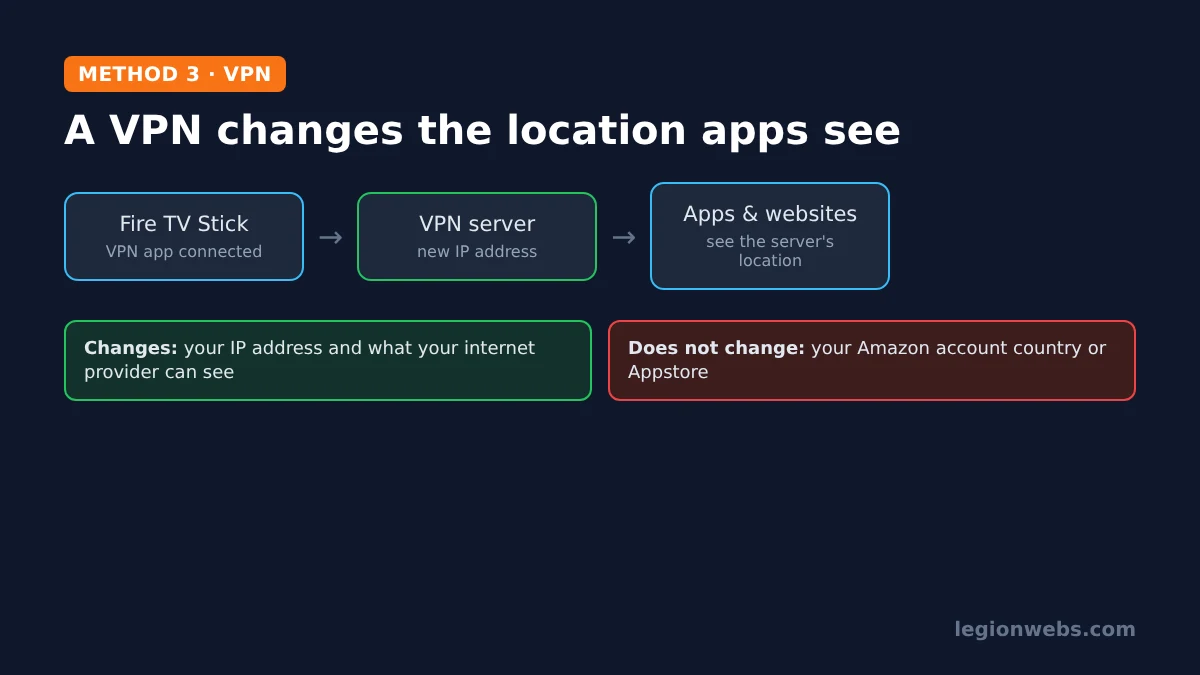
Keep two points in mind. First, a VPN does not change your Amazon account country, so your Appstore and account settings stay the same. Second, many streaming services restrict content by region in their terms, and some block VPN connections. Using a VPN to get around those rules may break a service’s terms, so check them first. For streaming, a nearby server is usually the fastest; see does a VPN slow down internet.
Our recommended VPNs for Fire TV are NordVPN and IPVanish; compare them in best VPN for Firestick.
Disclosure: Legion Webs is an affiliate of NordVPN and IPVanish. If you sign up through our links, we may earn a commission at no extra cost to you.
Change location on Firestick: problems and fixes
| Problem | Likely cause | Fix |
|---|---|---|
| Appstore still shows old country | Device has not refreshed | Restart the stick; sign out and in again if needed |
| Prime Video purchases are missing | Amazon country was changed | Switch the country back to see purchases again |
| Clock is still wrong | Wrong time zone selected | Settings > Preferences > Time Zone |
| App says “not available in your region” | App is limited to some countries | Check the app’s supported countries and terms |
| VPN connects but streams buffer | Far or busy server | Use a nearer server; see VPN not working on Firestick |
FAQ
Can I change location on Firestick without a VPN?
Yes. Both your Amazon account country and your time zone are changed in settings, with no VPN needed. A VPN only changes your IP address.
Does a VPN change my Amazon Appstore country?
No. Instead, the Appstore follows your Amazon account country, which you change on the Amazon website.
Will I lose my apps if I change country?
Some apps may not be available or may stop working in the new country. Amazon also hides Prime Video purchases until you switch back.
Should I change my Amazon country when I travel?
Usually not. In most cases, keep your home settings for short trips, because switching back and forth hides purchases and can remove apps.
Why does my Firestick show the wrong time?
Most likely, the time zone is wrong. To fix it, go to Settings > Preferences > Time Zone.
What’s next
- Install a VPN on Firestick: set up a VPN app step by step.
- Best Firestick settings: other settings worth changing.
- Factory reset Fire Stick: start fresh if settings get messy.
- Fire Stick not connecting to Wi-Fi: fix connection problems after a move.
Free download
Firestick + IPTV Setup Checklist
Two printable pages: install, login, the settings that make it faster and quick fixes for buffering and an empty guide.
We'll send occasional new guides. No spam, unsubscribe any time. Privacy