
Fire Stick vs Roku: Which Streaming Stick Should You Buy? (2026)
This guide may contain affiliate links. If you buy through them we may earn a commission at no extra cost to you. As an Amazon Associate I earn from qualifying purchases. Learn more.
Lessons 8 of 9
Quick Overview: In the Fire Stick vs Roku choice, pick a Fire TV Stick 4K Max if you use Alexa or Prime Video, want Dolby Vision and Dolby Atmos, or want to install IPTV players such as TiviMate. Pick a Roku if you want the simplest menus and a low price, and you only use apps from its store. If you want the most power and storage, the Google TV Streamer is the premium alternative.
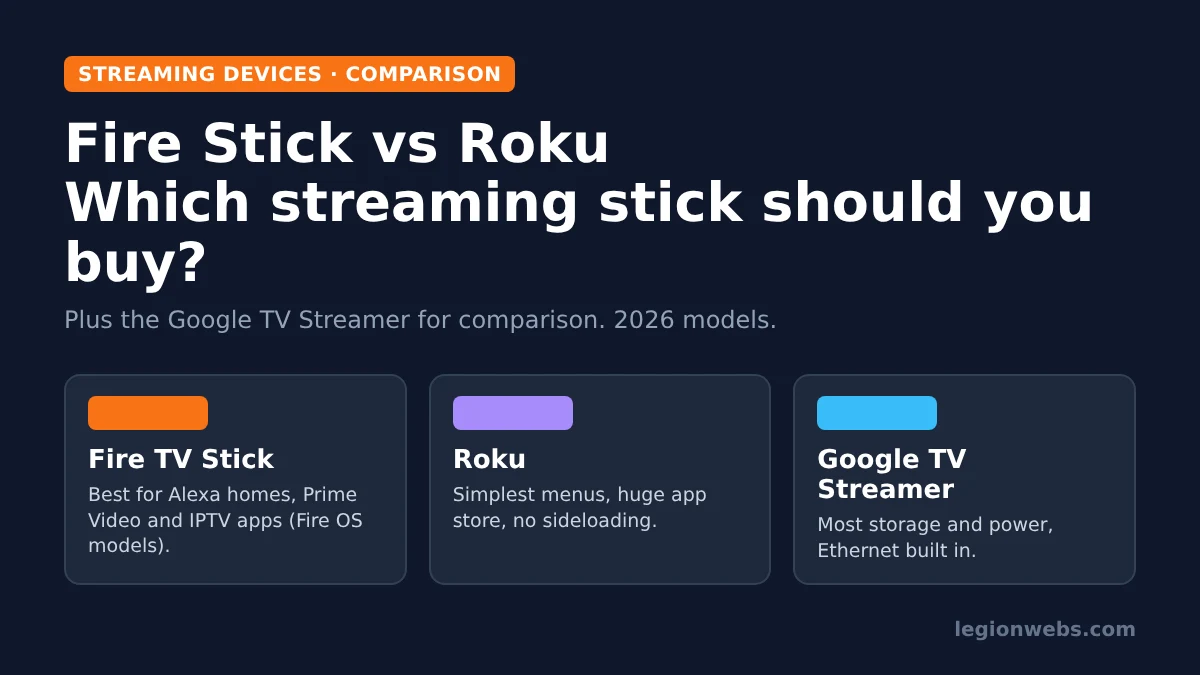
Amazon Fire TV and Roku are the two biggest names in streaming sticks, and both turn any TV with an HDMI port into a smart TV. At first glance, they look similar. In daily use, however, they differ in menus, picture formats, voice assistants and, above all, in which apps you can install.
This lesson compares the current models side by side and explains who should buy which. We also include the Google TV Streamer, because it is the main alternative for people who want more power.
Fire Stick vs Roku: the short verdict
| If you… | Buy | Why |
|---|---|---|
| Use Alexa and Prime Video | Fire TV Stick 4K Max | Built-in Alexa and the best Prime Video integration |
| Want IPTV players like TiviMate | Fire TV Stick on Fire OS, or Google TV | Roku cannot install apps from outside its store |
| Want the simplest menus | Roku | Clean grid of apps, easy for any age |
| Want the cheapest 4K stick | Roku Streaming Stick Plus | 4K HDR at a budget price |
| Have a Dolby Vision TV and a soundbar | Fire TV Stick 4K Max | Dolby Vision and Dolby Atmos support |
| Want the most storage and Ethernet | Google TV Streamer | 32 GB of storage and a built-in Ethernet port |
The models we compare
- Fire TV Stick 4K Max (2nd gen): Amazon’s top stick, with 16 GB of storage, Wi-Fi 6E, Dolby Vision and Dolby Atmos. It runs Fire OS, so you can install apps from outside the Appstore.
- Fire TV Stick 4K Select: a newer, cheaper 4K model that runs Vega OS. Vega OS cannot install apps from outside the Appstore, which matters for IPTV users.
- Roku Streaming Stick Plus (2025): a small 4K HDR stick powered by your TV’s USB port. It supports HDR10, HDR10+ and HLG, but not Dolby Vision or Dolby Atmos.
- Roku Streaming Stick (2025): the cheapest Roku stick, for HD TVs.
- Google TV Streamer: a small box rather than a stick, with 32 GB of storage, 4 GB of RAM and an Ethernet port.
Not sure which Fire TV model to choose? Our 4K Max vs 4K Select comparison covers the difference in detail.
Fire Stick vs Roku: side-by-side comparison
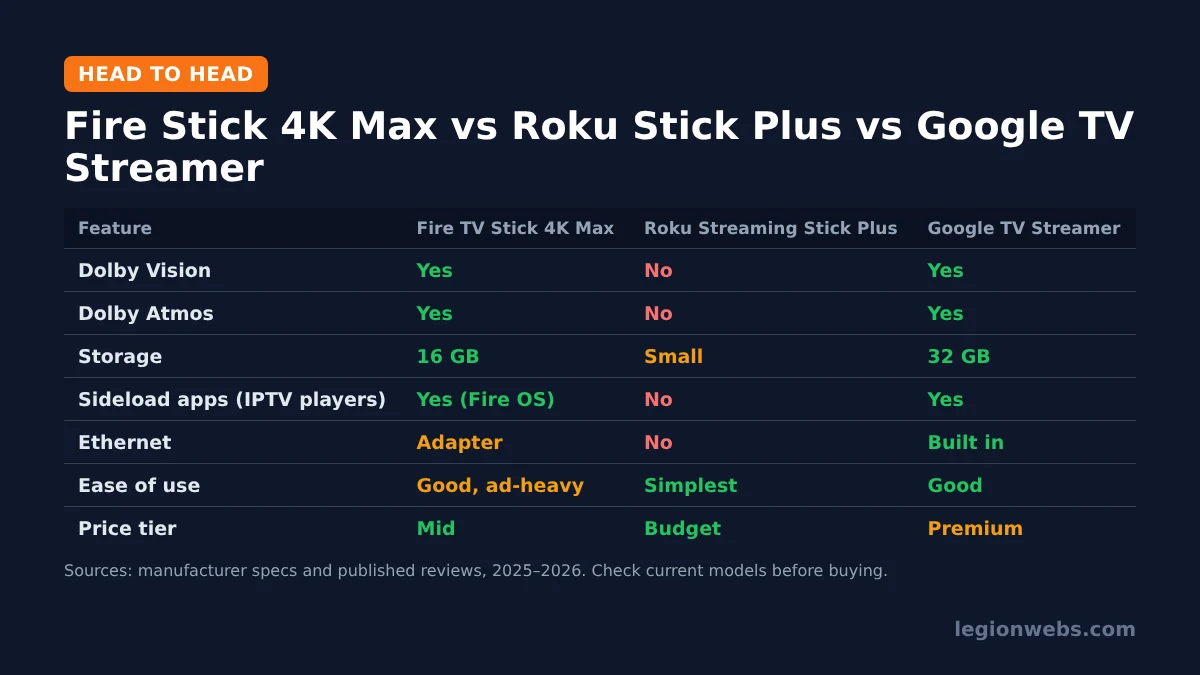
| Feature | Fire TV Stick 4K Max | Roku Streaming Stick Plus | Google TV Streamer |
|---|---|---|---|
| Resolution | 4K | 4K | 4K |
| HDR formats | Dolby Vision, HDR10, HDR10+, HLG | HDR10, HDR10+, HLG | Dolby Vision, HDR10, HDR10+, HLG |
| Dolby Atmos | Yes | No | Yes |
| Storage | 16 GB | Small (apps only) | 32 GB |
| Wi-Fi | Wi-Fi 6E | Dual-band Wi-Fi 5 | Wi-Fi (dual-band) |
| Ethernet | With an adapter | No | Built in |
| Voice assistant | Alexa | Roku voice; works with Alexa and Google speakers | Google Assistant / Gemini |
| Install apps from outside the store | Yes (Fire OS) | No | Yes |
| Power | Wall adapter | TV USB port | Wall adapter |
| HDMI extender in the box | Yes | No | Not needed (box) |
| Price tier | Mid-range | Budget | Premium |
Menus and ease of use
Roku is the easiest streaming platform to learn. Its home screen is a simple grid of app tiles that you can rearrange, and it changes very little from year to year. For that reason, it is a favourite for parents, grandparents and anyone who just wants to open Netflix and press play.
By contrast, Fire TV’s home screen is busier. It shows large banners, rows of recommendations and plenty of Amazon content. It works well once you know where things are, but it can feel crowded. On the other hand, Fire TV puts your recently used apps and live content within one click, which some people prefer.
Picture and sound
Both platforms stream in 4K HDR. However, only the Fire TV Stick 4K Max supports Dolby Vision and Dolby Atmos among the two sticks. If your TV supports Dolby Vision, many films and series on Netflix, Disney+ and Prime Video will look noticeably better on the Fire Stick.
The Roku Streaming Stick Plus supports HDR10+ instead, which helps on TVs from brands that use it. If you need Dolby Vision on Roku, look at the more expensive Roku Ultra box rather than the stick.
Apps, sideloading and IPTV
Both platforms carry all the major apps, including Netflix, Disney+, YouTube, Prime Video, HBO Max and Apple TV+. Roku also has its own free channel, The Roku Channel, while Fire TV offers free content through Prime Video with ads. In other words, for mainstream streaming, either one is fine.
The big difference is what happens outside the official store. On a Fire TV Stick running Fire OS, you can install Android apps with Downloader, including IPTV players such as TiviMate, IPTV Smarters and OTT Navigator. Roku does not allow this at all, so you are limited to the apps in the Roku store. Likewise, Fire TV models that run Vega OS, such as the 4K Select, cannot install outside apps either.
Consequently, if you watch IPTV, the Fire Stick vs Roku question is easy: choose a Fire OS Fire Stick or a Google TV device. Our lessons on installing Downloader and the best IPTV app for Fire Stick show the next steps. As always, use a licensed IPTV service.
Voice control and smart home
First of all, Fire TV is built around Alexa. You can press the voice button to search, open apps, check the weather or view a compatible doorbell camera on the TV. If you already have Echo speakers, Fire TV fits right in.
Roku has its own voice search on the remote and can also be controlled from Alexa or Google speakers. It is less of a smart home hub, but it is neutral if your home mixes brands. The Google TV Streamer, by contrast, is built around Google Assistant and Gemini and can act as a Google Home hub.
Performance, storage and Wi-Fi
The Fire TV Stick 4K Max is the fastest of the sticks, and its 16 GB of storage gives plenty of room for apps. Its Wi-Fi 6E support also helps with busy home networks, provided your router supports it. If space runs low on an older Fire Stick, our lesson on Fire Stick storage full shows what to delete.
Roku’s software is light, so it runs smoothly even on cheaper hardware, although reviewers note slower start-up on the Streaming Stick Plus. Meanwhile, the Google TV Streamer has the most memory and storage, plus Ethernet, which makes it the most stable choice for heavy use.
Remote, setup and design
- Fire TV: the Alexa voice remote controls TV power and volume, and an HDMI extender comes in the box to help the stick fit and get better Wi-Fi.
- Roku: the Streaming Stick Plus draws power from your TV’s USB port, so there is no extra plug. However, it comes with a basic remote, and there is no extender in the box.
- Google TV Streamer: a small box that sits next to the TV, with a remote that has a “find my remote” feature.
Price and value
Roku sticks usually cost the least, the Fire TV Stick 4K Max sits in the middle, and the Google TV Streamer costs the most. All three go on sale often, especially around major shopping events, so check the current price before you buy.
For most people with a 4K TV, the Fire TV Stick 4K Max gives the best mix of picture quality, speed and app freedom. If you only need the basics and want the simplest menus, a Roku stick is the better value.
Fire Stick vs Roku: which should you buy?
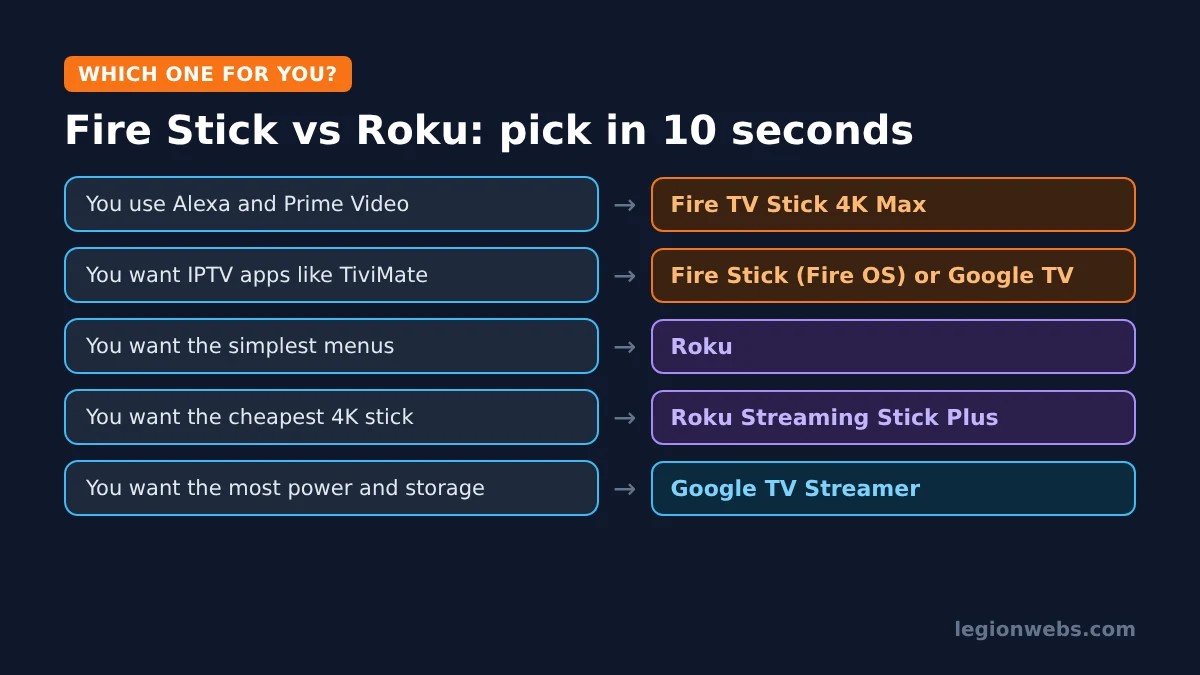
- Buy a Fire TV Stick 4K Max if you use Alexa, watch Prime Video, have a Dolby Vision TV, or want IPTV apps.
- Buy a Roku if you want the easiest menus, a low price, and you only use mainstream apps.
- Buy a Google TV Streamer if you want the most storage, Ethernet and a Google Home hub.
- Avoid Vega OS Fire TVs such as the 4K Select if you plan to sideload apps. Our Vega OS guide lists the affected models.
Setting up a Fire Stick or Roku
Both devices take about 10 minutes to set up, and the steps are almost the same. However, there are a few differences worth knowing before you start.
- Plug the stick into a free HDMI port. With a Fire Stick, use the HDMI extender if the port is tight. With a Roku Streaming Stick Plus, connect its cable to a USB port on the TV for power.
- Switch the TV to that HDMI input and pair the remote when asked.
- Connect to your Wi-Fi network. If the stick sits far from the router, choose the 2.4 GHz network for better range.
- Sign in with your Amazon account (Fire TV) or create a free Roku account (Roku). Roku may offer paid extras during setup, but you never need them to use the device.
- Install your apps and sign in to each streaming service.
After setup, a Fire Stick owner who wants IPTV adds one more step: installing Downloader and allowing apps from unknown sources. Roku owners cannot do this, which is why the platform choice matters so much for IPTV users.
What about older Fire Sticks and Rokus?
Older models still work, but they get fewer updates and have less storage and memory. If your current stick is slow, freezes or keeps running out of space, an upgrade usually helps more than any setting. In general, upgrade when apps stop updating, menus lag, or your TV supports formats your stick does not, such as Dolby Vision.
Frequently Asked Questions
Is Fire Stick or Roku better for IPTV?
A Fire Stick running Fire OS is better, because you can install IPTV players with Downloader. Roku does not allow apps from outside its store.
Do Fire Stick and Roku have monthly fees?
No. You buy the device once. You only pay for the streaming services you subscribe to, such as Netflix or your IPTV provider.
Which has more ads, Fire TV or Roku?
Both show ads on the home screen. However, Fire TV’s home screen is busier and promotes more Amazon content, while Roku keeps its ads to a smaller area.
Can I use a Fire Stick or Roku without WiFi?
Both need internet. A Fire Stick can use an Ethernet adapter, while the Roku Streaming Stick Plus is Wi-Fi only. For connection problems, see Fire Stick not connecting to WiFi.
What’s next
- Choosing between Fire TV models? Read Fire TV Stick 4K Max vs 4K Select.
- Just bought a Fire Stick? Start with how to install Downloader.
- Pick your IPTV player: TiviMate vs IPTV Smarters.
Free download
Firestick + IPTV Setup Checklist
Two printable pages: install, login, the settings that make it faster and quick fixes for buffering and an empty guide.
We'll send occasional new guides. No spam, unsubscribe any time. Privacy