
NordVPN on Android TV: Install, Sign In and Best Settings
This guide may contain affiliate links. If you buy through them we may earn a commission at no extra cost to you. As an Amazon Associate I earn from qualifying purchases. Learn more.
Lessons 10 of 10
Quick Overview: To set up NordVPN on Android TV or Google TV, install NordVPN from the Google Play Store, choose Log in and scan the QR code with your phone, accept the VPN connection request and press Quick Connect. Then set auto-connect, pick NordLynx, and use split tunneling for apps that do not like VPNs. The same steps work on Nvidia Shield, Chromecast with Google TV and Android-based TVs from Sony, TCL, Hisense and Philips.
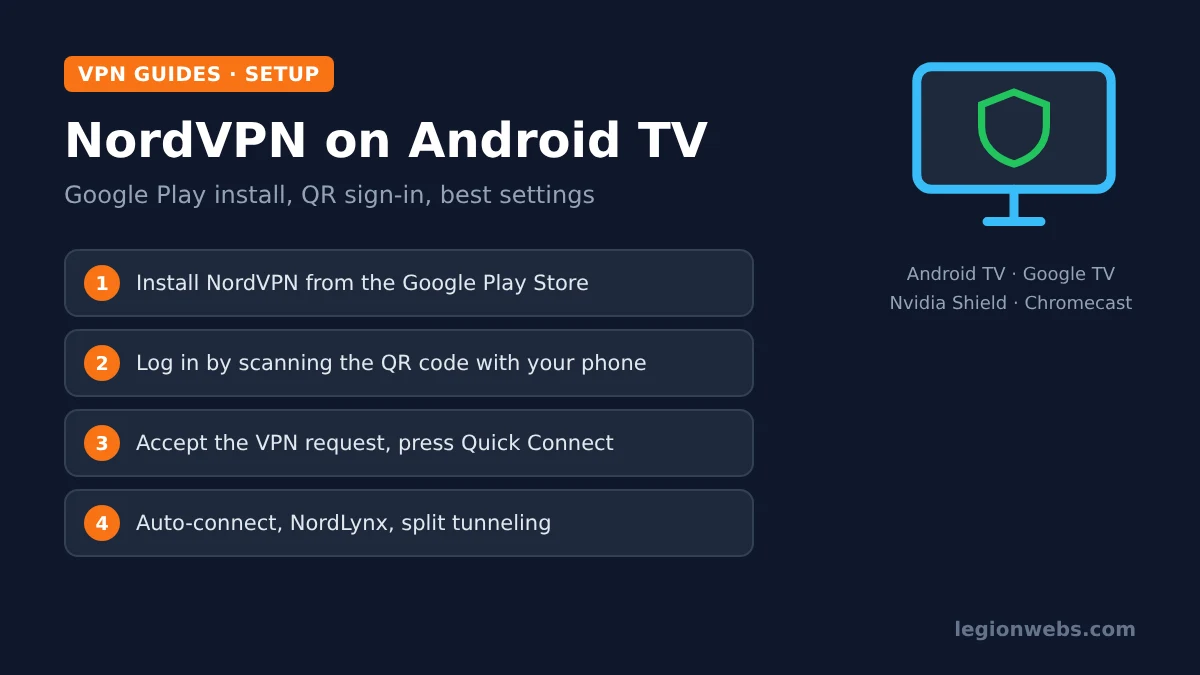
Android TV and Google TV devices are among the easiest TVs to protect, because NordVPN has a dedicated TV app in the Google Play Store. It is built for the remote, so you never type a password on screen. In this lesson, you will install NordVPN on Android TV, connect for the first time, set the options that matter on a TV, and use it alongside IPTV and streaming apps.
Disclosure: Legion Webs is a NordVPN affiliate. If you sign up through our links, we may earn a commission at no extra cost to you.
What you need
- An Android TV or Google TV device signed in to a Google account (for example Nvidia Shield, Chromecast with Google TV, or a Sony, TCL, Hisense or Philips Android TV)
- A NordVPN subscription; one plan covers up to 10 devices
- Your phone, to scan the sign-in QR code
- About 10 minutes
Not sure what your TV runs? Open Settings and look for About under System or Device Preferences. If it says Android TV or Google TV, this lesson is for you. Samsung, LG and Roku TVs cannot install the app; see VPN on smart TV for their options. On a Fire TV Stick, follow NordVPN on Firestick instead.
Step 1: Install NordVPN on Android TV from Google Play
- From the home screen, open the Google Play Store (on Google TV, go to the Apps tab or use Search).
- Search for NordVPN, by voice or with the on-screen keyboard.
- Select the app published by NordVPN and choose Install.
- When it finishes, select Open.
Always install from Google Play rather than an APK from another website. The Play Store version updates itself automatically and is guaranteed to be the official app.
Step 2: Sign in with the QR code and connect
According to NordVPN’s Android TV guide, signing in works like this:
- Open NordVPN and choose Log in (or Sign up if you do not have an account yet).
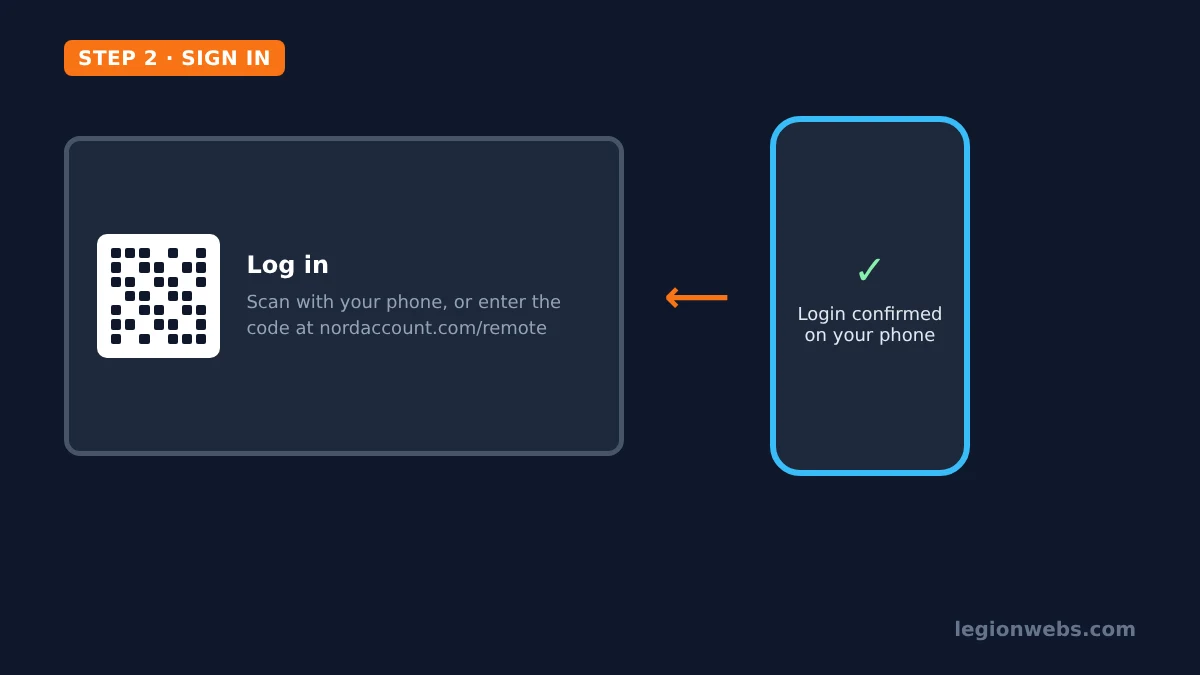
- The TV shows a QR code. Scan it with your phone’s camera and confirm the login in your browser. Alternatively, enter the numeric code shown on the TV at nordaccount.com/remote.
- The TV signs in automatically. When Android asks for permission to set up a VPN connection, select OK, and tick the checkbox if one appears.
- Press Quick Connect. The app picks a fast server for you.
To choose a location yourself, open Countries and pick a country, or a recent or popular location. In addition, the app lists specialty servers such as Obfuscated, Double VPN, Onion Over VPN and Dedicated IP, but for normal streaming a regular server near you is fastest.
Step 3: Best NordVPN settings on Android TV
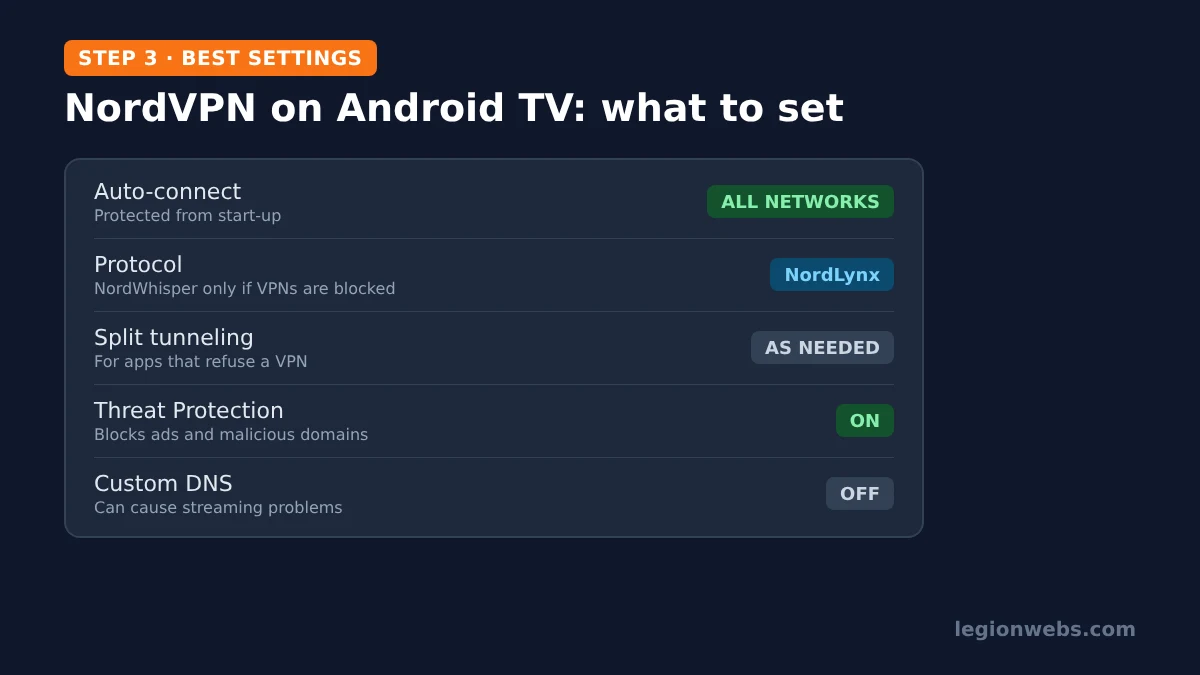
Open the app’s Settings. These are the options worth changing on a TV:
| Setting | What it does | Our recommendation |
|---|---|---|
| Auto-connect | Connects automatically on all networks, Wi-Fi only or Ethernet only | On, all networks, so the TV is protected from start-up |
| Protocol | Automatic, NordLynx, NordWhisper, OpenVPN TCP or UDP | NordLynx for speed; NordWhisper only on networks that block VPNs |
| Split tunneling | Lets chosen apps skip the VPN | Add apps that refuse to play over a VPN |
| Threat Protection | Blocks intrusive ads and malicious domains | On; set it to work always or only with the VPN |
| Local network discovery | Lets your phone and other devices see the TV | On if casting or your phone remote stops working |
| Custom DNS | Replaces NordVPN’s DNS | Off; NordVPN warns it can cause streaming problems |
NordVPN’s Android TV app also includes a post-quantum encryption option. It is optional and you can leave it at its default.
Using NordVPN on Android TV with IPTV apps
Android TV is a great IPTV device: TiviMate, IPTV Smarters Pro and OTT Navigator all run on it. A VPN helps when your internet provider slows down streaming traffic in the evening, or when you want privacy on a shared network. Therefore, the simplest setup is to turn on auto-connect and open your player as normal.
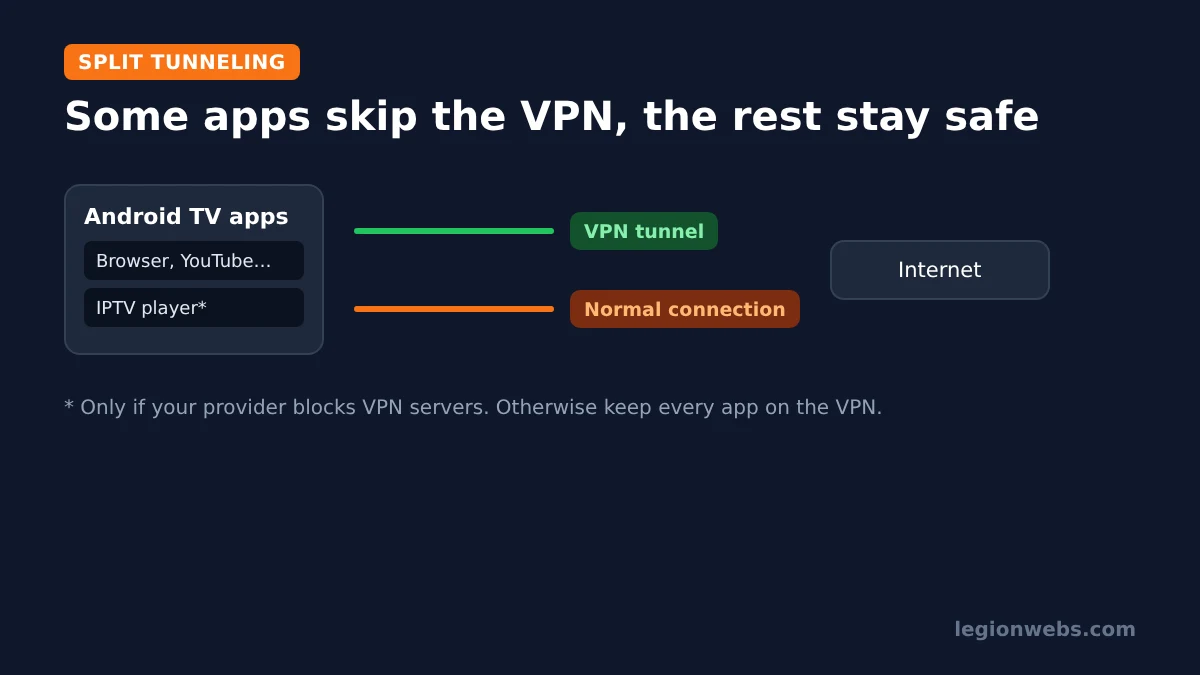
- Channels stop loading with the VPN on? Your provider may block VPN servers. Add the player to split tunneling, so it uses your normal connection while other apps stay protected.
- Your provider locks your account to one IP? A Dedicated IP keeps the same address every time.
- Buffering only with the VPN? Pick a closer server and use NordLynx.
For player setup on Android TV, see IPTV on Android TV; for the bigger picture, read VPN for IPTV. As always, a VPN protects your privacy but does not make an unlicensed service legal, so only use licensed IPTV providers.
NordVPN on Android TV not working? Quick fixes
| Problem | Likely cause | Fix |
|---|---|---|
| NordVPN not in the Play Store | Not an Android TV or Google TV device | Check Settings > About; Samsung, LG and Roku need a router or a streaming stick |
| QR code login does not finish | Phone signed in to another account | Use the numeric code at nordaccount.com/remote instead |
| Will not connect | Protocol blocked on your network | Change Protocol to NordWhisper or OpenVPN TCP |
| A streaming app shows an error | That service blocks VPN servers, or Custom DNS is on | Turn Custom DNS off, try another server, or use split tunneling |
| Phone cannot cast or control the TV | Local network hidden | Turn on Local network discovery |
| Slow streams | Distant or busy server | Use Quick Connect or a server in your own country with NordLynx |
Still stuck? Many of the same fixes apply as on Fire TV; see VPN not working on Firestick.
NordVPN on Android TV: FAQ
Is NordVPN available on Google TV?
Yes. Google TV runs on Android TV, so you install the same NordVPN app from the Google Play Store, for example on Chromecast with Google TV.
Does NordVPN work on Nvidia Shield?
Yes. NordVPN’s own guide covers Android TV and Nvidia Shield together, and the steps are the same.
How many devices can I use NordVPN on?
One subscription covers up to 10 devices at the same time, so your TV, phones and laptops can share one plan. Need more? See NordVPN vs IPVanish, since IPVanish has no fixed device limit.
Can I install NordVPN on a Samsung or LG TV?
No, those TVs cannot run VPN apps. Use NordVPN on your router, SmartDNS, or add an Android TV or Fire TV stick.
Is there a money-back guarantee?
Yes. NordVPN offers a 30-day money-back guarantee, so you can test it on your TV and ask for a refund if it does not suit you. Check the current deal on NordVPN’s offer page.
What’s next
- IPTV on Android TV: set up your IPTV player on the same device.
- VPN on smart TV: options for Samsung, LG and other TVs.
- NordVPN vs IPVanish: which VPN fits your household.
- VPN for IPTV: when a VPN helps IPTV streams.
Free download
Firestick + IPTV Setup Checklist
Two printable pages: install, login, the settings that make it faster and quick fixes for buffering and an empty guide.
We'll send occasional new guides. No spam, unsubscribe any time. Privacy