
Best Firestick Settings: 15 Changes to Make First (2026)
This guide may contain affiliate links. If you buy through them we may earn a commission at no extra cost to you. As an Amazon Associate I earn from qualifying purchases. Learn more.
Lessons 9 of 9
Quick Overview: The best Firestick settings to change first are: turn off video and audio autoplay, switch off the three privacy options, turn on Match Original Frame Rate, set the right audio format for your speakers, and turn on HDMI-CEC. After that, add a parental PIN for purchases, cut notifications, keep apps updating automatically and tidy your home screen. Together, these 15 changes make menus faster, the picture and sound better, and your device more private.
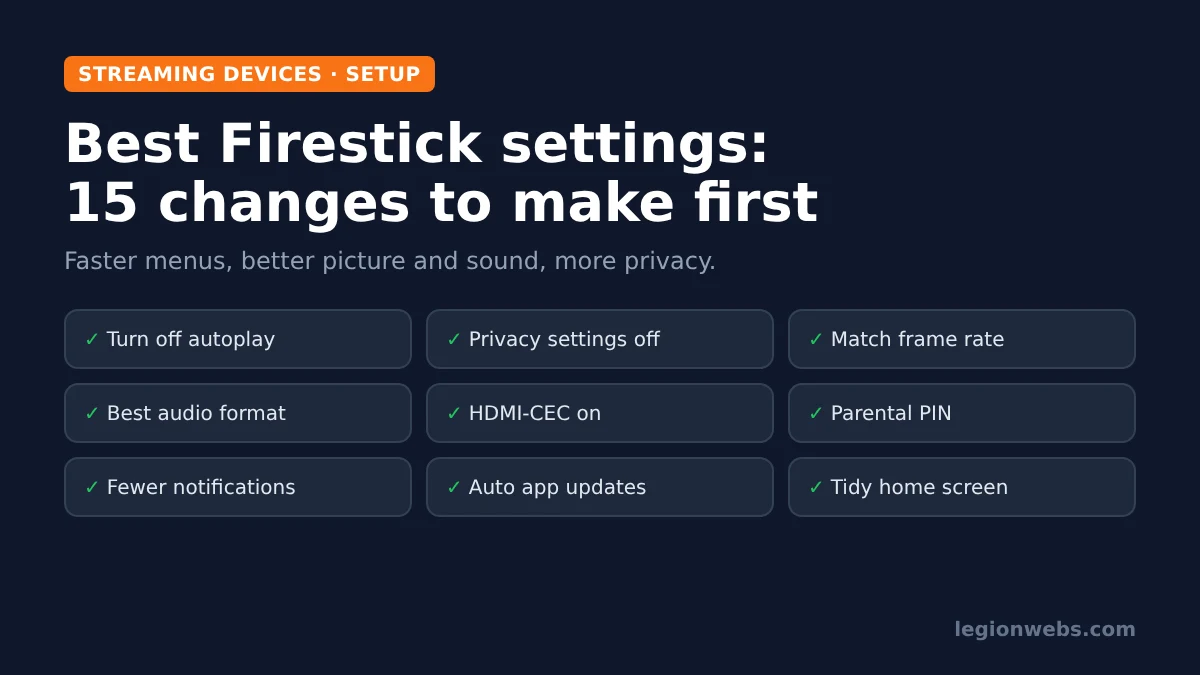
A new Fire TV Stick works out of the box, but its default settings favour Amazon’s recommendations over your viewing. For example, trailers autoplay on the home screen, usage data goes back to Amazon, and the picture is not always matched to what you watch. Fortunately, each of these takes seconds to change.
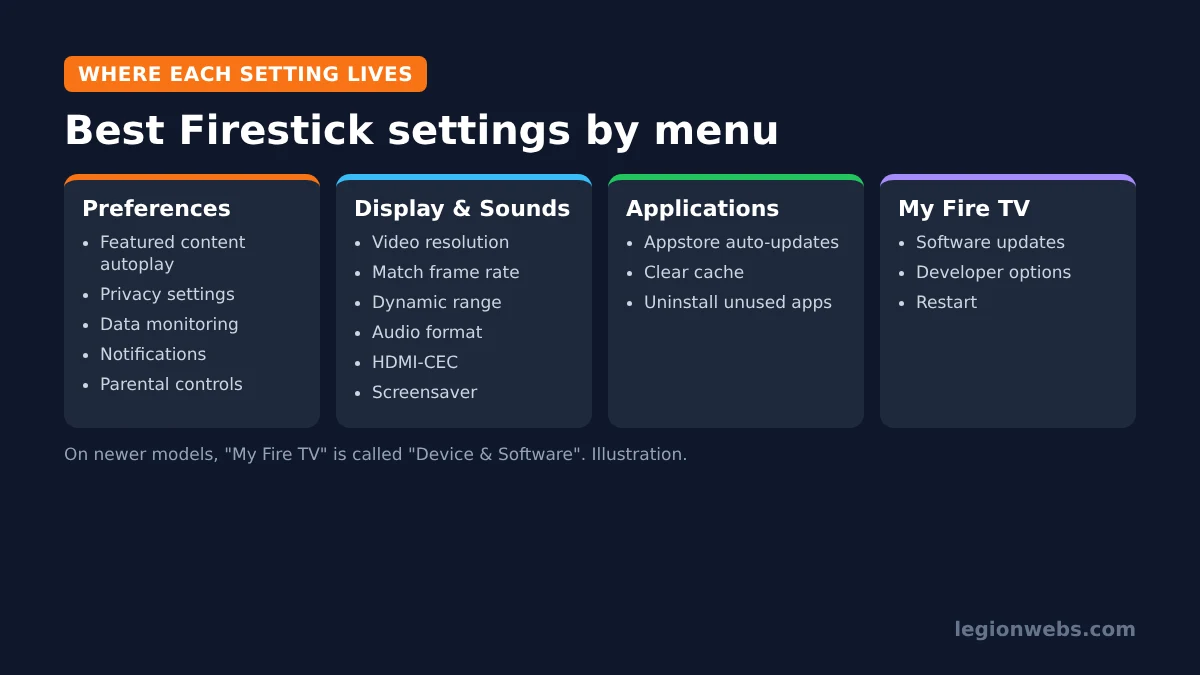
Below, you will find the 15 best Firestick settings to change after setup, grouped by the menu they live in. They apply to Fire TV Sticks on Fire OS. On newer models, the “My Fire TV” menu is called “Device & Software”, and a few names differ slightly, so look for the closest match.
What you need
- Your Fire TV Stick and remote
- To know what you connect it to: a TV only, a soundbar or an AV receiver
- About 15 minutes
Best Firestick settings in Preferences
1. Turn off autoplay, one of the best Firestick settings for speed
Go to Settings > Preferences > Featured Content and turn off Allow Video Autoplay and Allow Audio Autoplay. As a result, the home screen stops playing trailers in the banner, which makes it feel faster and quieter.
2. Best Firestick settings for privacy: switch off three options
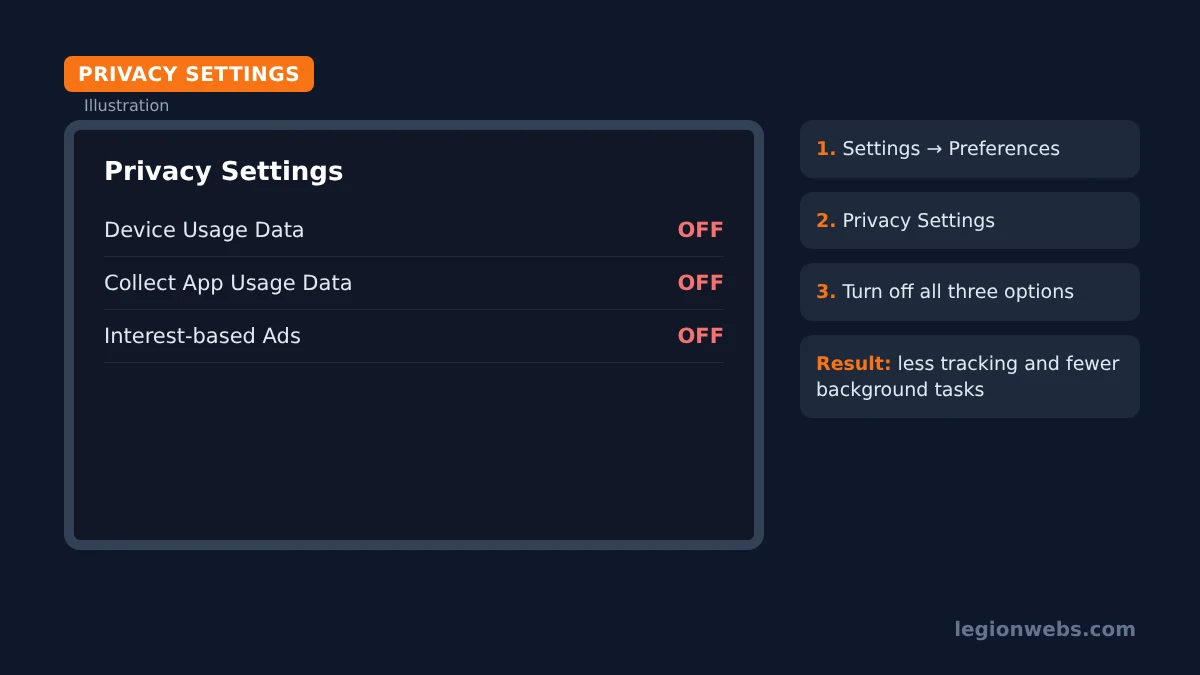
Go to Settings > Preferences > Privacy Settings and turn off Device Usage Data, Collect App Usage Data and Interest-based Ads. As a result, this limits what your stick shares and cuts some background activity.
3. Decide on data monitoring
In Settings > Preferences > Data Monitoring, you can track how much data you stream and set a video quality limit. If your internet has no data cap, turn it off to save a little processing power. On the other hand, if you have a monthly cap, keep it on and set an alert.
4. Cut notifications
Go to Settings > Preferences > Notification Settings. Turn on Do Not Interrupt to silence pop-ups, or use App Notifications to allow only the apps you care about.
5. Add a parental controls PIN
Open Settings > Preferences > Parental Controls, turn them on and set a PIN. Even without children, however, a PIN stops accidental purchases and rentals. You can choose which content and actions need the PIN.
Best Firestick settings for picture and sound
6. Check the video resolution
Go to Settings > Display & Sounds > Display > Video Resolution. In most cases, leave it on Auto. However, if the picture looks wrong or flickers, set the exact resolution your TV supports, such as 4K or 1080p.
7. Turn on Match Original Frame Rate
In the same Display menu, turn on Match Original Frame Rate if your model offers it. Films shot at 24 frames per second then play at their true speed, which removes the slight judder you see in slow camera pans. However, some apps support it better than others.
8. Set dynamic range to Adaptive
Under Dynamic Range Settings, choose Adaptive rather than Always HDR. That way, HDR content plays in HDR, while normal content keeps its correct colours instead of looking washed out.
9. Pick the right audio format
Go to Settings > Display & Sounds > Audio. With a soundbar or receiver that supports Dolby, set Surround Sound to the best available option. If you use only TV speakers and hear no sound in some apps, choose stereo instead.
10. Turn on HDMI-CEC
In Display & Sounds, turn on HDMI CEC Device Control. After that, the Fire TV remote can turn the TV on and off and switch inputs. Also check Settings > Equipment Control so the remote can change your TV or soundbar volume.
11. Adjust the screensaver
In Display & Sounds > Screensaver, set a start time that suits you, or turn it off if you pause often and the screensaver gets in the way.
Best Firestick settings for apps and speed
12. Keep apps updating automatically
Go to Settings > Applications > Appstore and make sure Automatic Updates is on. After all, updated apps fix bugs and keep streaming services working.
13. Clear cache and remove unused apps
Once a month, clear the cache of your biggest apps and uninstall apps you no longer use. Our lessons on clearing cache on Firestick and Fire Stick storage full show what to remove and what to keep.
14. Install system updates
Go to Settings > My Fire TV > About and choose Check for Updates. Updates arrive automatically, but a manual check after setup gets you the latest fixes straight away.
15. Tidy your home screen
Press the Apps button (or open Your Apps), highlight an app, press the Menu button and choose Move. Then put the apps you use daily in the first row. Consequently, you reach them in one click instead of scrolling past suggestions.
Best Firestick settings checklist
Use this table as a quick checklist after setup, or after a factory reset, so you do not miss anything.
| # | Setting | Recommended | Why |
|---|---|---|---|
| 1 | Video and audio autoplay | Off | As a result, a quieter, faster home screen |
| 2 | Privacy options (3) | Off | Therefore, less tracking and background work |
| 3 | Data monitoring | Off, unless you have a data cap | In turn, it saves a little processing power |
| 4 | Notifications | Do Not Interrupt or selected apps | Thus, fewer pop-ups during shows |
| 5 | Parental controls | On, with a PIN | Above all, it stops accidental purchases |
| 6 | Video resolution | Auto | In most cases, it matches your TV |
| 7 | Match Original Frame Rate | On | As a result, smoother films |
| 8 | Dynamic range | Adaptive | In short, correct colours for HDR and SDR |
| 9 | Audio format | Best available with Dolby speakers; stereo for TV only | That way, the right sound for your setup |
| 10 | HDMI-CEC | On | Consequently, one remote for TV power and input |
| 11 | Screensaver | Your choice | Fewer interruptions when paused |
| 12 | Appstore automatic updates | On | Because of this, apps keep working |
| 13 | Cache and unused apps | Clean monthly | Therefore, more free space and memory |
| 14 | System updates | Check after setup | In addition, you get the latest fixes |
| 15 | Home screen apps | Favourites in the first row | As a result, one-click access |
Best Firestick settings for IPTV users
- Developer options: to install players like TiviMate, allow apps from unknown sources for Downloader. Our Downloader lesson shows where to find it. This does not work on Vega OS models.
- Network: for live TV, a strong connection matters most. If you see drops, read Fire Stick not connecting to WiFi.
- Player settings: after the Fire TV settings, tune your IPTV player too. See how to fix IPTV buffering on Firestick.
Firestick settings to leave alone
- Factory reset: only use it as a last resort, because it removes all apps and settings. Our factory reset guide explains when it makes sense.
- Clear data on apps you use: it signs you out and removes settings, unlike Clear cache.
- Forced resolutions your TV does not support: they can leave you with a black screen. If that happens, hold Up + Rewind on the remote for about 10 seconds to cycle through resolutions.
For more speed tips from a second source, see Tom’s Guide’s Fire TV settings guide.
Frequently Asked Questions
Which of the best Firestick settings makes the biggest speed difference?
Usually, turning off autoplay and removing unused apps help most. After that, a restart clears memory and makes menus snappier.
Will the best Firestick settings reset after an update?
In general, they stay. Still, it is worth checking the privacy and autoplay options after a big Fire OS update.
Is it safe to turn off the privacy settings?
Yes. In fact, turning them off only limits data sharing and personalised ads. Your apps and streaming keep working normally.
What’s next
- Install your first IPTV player with Downloader.
- Remote acting up? Read Fire Stick remote not working.
- Thinking of upgrading? Compare Fire Stick vs Roku.
Free download
Firestick + IPTV Setup Checklist
Two printable pages: install, login, the settings that make it faster and quick fixes for buffering and an empty guide.
We'll send occasional new guides. No spam, unsubscribe any time. Privacy