
Fire Stick Not Connecting to WiFi? 8 Fixes That Work (2026)
This guide may contain affiliate links. If you buy through them we may earn a commission at no extra cost to you. As an Amazon Associate I earn from qualifying purchases. Learn more.
Lessons 6 of 6
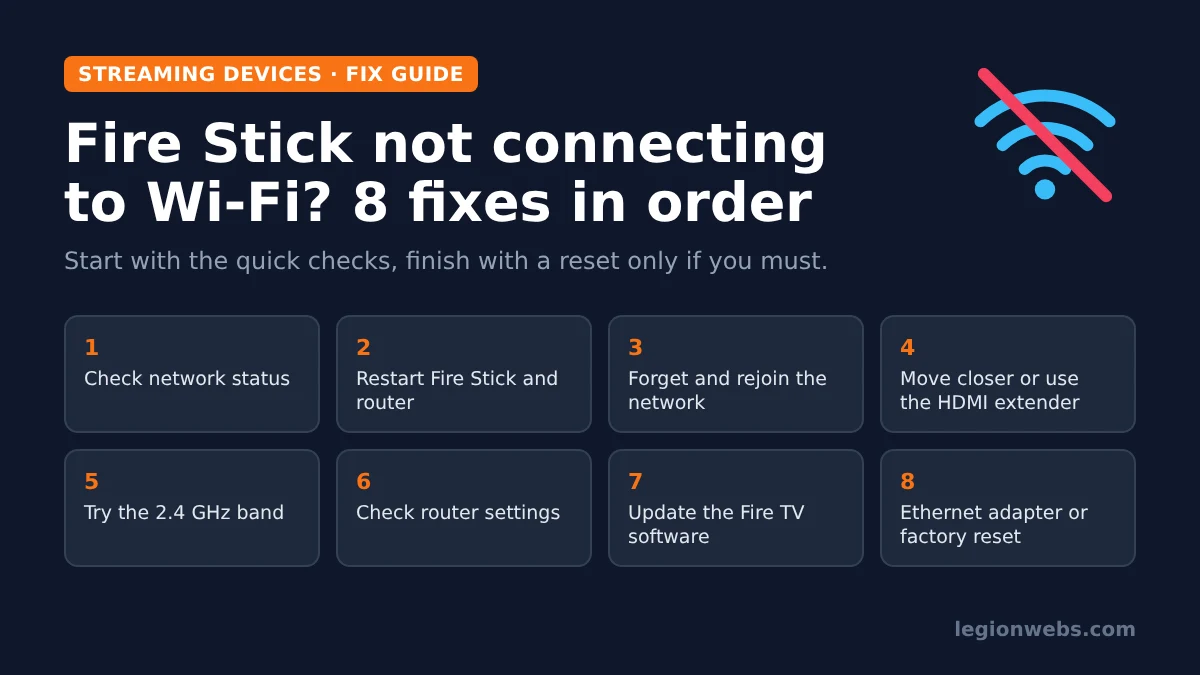
Quick Overview: If your Fire Stick is not connecting to WiFi, first check whether other devices are online, then restart the Fire Stick and your router. Next, forget and rejoin the network, move the stick closer (or use the HDMI extender) and try the 2.4 GHz band. Router settings, a software update, an Ethernet adapter and, as a last resort, a factory reset cover the rest. Most people are back online within 10 minutes.
A Fire Stick not connecting to WiFi is one of the most common streaming problems, and it is rarely a broken device. In most cases, the cause is a weak signal behind the TV, a router that needs a restart, a saved password that changed, or a router setting the Fire Stick does not like. Because of that, the fixes below run from the quickest checks to the more involved ones. Work through them in order and stop as soon as you are back online.
These steps apply to every current Fire TV Stick, including the Fire TV Stick 4K Max, 4K, HD and Lite, and to Fire TV Cube and Fire TV smart TVs. Menu names can differ slightly between Fire OS and the newer Vega OS models, so where a menu has a different name, we say so.
What you need
- Your Fire Stick and its remote (or the Fire TV app on your phone as a backup remote)
- Your WiFi network name and password, written down exactly (passwords are case-sensitive)
- Access to your router, so you can unplug it or open its settings
- About 10 to 20 minutes
Why is your Fire Stick not connecting to WiFi?
Before you change anything, answer four quick questions. They tell you whether the problem sits with your internet connection, the WiFi signal, the saved password or the Fire Stick itself. As a result, you can jump straight to the fix that matters.
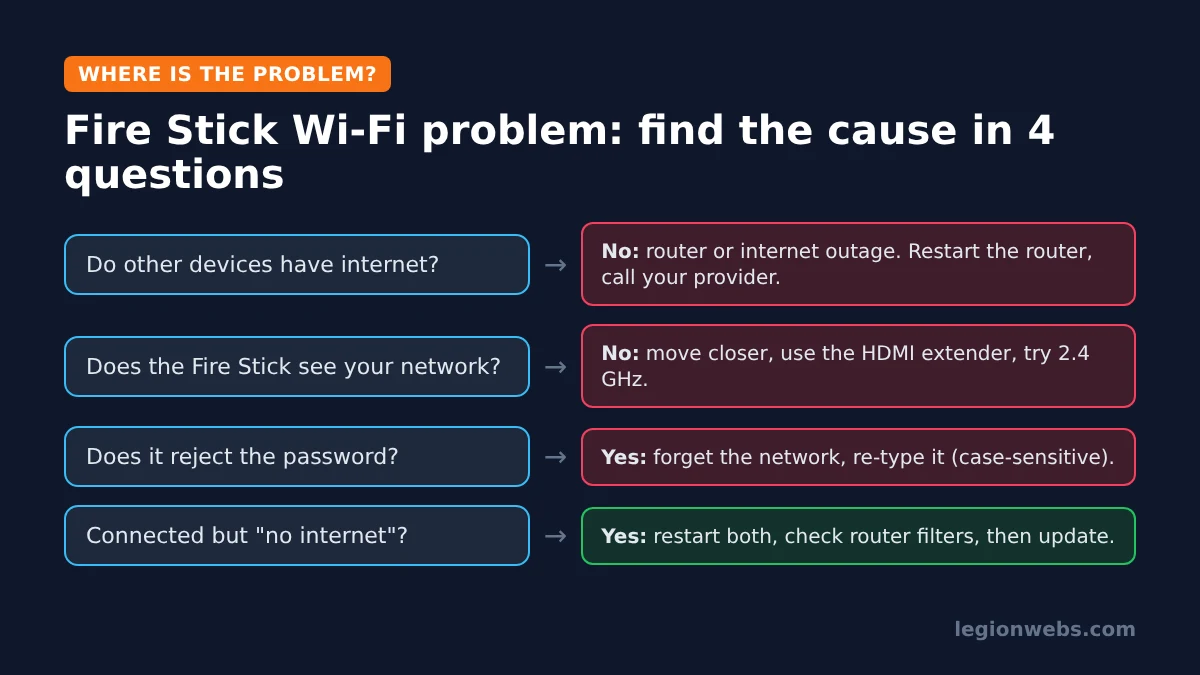
- Other phones and laptops are offline too: the problem is your router or your internet provider, not the Fire Stick. Go to Fix 2.
- The Fire Stick does not list your network at all: the signal is too weak or on a band it cannot see. Go to Fix 4 and Fix 5.
- It says the password is wrong: go to Fix 3.
- It connects but shows “connected with problems” or no internet: go to Fix 2, then Fix 6 and Fix 7.
Fix 1: Check the Fire Stick network status
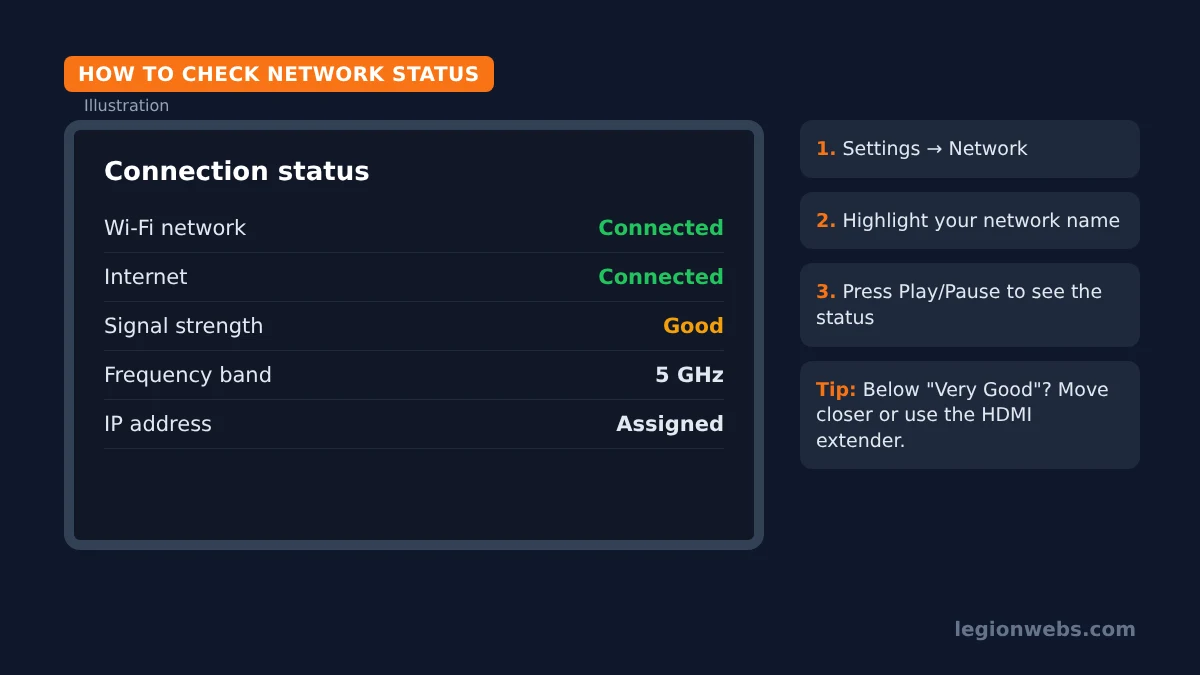
The Fire Stick has a built-in status screen that shows whether it reaches your router and the internet, plus how strong the signal is. It takes 30 seconds and tells you where to look next.
- Press Home on the remote and open Settings (the gear icon).
- Select Network.
- Highlight your network name, then press Play/Pause on the remote.
- Read the status. If the signal strength is lower than “Very Good”, the stick is probably too far from the router or blocked by the TV.
Fix 2: Restart the Fire Stick and the router
A restart clears temporary glitches on both sides, and it fixes a surprising number of WiFi problems. Restart the router first, then the Fire Stick, so the stick finds a fresh connection when it boots.
- Unplug your router (and modem, if it is a separate box) from power.
- Wait at least 30 seconds, then plug it back in. Give it two to three minutes until its lights settle.
- On the Fire Stick, go to Settings > My Fire TV > Restart. On newer models this menu is called Device & Software. Alternatively, hold Select + Play/Pause on the remote for about 5 seconds.
- If the menu does not respond, unplug the Fire Stick’s power cable for 30 seconds instead.
Tip: plug the Fire Stick into the wall adapter that came in the box rather than a TV USB port. A TV port often gives too little power, which causes dropouts that look like WiFi problems.
Fix 3: Forget the network and connect again
If you changed your WiFi password, got a new router or see a “wrong password” message, the saved details are out of date. Removing them and joining again fixes this.
- Go to Settings > Network and highlight your network.
- Press the Menu button (three lines) and choose Forget this network.
- Select the network again and type the password slowly. Use the on-screen key that shows the characters, and check capital letters and symbols.
- Select Connect.
If your network is hidden, it will not appear in the list. In that case, scroll to the bottom and choose Join other network, then type the network name exactly as it is set on the router.
Fix 4: Improve the signal behind the TV
The Fire Stick sits behind your TV, and the TV’s metal frame blocks a lot of WiFi signal. In fact, a weak signal is the most common reason for a Fire Stick not connecting to WiFi. Consequently, a stick that is only a few metres from the router can still get a poor connection.
- Use the HDMI extender cable from the box. It moves the stick a few centimetres away from the TV and often lifts the signal by a full bar.
- Move the router higher and into the open, away from walls, microwaves and cordless phone bases.
- If the router is in another room, a mesh WiFi system or a WiFi extender near the TV is the long-term fix.
Fix 5: Try the 2.4 GHz band
Most routers broadcast two bands. The 5 GHz band is faster but has a shorter range, while 2.4 GHz reaches further and passes walls more easily. If your router shows two network names (for example “Home” and “Home-5G”), connect the Fire Stick to the 2.4 GHz one and test again. Afterwards, if streaming is smooth, you can stay there.
Some routers use one name for both bands (“band steering”). If the stick keeps dropping, you can split the bands in the router settings and give the 2.4 GHz band its own name.
Fix 6: Check your router settings
When the Fire Stick connects but has no internet, a router setting is often the reason. Log in to your router app or admin page and check these points:
- Device limits or MAC filtering: make sure the Fire Stick is not blocked or paused, for example by parental controls.
- Security type: some older Fire Sticks struggle with WPA3-only networks. Set the router to WPA2/WPA3 mixed mode.
- Too many devices: some routers stop handing out addresses when many devices are connected. A router restart (Fix 2) or a higher device limit solves this.
- Hotel or public WiFi: networks with a sign-in page need you to accept the terms on the TV. If the page does not appear, those networks may block streaming devices entirely.
Fix 7: Update the Fire TV software
Amazon fixes connection bugs in system updates. Once you have any connection, even a weak one or a phone hotspot, install the latest version.
- Go to Settings > My Fire TV > About (or Device & Software > About).
- Select Check for updates, then Install update if one is available.
- Keep the stick plugged in until it restarts by itself.
Fix 8: Fire Stick still not connecting to WiFi? Use Ethernet or reset
If your Fire Stick is still not connecting to WiFi, you have two options. First, an Ethernet adapter for Fire TV connects the stick to your router with a cable. It skips WiFi problems completely and gives the most stable picture for 4K streaming and live TV.
Second, a factory reset removes everything, including bugs in saved network settings. Use it only after the other fixes, because you will need to sign in and reinstall your apps afterwards. Our factory reset guide shows both methods, including one that works without WiFi.
Fire Stick not connecting to WiFi: quick symptom guide
| What you see | Likely cause | Best fix |
|---|---|---|
| Your network is not in the list | Weak signal, hidden network or 5 GHz out of range | Fix 4, Fix 5, “Join other network” |
| “Incorrect password” | Changed or mistyped password | Fix 3 |
| “Connected with problems” | Router or internet issue, blocked device | Fix 2, Fix 6 |
| Connects, then drops after a few minutes | Low power, interference, band steering | Wall adapter, Fix 4, Fix 5 |
| Every app says “no internet” | Outage or router setting | Fix 1, Fix 2, Fix 6 |
| Nothing works after all fixes | Software or hardware fault | Fix 7, Fix 8, then contact Amazon support |
Amazon also keeps an official checklist for connection problems in its Fire TV WiFi help page, which is worth a look if your device is still under warranty.
Frequently Asked Questions
Why does my Fire Stick say connected but no internet?
The stick reaches your router, but the router is not passing internet through. Restart the router first. If other devices work, check that the Fire Stick is not paused or filtered in the router settings.
Can I use a Fire Stick without WiFi?
Yes, with an Ethernet adapter and a cable to your router. You can also share your phone’s mobile hotspot, although streaming uses a lot of data.
Why does my Fire Stick keep disconnecting from WiFi?
Usually because of a weak signal behind the TV, too little power from a TV USB port, or a router switching it between bands. Use the HDMI extender and the original wall adapter, and try the 2.4 GHz network.
How do I control the Fire Stick if the remote and WiFi both fail?
The phone app only works on the same network, so it cannot help until the stick is online. Fix the remote first with our remote troubleshooting lesson, then reconnect the WiFi.
What’s next
- Streaming but still buffering? Read how to fix buffering on Fire Stick.
- Low on space after reconnecting? Learn how to clear cache on Firestick.
- Want a private connection on your stick? Follow how to install a VPN on Firestick.