
How to Clear Cache on Firestick & Free Up Storage (2026)
This guide may contain affiliate links. If you buy through them we may earn a commission at no extra cost to you. As an Amazon Associate I earn from qualifying purchases. Learn more.
Lessons 2 of 6
Quick Overview: To clear cache on Firestick, open Settings → Applications → Manage Installed Applications, pick an app and select Clear cache. It takes seconds per app, deletes no logins, and often makes a slow Fire TV feel new again. This lesson shows which apps to clear first, how to free up storage, and when to use Clear data instead.
Every app on your Fire TV saves temporary files, called cache, so it can load faster next time. Over weeks, these files pile up. As a result, a Fire TV Stick with only 8 GB of storage can fill up, and then menus lag, apps crash and streams buffer. Clearing the cache removes those temporary files safely.
Clear cache vs Clear data: know the difference
| Clear cache | Clear data | |
|---|---|---|
| What it deletes | Temporary files only | Everything the app saved |
| Logins and playlists | Kept | Deleted, you sign in again |
| Settings and favorites | Kept | Reset to default |
| When to use it | Slow app, regular cleanup | App crashes even after clearing cache |
In short, start with Clear cache. Use Clear data only as a last resort, and write down your login details first.
Step 1: Check your Firestick storage
Go to Settings → My Fire TV → About → Storage. If less than about 1 GB is free, cleaning up will make a clear difference. Otherwise, clearing cache still helps when one app is slow.
Step 2: Clear cache on Firestick, app by app
- First, press Home and open Settings (the gear icon).
- Then select Applications, then Manage Installed Applications.
- Select an app, for example your IPTV player.
- Select Force stop, then Clear cache.
- Press Back and repeat for the next app.
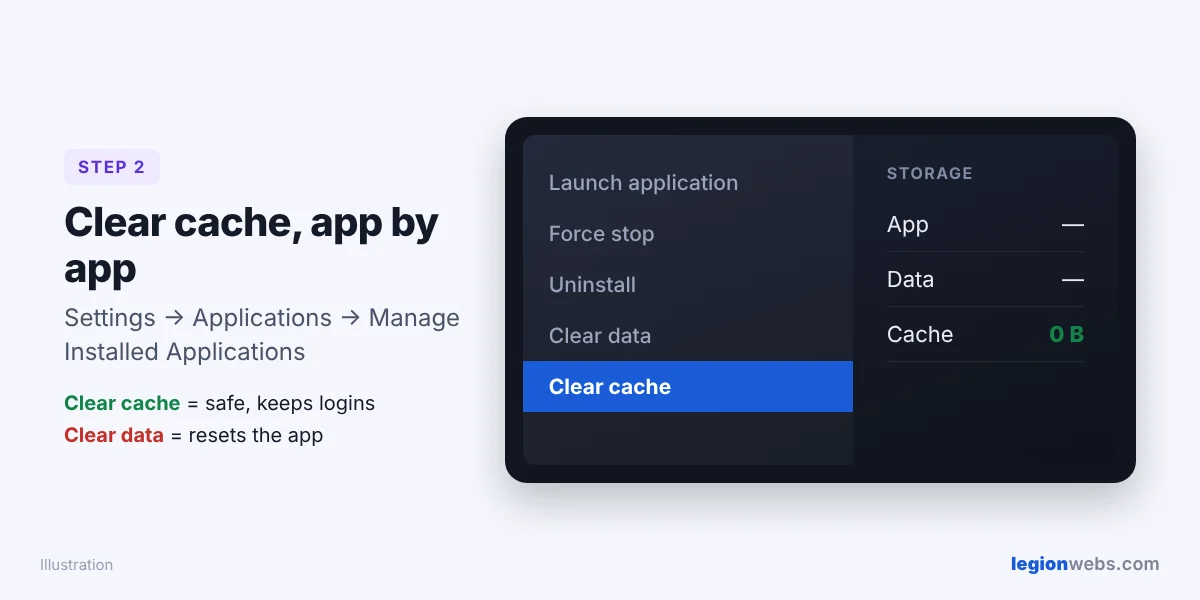
Amazon describes the same steps in its help page on clearing app data and cache. There is no single “clear all” button on Fire TV, so do it per app.
Which apps to clear first
- IPTV players such as TiviMate, IPTV Smarters and OTT Navigator. Large playlists and TV guides create big caches.
- Streaming apps such as YouTube, Netflix and Prime Video.
- Silk Browser and Downloader, which store web pages and files.
Step 3: Free up more storage
- Uninstall apps you never use: in Manage Installed Applications, select the app, then Uninstall.
- Delete old installer files: open Downloader, go to the Files tab and delete any .apk files.
- Avoid “cleaner” apps: they often run in the background, show ads and use the very memory you want to save.
Step 4: Restart your Firestick
Finally, go to Settings → My Fire TV → Restart. A restart clears memory and closes leftover background tasks. For best results, repeat this cleanup once a month, or whenever your Fire TV starts to feel slow.
Troubleshooting a slow Firestick
| Problem | Fix |
|---|---|
| An app still crashes after clearing cache | Use Clear data, then sign in again. If that fails, uninstall and reinstall it. |
| Storage fills up again quickly | Check which app is biggest in Manage Installed Applications, and lower its cache or guide settings. |
| Menus lag even with free storage | Turn off Settings → Preferences → Featured Content autoplay, then restart. |
| Streams still buffer | The cause is probably your connection. Follow How to Fix IPTV Buffering on Firestick. |
| Old stick is slow no matter what | Older models have little memory. A Fire TV Stick 4K Max has 16 GB of storage and 2 GB of RAM. |
Frequently Asked Questions
Is it safe to clear cache on Firestick?
Yes. Clearing cache only removes temporary files. Your apps, logins and settings stay.
How often should I clear the cache?
About once a month, or whenever an app gets slow. Heavy IPTV users may want to do it more often.
Can I clear all app caches at once?
Not with the built-in settings. You clear each app separately, which only takes a few seconds per app.
Will clearing cache delete my IPTV playlist?
No. Only Clear data deletes your playlist login. Clear cache keeps it.
What’s next
Now that you can clear cache on Firestick, your device should run faster. Next, compare models in Fire TV Stick 4K Max vs 4K Select, or set up your first apps with Downloader.